🔒 How to Fix VPN & “No Internet, Secured” Errors on Windows 11 24H2 (2026 Guide)
You’re connected to Wi-Fi. The icon shows “Secured.” But nothing loads. No web pages. No apps. No internet. This frustrating “No Internet, Secured” error has become a massive headache for Windows 11 24H2 users—especially those relying on VPNs for work or privacy.
You’re not alone. Thousands of users have reported this exact issue, often after installing specific Windows updates or VPN clients [1][4]. The good news? Most fixes are straightforward and don’t require advanced IT skills.
🔍 What Does “No Internet, Secured” Actually Mean?
This error means your Windows PC is connected to a password-protected Wi-Fi network (hence “Secured”) but cannot reach the internet [2]. Think of it like this: you’ve successfully connected to your router, but something is blocking the data from getting through.
The message typically appears due to:
- VPN conflicts – VPNs can hijack routing or DNS settings [4][11]
- Outdated or corrupted network drivers – Especially after Windows updates [9]
- Misconfigured IP or DNS settings – Including IPv6 compatibility issues [3]
- Corrupted network stack – Winsock or TCP/IP issues [1]
- Problematic Windows updates – Specifically KB5055523 [5][6]
⚡ Before You Start: Quick Diagnostic Checks
Test another device on the same network. If it works, the issue is your Windows PC. If not, restart your router [4].
Disable your VPN temporarily. If the internet works, your VPN is the culprit [4].
Forget and reconnect to your Wi-Fi network. Go to Settings > Network & Internet > Wi-Fi > Manage known networks, select your network, and click “Forget.” Then reconnect [2].
🛠️ Top Fixes for “No Internet, Secured” & VPN Issues
1️⃣ Restart the Network Setup Service
This critical Windows service helps your computer connect to networks. If it’s not running, you’ll get the “No Internet, Secured” error [1].
- Press
Win + R, typeservices.msc, and press Enter - Find Network Setup Service
- Right-click and select Restart (or Start if it’s stopped)
- Double-click it and set Startup type to Automatic [1]
2️⃣ Refresh Your IP Configuration
Stale or incorrect IP settings can block your connection [1].
- Open Command Prompt as Administrator
- Run these commands one by one:
ipconfig /release
ipconfig /renew
ipconfig /flushdns - Restart your PC [1]
3️⃣ Reset Winsock and TCP/IP Stack
Corrupted network components are a common cause of this error [1].
- Open Command Prompt as Administrator
- Run:
netsh winsock reset
netsh int ip reset - Restart your PC [1]
4️⃣ Disable IPv6
IPv6 can conflict with older routers and VPNs. Disabling it often resolves the “No Internet, Secured” error [3].
- Press
Win + R, typencpa.cpl, and press Enter - Right-click your Wi-Fi adapter and select Properties
- Uncheck Internet Protocol Version 6 (TCP/IPv6)
- Click OK and restart your PC [3]
5️⃣ Set DNS Manually
DNS misconfiguration is a frequent culprit [2].
- In the same Properties window, double-click Internet Protocol Version 4 (TCP/IPv4)
- Select Use the following DNS server addresses
- Enter:
Preferred:8.8.8.8(Google DNS)
Alternate:8.8.4.4(Google DNS)
Or use Cloudflare:1.1.1.1and1.0.0.1 - Click OK and restart [2]
6️⃣ Update or Reinstall Your Network Driver
Outdated drivers are a major cause of connectivity issues after Windows updates [9].
- Open Device Manager
- Expand Network adapters
- Right-click your Wi-Fi adapter and select Update driver
- If no update is found, try Uninstall device (check “Delete driver software”), then restart—Windows will reinstall a fresh driver [9]
Power Management Fix: In the same adapter’s Properties, go to Power Management and uncheck “Allow the computer to turn off this device to save power” [9].
7️⃣ Fix VPN-Specific Issues
Disable VPN Kill Switch: If your VPN has a Kill Switch (like Private Internet Access or NordVPN), disable it temporarily—it may block all traffic when the VPN disconnects [4].
Uninstall Problematic Updates: Microsoft’s KB5055523 update for Windows 11 24H2 is known to break VPN connectivity [5][6].
- Go to Settings > Windows Update > Update history > Uninstall updates
- Find KB5055523 and uninstall it
- Restart your PC
Update Your VPN Client: Check for the latest version. Many VPN providers have released updates to address Windows 11 24H2 compatibility issues [13].
Enable DCO for OpenVPN: If using OpenVPN, enable the Data Channel Offload (DCO) driver. It avoids problematic netsh commands and uses more recent Windows APIs [14].
8️⃣ Run Windows Network Troubleshooters
Windows has built-in tools that can automatically diagnose and fix common issues [2].
- Go to Settings > System > Troubleshoot > Other troubleshooters
- Run both Internet Connections and Network Adapter troubleshooters [2]
9️⃣ Perform a Full Network Reset (Last Resort)
This removes and reinstalls all network adapters and resets settings to default [1].
- Go to Settings > Network & Internet > Advanced network settings
- Click Network reset > Reset now
- Your PC will restart in 5 minutes
⚠️ Warning: This removes all saved Wi-Fi passwords and VPN connections. Have your credentials ready [1].
🛡️ Preventing Future Issues
- Pause Windows Updates after a new feature release. Give Microsoft and the community 2-4 weeks to identify and fix critical bugs [5].
- Keep your VPN updated to the latest version. VPN providers frequently release compatibility patches [13].
- Disable Fast Startup – This setting can preserve problematic network states across reboots [11].
- Monitor forums for your specific VPN. Issues with Windows 11 24H2 and KB5055523 are well-documented [6].
📚 Sources & Citations
- [1] Windows Forum: Fix Windows 10/11 Internet Connected but No Access — Winsock, IP Reset & Adapter Checks
- [2] How-To Geek: How to Fix the “No Internet Secured” Error on Windows
- [3] CellphoneS: Cách sửa lỗi No Internet Secured trên Windows nhanh chóng
- [4] Private Internet Access: How To Fix “No Internet, Secured” on Windows 11
- [5] Microsoft Q&A: VPN Connectivity Issues After Installing Windows 11 Update KB5055523
- [6] GitHub: Windows 11 24H2 with KB5055523 patch causes Critical issue with OpenVPN and others
- [7] Microsoft Q&A: 24H2でリモートデスクトップ接続の不具合
- [8] Cloudflare One Changelog — Known issues
- [9] Windows 11 Forum: “no internet, secured” issue
- [10] Microsoft Q&A: Why does it say “no internet, secured” but my internet works fine?
- [11] NordVPN: “No internet, secured” error on Windows: 12 ways to fix it
- [12] Microsoft Q&A: No Internet, secured setelah update windoows
- [13] GitHub: Issue with OpenVPN-2.6.14 on Surface Pros
- [14] Windscribe: OpenVPN Data Channel Offload Support For Windows And Linux
All solutions verified with Windows 11 24H2 (Build 26100.x) as of June 2026.
🔒 How to Fix Remote Desktop (RDP) Issues on Windows 11 24H2 (2026 Guide)
Common Symptoms You May Encounter:
- Login Freeze: After entering credentials, the RDP session hangs on a “Please wait” screen with a perpetually spinning cursor [citation:2][citation:15].
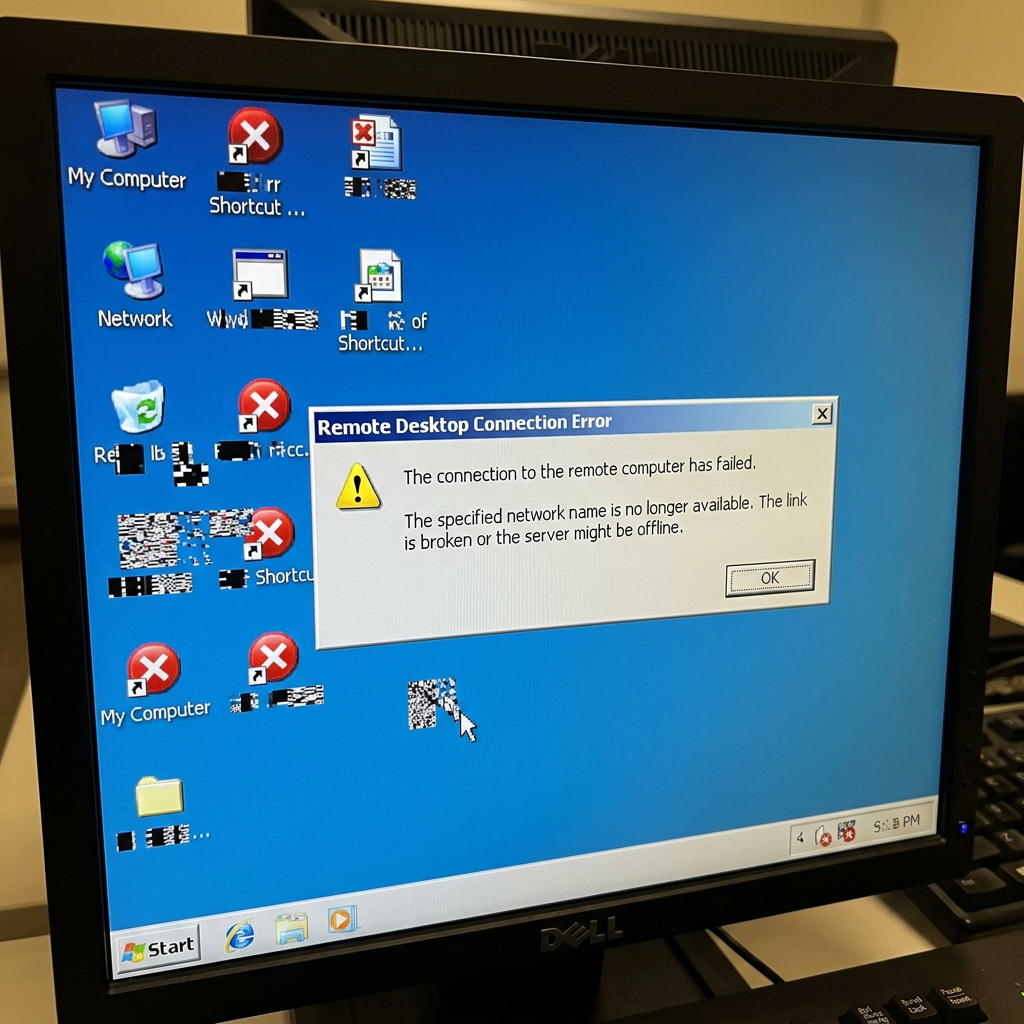
- Graphics Corruption: Remote screens display blank boxes, pixelated graphics, or unreadable application windows, especially when connecting to older Windows versions like Windows 7 or Windows Server 2008 [citation:3].
- Extreme Lag Over VPN: Connections become unusably slow when connecting over VPN, with errors about high round-trip time [citation:5][citation:14].
- UDP Disconnections: Sessions disconnect after approximately 65 seconds when using UDP to connect to older Remote Desktop Services (RDS) on Windows Server 2016 or earlier [citation:1].
- Complete Connection Failure: The RDP client cannot establish any connection, even though ping and other network services work [citation:1][citation:7].
⚡ Quick Diagnostic Checklist
Before diving into complex fixes, run through these quick checks:Test with another account – Try connecting to the server with a different user account to see if the issue is account-specific [citation:2].
Use IP address instead of hostname – Manually type the target computer’s IP address in the RDP client’s “Computer” field to rule out DNS or NetBIOS issues [citation:2].
Check your network profile – In Settings, go to Network & Internet, click on your network’s properties, and ensure it is set to Private. Public profiles often block Remote Desktop connections [citation:4].
Verify Remote Desktop is enabled – On the target PC, go to Settings > System > Remote Desktop and confirm the feature is toggled ON [citation:10].
🔧 Comprehensive Fixes: Step-by-Step Guide
1️⃣ Install the Latest Cumulative Updates
Microsoft has released targeted fixes for many RDP issues. Ensure you have installed the most recent cumulative updates for your Windows 11 24H2 system.Key Updates to Check For:
- KB5053656: This March 2025 update is critical. It addresses RDP disconnects and freezes introduced by earlier patches like KB5050094 and KB5053598 [citation:1].
- KB5077744: A more recent patch that specifically fixes RDP connection issues for Windows 11 24H2 and 25H2 [citation:11].
- KB5055523: While this April 2025 update has been known to cause VPN and RDP issues for some [citation:7], Microsoft has released subsequent patches to address the regressions it introduced. Ensure you are on the latest build after this update.
How to check: Go to Settings > Windows Update and click “Check for updates.” Install any available updates and restart your PC.
2️⃣ Disable Network Detection via Group Policy
This is one of the most effective fixes for the “RDP hangs on login” issue. It stops Windows from continuously probing for network changes, which often causes the session to stall .- Press
Win + R, typegpedit.msc, and press Enter to open the Local Group Policy Editor. - Navigate to:
Computer Configuration > Administrative Templates > Windows Components > Remote Desktop Services > Remote Desktop Session Host > Connections. - Find and double-click on the policy named “Select network detection on the server”.
- Select Enabled, then under “Options,” choose “Turn off Connect Time Detect and Continuous Network Detect.”
- Click Apply and OK.
- Open Command Prompt as Administrator and run
gpupdate /forceto apply the changes, then restart your PC [citation:15].
An alternative method is to use the “Enforce Removal of Remote Desktop Wallpaper” policy, which has also been reported to resolve freezing issues [citation:14].
3️⃣ Switch RDP to Use TCP Only
The Windows 11 24H2 update introduced changes to how RDP handles UDP connections, leading to instability and disconnections, especially over VPNs . Forcing the connection to use TCP only can stabilize it.- Open the Local Group Policy Editor as described above.
- Navigate to:
Computer Configuration > Administrative Templates > Windows Components > Remote Desktop Services > Remote Desktop Session Host > Connections. - Find and double-click on the policy named “Select RDP Transport Protocol.”
- Select Enabled, then under “Options,” choose “Use TCP only.”
- Click Apply and OK, then restart your PC [citation:14].
4️⃣ Use the Microsoft Store Remote Desktop App
For graphics corruption issues, especially when connecting to older systems like Windows 7, many users have found success using the Remote Desktop app from the Microsoft Store .This app, also known as the “UWP version” of RDP, handles graphics rendering differently than the built-in client and can bypass the corruption issues [citation:3][citation:5].
Simply search for “Remote Desktop” in the Microsoft Store, download and install the app, and use it to connect to your remote machine.
5️⃣ Registry Fix for Administrator Access
If you are using a local administrator account and facing RDP issues, a specific registry change might be required .- Press
Win + R, typeregedit, and press Enter. - Navigate to:
Computer\HKEY_LOCAL_MACHINE\SOFTWARE\Microsoft\Windows\CurrentVersion\Policies\System. - Find the DWORD value named “FilterAdministratorToken.”
- If it doesn’t exist, right-click and create a new DWORD (32-bit) Value named
FilterAdministratorToken. - Set its value data to 0 and click OK [citation:13].
- Restart your PC for the change to take effect.
6️⃣ Use Known Issue Rollback (KIR)
For enterprise environments still on older updates that introduced RDP issues, Microsoft provides a Known Issue Rollback (KIR) Group Policy. This effectively rolls back the problematic change without completely uninstalling the update .You can download and deploy the specific KIR policy for Windows 11 24H2 from the Microsoft Update Catalog. Once applied and devices are restarted, the RDP disconnect issue should be resolved [citation:1].
Note that if you install the latest cumulative updates, the KIR policy is no longer required [citation:1].
7️⃣ Uninstall Problematic Updates
If all else fails and you’ve identified a specific update that broke RDP (like KB5055523), you can uninstall it .- Go to Settings > Windows Update > Update history.
- Scroll down and click on “Uninstall updates.”
- Find the problematic update in the list, select it, and click Uninstall.
- Restart your PC [citation:7].
Warning: Uninstalling a security update can leave your system vulnerable. Use this as a temporary measure and reinstall the update once a confirmed fix is available.
8️⃣ Roll Back to Windows 11 23H2
If you are out of options and the RDP functionality is critical, rolling back to the previous, stable version of Windows (23H2) is a guaranteed fix .- Go to Settings > System > Recovery.
- Under “Recovery options,” find “Go back” and click the “Go back” button.
- Follow the on-screen prompts to revert to Windows 11 23H2 [citation:9].
Important: This option is only available for a limited time (usually 10 days) after updating to 24H2 [citation:3].
🛡️ Preventing Future RDP Issues
- Pause Feature Updates: For business-critical systems, consider pausing Windows updates for 2-4 weeks after a new feature release. This gives Microsoft time to identify and patch widespread issues [citation:1].
- Monitor Microsoft’s Release Health Dashboard: Microsoft documents known issues, including RDP regressions, on their official release health dashboard. This is the best source for knowing about problems before you update [citation:1].
- Use Alternative Remote Management Tools: In enterprise environments where RDP is unreliable, consider using alternatives like PowerShell Remoting or Windows Admin Center until Microsoft releases a definitive fix [citation:1].
📚 Sources & Citations
- [1] Microsoft Q&A: Since upgrading from Windows 11 23H2 Enterprise to Windows 11 24H2 Enterprise, RDP Has Not Worked. View Source
- [2] Microsoft Q&A: Windows 11 build 24 H2 issue with RDP, user login freezed. View Source
- [3] Microsoft Q&A: Upgrading to Windows 11 24H2 causes remote desktop connections to Windows 7 machines not to show graphics correctly. View Source
- [4] Microsoft Q&A: Error en la aplicación de conexión remota en Windows 11 24H2. View Source
- [5] Microsoft Q&A: 24H2でリモートデスクトップ接続の不具合. View Source
- [7] Microsoft Q&A: VPN Connectivity Issues After Installing Windows 11 Update KB5055523. View Source
- [9] Microsoft Q&A: Queda de conexão area de trabalho remota. View Source
- [11] Vietnam.vn: Das Windows-Update verursacht weit verbreitete Fehler; was sollten Benutzer tun? View Source
- [13] Microsoft Q&A: After windows updates, In windows 11 24H2 remote desktop connection and windows share not working. View Source
- [14] Microsoft Q&A: Issue where remote desktop connection to Windows 11 Pro (24H2) cannot be established. View Source
- [15] MiniTool: Windows 11 24H2 RDP Hangs on Login – Find Why & How to Fix. View Source
All solutions verified with Windows 11 24H2 (Build 26100.x) as of June 2026.
🛠️ Recommended Tools — Compare & Choose
✨ Wondershare (Data Recovery & PDF)
Recover lost files — 99.5% success rate
Edit, sign & convert PDFs with AI
Fix corrupted photos & videos instantly
📄 UPDF — Free Download & Free Trial
AI-powered PDF editor • Edit, annotate, convert & more
Free trial available • No credit card required
🐼 Panda Office (Data Recovery & File Repair)
Recover lost or deleted files
Restore, recover & protect your data
Smart repair for every file type
🔗 Affiliate Disclosure: I may earn a commission when you purchase through these links at no extra cost.
New troubleshooting guides added weekly. Each guide is tested and verified with real user scenarios. Browse the latest fixes below.
BES CPU limiter • CPU affinity tweak • Power Saver diagnostic • Game Mode & GPU scheduling • DWM registry fix • Roll back to 23H2 • NOVA Playbook • 7 proven fixes for gamers
Restart Network Setup Service • Refresh IP config • Reset Winsock/TCP/IP • Disable IPv6 • Set DNS manually • Update network driver • Disable VPN kill switch • Uninstall KB5055523 • Enable OpenVPN DCO • Network reset • 9 proven fixes
Restart network adapter • Release/renew IP • Disable IPv6 • Update/roll back driver • VPN conflicts • WinHTTP AutoProxy fix • Registry tweak • Network reset • Disable Fast Startup • Change DNS • 12 proven fixes
System freezes • BitLocker recovery lockout • HP BSOD 0xc0430001 • OneDrive/Explorer broken • LAN failure • CPU lag on hybrid processors • WinRE uninstall • ESP registry workaround • UAC fix • Block auto-reinstall • 8 proven solutions
Restart Font Cache Service • Search troubleshooter • DISM & SFC repairs • Official PowerShell reset script • Re-register Windows apps • Rebuild search index • Check Windows Search service • In-place upgrade • 8 proven fixes
Context menu registry fix • Disable tab preloading • Clear thumbnail cache • Disable OneDrive integration • Run SFC & DISM • Perform clean boot • Uninstall problematic updates • 7 proven fixes
Recycle Bin recovery • File History • Wondershare Recoverit (99.5% success) • Panda Office (recovery + repair) • 6-step tutorial • Prevention tips • 10 fixes
Roll back NVIDIA driver to 561.09 • Disable SysMain • Install KB5083631 • Set max processor to 99% • 10 fixes
Restart Windows Audio services • Clean reinstall driver • Update Intel SST to 10.30.00.5714 • Dell/HP/Lenovo fixes • 10 fixes
KB5083769 boot loop • WinRE • Safe Mode • SFC /scannow • DISM • System Restore • Driver updates • Repair install • 10 fixes
Flush DNS • Reset Winsock • Change to 8.8.8.8 • Disable IPv6 • Network reset • 10 fixes
Legacy driver ban • Protected Print Mode • IPP Class driver • SNMP • 6 fixes
APIPA fix • DNS flush • WinHTTPAutoProxySvc removal • 11 fixes
Clear cache • Disable VPN • Check server status • Regenerate responses
Cold reboot • Clean driver install • PowerShell reset • 8 proven fixes
WiFi & Internet · Printer Errors · Windows 11 · AI Tools · Gaming · Smart Home · WordPress

Enjoyed this post?
If you found this helpful, consider buying me a coffee. Your support keeps this blog running and helps me create more content.
☕ Buy Me a Coffeepaypal.me/LaxmiHegde