Discover Bahrain’s Rich Cultural Heritage


Introduction
Tucked away in the Arabian Gulf, Bahrain may be a small island nation, but its cultural richness speaks volumes. Bahrain has roots that run deep in history. Its traditions have gracefully evolved into modern life. Bahrain offers a unique blend of old and new. The warmth of its people is inviting. The rhythm of its music is captivating. The aroma of its cuisine tantalizes the senses. Bahrain’s culture is an experience waiting to be explored.


1. A Tapestry of Heritage
Bahrain’s cultural identity is shaped by its strategic position as a trading hub. For centuries, it has welcomed influences from Persia, India, Africa, and Europe. This diverse heritage is evident in its architecture. Its language is a fusion of Arabic dialects, spiced with Persian, English, and Hindi.

The ancient Dilmun civilization once flourished here. The legacy lives on in archaeological sites like the Bahrain Fort (Qal’at al-Bahrain). This site is now a UNESCO World Heritage Site.

✈️ Planning your next adventure? Don’t let complicated bookings slow you down! I always use Expedia to find the best flight deals—fast, reliable, and super easy to compare prices. Whether you’re jetting off to a tropical paradise or hopping over to your next city escape, book your tickets hassle-free through Expedia and start your journey right


2. The Heartbeat of Hospitality
Bahrainis are known for their generous hospitality. It’s not uncommon for strangers to be welcomed with Arabic coffee (qahwa) and dates. The traditional majlis is a sitting room for receiving guests. It remains a core element in Bahraini homes. It symbolizes respect, storytelling, and community.


3. Music, Dance & the Arts
The traditional music of Bahrain is especially notable. Fidjeri (sailor songs) pay tribute to the island’s pearl diving past. Instruments like the oud (a string instrument) and tabla (drum) are commonly used, creating soulful rhythms that echo across generations.

Bahrain also fosters a vibrant contemporary arts scene. The country hosts the annual Spring of Culture festival. It also boasts a growing number of art galleries. Bahrain is a hub for regional creatives.


4. The Taste of Bahrain
Bahraini cuisine is a reflection of its multicultural heritage. Dishes such as machboos (spiced rice with meat) and muhammar (sweet rice served with fried fish) are loved by many. Harees (a wheat and meat dish) is also a beloved staple. The use of spices like saffron, cardamom, and cinnamon brings a fragrant warmth to every bite.

And let’s not forget the street food. You can find everything from shawarma stalls to fresh juices. Traditional sweets like halwa are also available. There’s always something flavorful to try.

Experience Authentic Bukhari Rice at Our Restaurant in Sitra, Bahrain

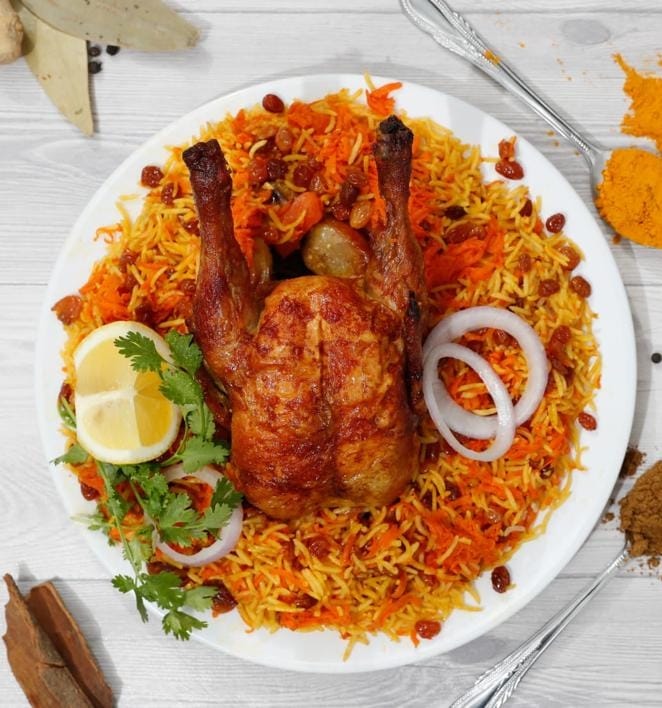
If you’re in Sitra, Bahrain, and craving a delicious, aromatic, and flavorful meal, look no further than our restaurant! We specialize in serving Bukhari Rice, a traditional Middle Eastern dish that’s loved by locals and tourists alike. It’s the perfect comfort food. It combines fragrant basmati rice with tender, marinated meat. Everything is cooked to perfection with a mix of spices.

In this blog post, we’ll share a little bit about the rich history of Bukhari Rice. We will provide a few recipes and cooking tips. We’ll also showcase why our version is a must-try.

Samarkandi Menu
Bukhari Rice

What is Bukhari Rice?

Bukhari Rice is a flavorful rice dish often served with lamb, chicken, or beef. It’s a staple of many Middle Eastern cuisines, particularly in countries like Saudi Arabia, Kuwait, and Bahrain. The dish is traditionally prepared by cooking the rice with marinated meat. The meat is often seasoned with spices like cumin, cinnamon, and turmeric. The rich, aromatic flavors come together as the rice absorbs the meat’s juices during cooking.

At our restaurant, we take pride in our Bukhari Rice. We use fresh, high-quality ingredients. This creates a truly mouthwatering meal.

Watch Us Prepare Bukhari Rice

To give you a sneak peek of the magic behind our Bukhari Rice, check out these videos where you can see the process in action:

These videos showcase our signature method, which highlights the importance of fresh ingredients, careful preparation, and traditional cooking techniques. You might be curious about the spices we use. Alternatively, you may want to see how we assemble the dish. These clips give you a glimpse into our kitchen.

Bukhari Rice Recipe: How to Make It at Home

Bukhari Rice
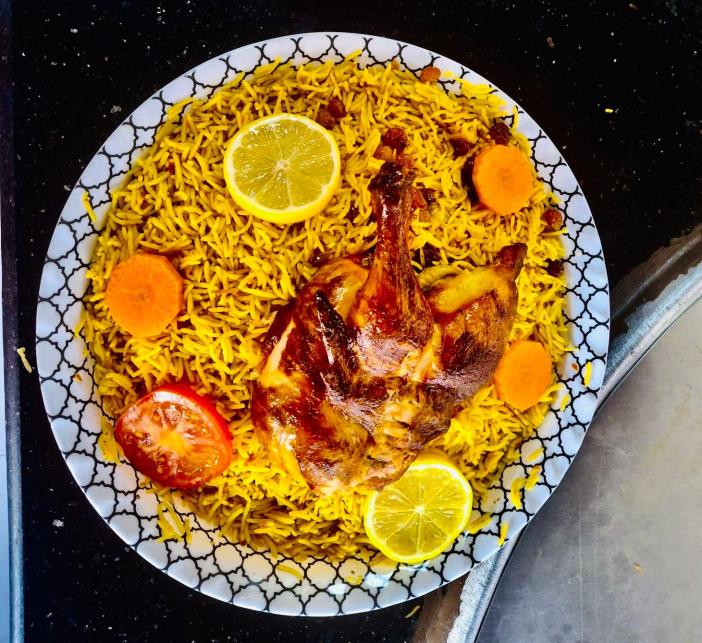
Chicken with bukhari rice

If you’d like to try making Bukhari Rice yourself, here’s a simple recipe to get you started.

Ingredients:

  • 2 cups basmati rice
  • 500g chicken (or lamb, beef, your choice)
  • 1 large onion, finely chopped
  • 2 tomatoes, chopped
  • 3 cloves garlic, minced
  • 1 tbsp cumin
  • 1 tbsp cinnamon
  • 1 tsp turmeric
  • 3 tbsp vegetable oil
  • 4 cups chicken stock (or water)
  • Salt and pepper to taste
  • A handful of raisins (optional, for sweetness)
  • A few slivers of almonds (for garnish)

Instructions:

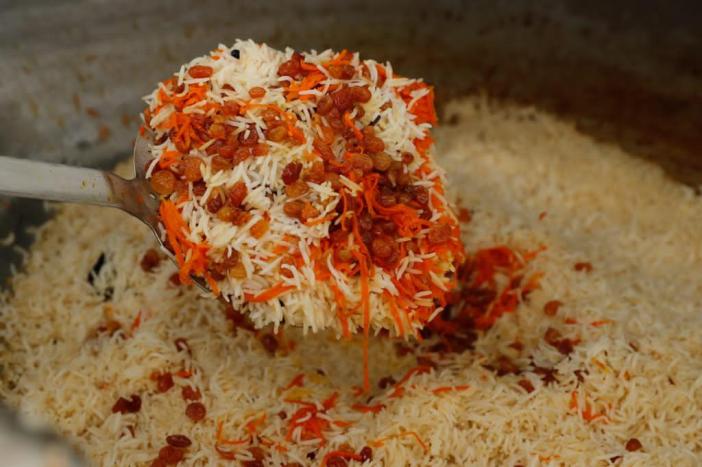
  1. Prepare the Rice: Wash the rice under cold water until the water runs clear. Soak it for about 20 minutes and set it aside.
  2. Cook the Meat: In a large pot, heat the oil and sauté the onions and garlic until golden brown. Add the meat and cook it until browned on all sides. Add the chopped tomatoes, cumin, cinnamon, turmeric, salt, and pepper. Let the meat cook with the spices for about 10 minutes.
  3. Simmer: Pour in the chicken stock (or water) and bring it to a boil. Lower the heat and cover the pot. Let the meat simmer until tender. It takes about 45 minutes for chicken and longer for lamb or beef.
  4. Cook the Rice: Add the soaked rice to the pot with the meat. Stir gently, ensuring the rice is evenly distributed. Cover and cook on low heat until the rice is fully cooked and has absorbed the flavors (about 20 minutes).
  5. Final Touches: Optionally, toast the raisins and almonds in a small pan with a little oil. Scatter them over the rice before serving. This adds an extra touch of sweetness and texture.
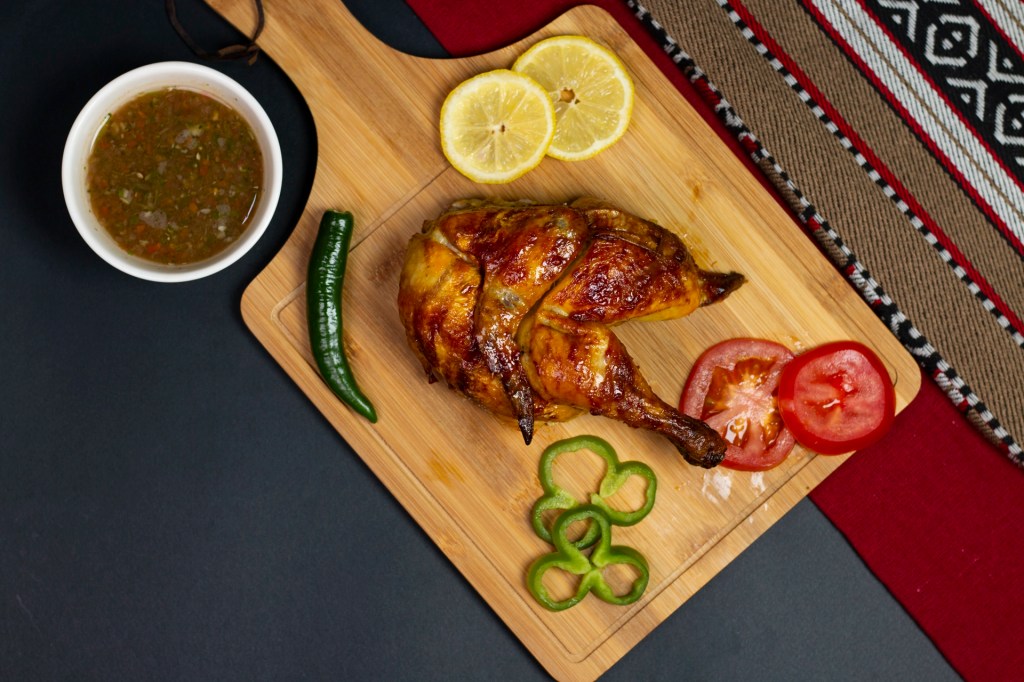
“This isn’t just roasted chicken—it’s Sitra’s Sunday ritual. Samarkandi’s whole chicken emerges crackling-gold from the clay oven, skin glistening with cumin and cardamom. Served atop aromatic Bukhari rice studded with almonds, this is Bahraini comfort food that hugs you back.”

Serve the Bukhari Rice hot with a side of yogurt. You can also serve it with a fresh salad. Enjoy a meal that will take your taste buds on an unforgettable journey.

Bukhari rice
Samarkandi Bahrain Sitra

Tips for Cooking Perfect Bukhari Rice

  1. Use Basmati Rice: For that signature fluffy texture and fragrant aroma, basmati rice is essential.
  2. Soak the Rice: Always soak your rice for at least 20 minutes. This helps it cook more evenly. It also prevents it from becoming too sticky.
  3. Perfectly Spiced: Don’t be afraid to adjust the spices to your preference. The key is balancing the cinnamon, cumin, and turmeric for that deep, warm flavor.
  4. Don’t Skip the Meat Marinade: Marinate your chicken, lamb, or beef for a few hours with spices. This process will infuse it with maximum flavor. A simple marinade with garlic, cumin, and olive oil works wonders.
  5. Simmer Slowly: The slow simmering of the meat is crucial. Let it absorb the flavors of the spices to create that rich, deep taste in your rice.
  6. Optional Garnishes: For extra flavor and texture, garnish with fried almonds, raisins, or even crispy onions.

Why Our Bukhari Rice Stands Out

What makes our Bukhari Rice so special? We believe in delivering a meal that is rich in flavor. It is also crafted with love and attention to detail. Our chefs use only the best ingredients. We pride ourselves on providing an authentic experience. This experience transports you straight to the heart of the Middle East.

Whether you’re a local or visiting Bahrain, stop by our restaurant in Sitra. Try our signature Bukhari Rice. It’s a dish that promises to satisfy both your hunger and your craving for something deliciously different!

Bukhari rice
bahrain

5. Faith and Festivities
Islam plays a central role in daily life. You’ll hear the call to prayer echoing across cities, and Friday remains a sacred day for family and prayer. However, Bahrain is also known for its religious tolerance. It hosts diverse communities, including Christians, Hindus, and Jews, who worship freely.

Cultural celebrations like Eid, Ramadan, and National Day are major events, often accompanied by fireworks, performances, and community gatherings.


6. Modern Bahrain: Embracing Change
While proud of its traditions, Bahrain is also forward-thinking. Bahrain was the first Gulf nation to discover oil. It was the first to host a Grand Prix. The nation is also among the first to empower women in politics and business. Skyscrapers rise beside traditional souqs. Luxury malls sit close to heritage sites. This is a symbol of how Bahrain balances modernity with cultural preservation.

When I visited Petra, I found that booking a guided day trip to Amman made everything much easier. If you’re planning something similar, this link has some great tour options you can explore.


Conclusion
Bahrain isn’t just a destination — it’s a cultural mosaic where the past and present coexist in harmony. Whether you’re strolling through the alleys of Muharraq, sipping tea by the corniche, or watching a traditional dance at a village wedding, you’ll find yourself touched by the soul of Bahrain — warm, resilient, and timeless.


Want this turned into a visual blog, Instagram carousel, or even a YouTube script? I can help with that too!

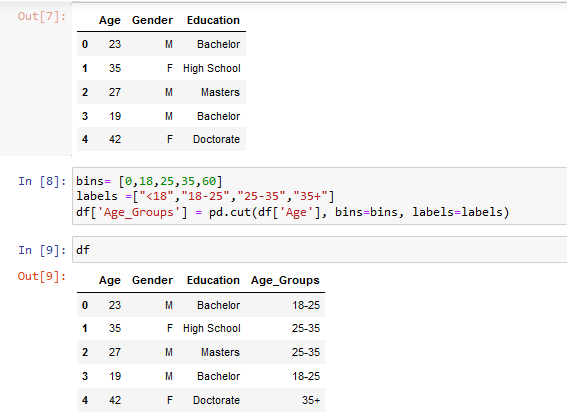
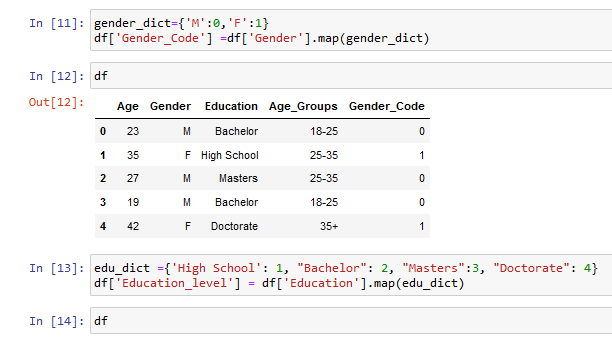
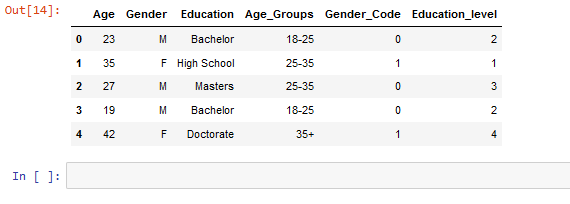
Python pandas

import pandas as pd

df=pd.DataFrame({‘Age’ : [23,35,27,19, 42],
‘Gender’:[“M”,”F”,”M”,”M”, “F”],
‘Education’ : [“Bachelor”, “High School”, “Masters”,”Bachelor”, “Doctorate”]})

df

https://github.com/Laxmihe/python-pandas

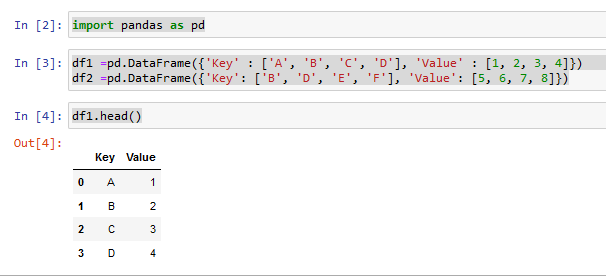
Merging Data using python

https://github.com/Laxmihe/Merging-data-usingpython

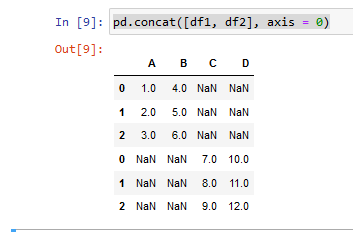
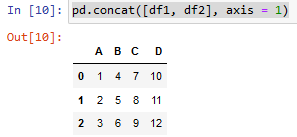
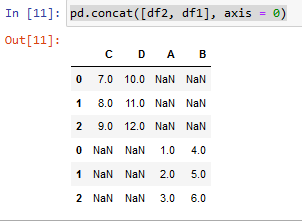
Blending data in python using concate function

what happens if I put axis = 1 instead of axis = 0

what happens if I change df1 and df2 as df2 and df1

https://github.com/Laxmihe/Blending_data_using_python_concat

Power bi Projects

You tube

Download the dataset from my Github Account

https://github.com/Laxmihe/DAX

DAX formulas used in the above data set

Net_Units= Units – Cancelled_Units

LEFT(‘Mod3_Raw_CityTier_v0 1′[City_old],FIND(“,”,’Mod3_Raw_CityTier_v0 1′[City_old])-1)

LEFT(‘PinCode-Geo'[city_old],FIND(“,”,’PinCodeGeo'[city_old])-1)

Week Start Date = FORMAT(‘Sales Raw'[OrderDate] – WEEKDAY(‘Sales Raw'[OrderDate],2) + 1,”MMM-DD”)

link for data from the web

https://www.bankrate.com/retirement/best-and-worst-states-for-retirement/

Link to my GitHub account for this dataset

https://github.com/Laxmihe/Best-state-to-live-in-USA

Link to kaggle data set

https://www.kaggle.com/datasets/datasf/case-data-from-san-francisco-311/code

Link to my git hub for pbix file

https://github.com/Laxmihe/Calls-311

Link to the web

https://www.boxofficemojo.com/chart/ww_top_lifetime_gross/?area=XWW

https://www.boxofficemojo.com/chart/ww_top_lifetime_gross/?area=XWW&offset=200

https://www.imdb.com/chart/top?sort=rk,asc&mode=simple&page=1

download python for experts :

https://www.python.org/

download python for beginners

https://anaconda.org/anaconda/python/

Link to my GitHub account for this dataset

https://github.com/Laxmihe/python_Scripts

My website link for Python codes

https://confidencebuildingblog.wordpress.com/2023/01/29/my-python-codes/

My git hub account link for data set

https://github.com/Laxmihe/Restaurent-inspection-Report

Get Data from my GitHub account:

https://github.com/Laxmihe/Zomata-Data-Analysis

My Github Account Link :

https://github.com/Laxmihe/Gateway.git

Link to my Github Account:

https://github.com/Laxmihe/Covid-Analysis-India

My Git Hub account to download pbix file

https://github.com/Laxmihe/Hire-and-Termination-u-tube

Link to data set:

https://services.odata.org/Northwind/Northwind.svc/

My Git hub link to download data

https://github.com/Laxmihe/Chocolate-company-Dashboard

Odata feed link :

https://services.odata.org/Northwind/Northwind.svc/

O data link to the data

https://services.odata.org/Northwind/Northwind.svc/

O data link

https://services.odata.org/Northwind/Northwind.svc/

Link to the data set in Odata feed

https://services.odata.org/Northwind/Northwind.svc/

Link to Odata feed

https://services.odata.org/Northwind/Northwind.svc/

Link to Odata feed for public data

https://services.odata.org/Northwind/Northwind.svc/

Link to Odatafeed Public Data

https://services.odata.org/Northwind/Northwind.svc/

My python codes

“A picture is worth a thousand words” 

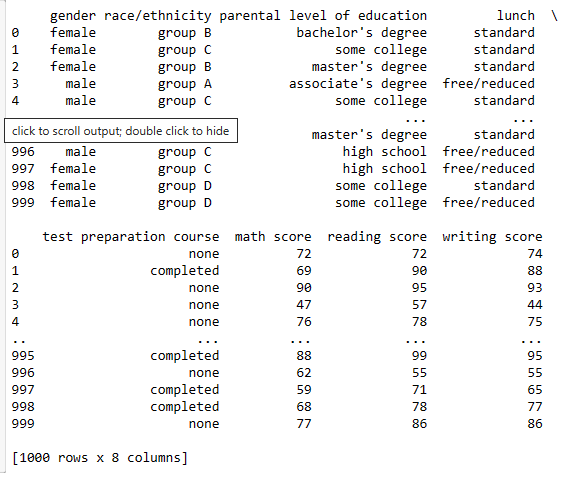
Download data set from kaggle

https://www.kaggle.com/datasets/spscientist/students-performance-in-exams

import pandas as pd

df = pd.read_csv(r’C:\Users\laxmi\Documents\StudentsPerformance.csv’)
print(df)

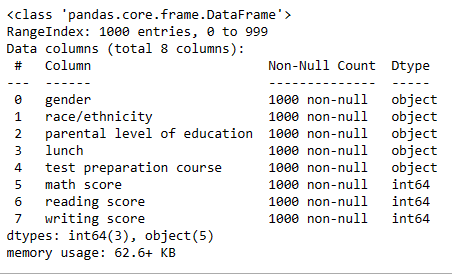
df.info()

import numpy as np

from sklearn.pipeline import make_pipeline

import matplotlib.pyplot as plt
import seaborn as sns
from scipy.stats import norm
from sklearn.metrics import mean_absolute_error

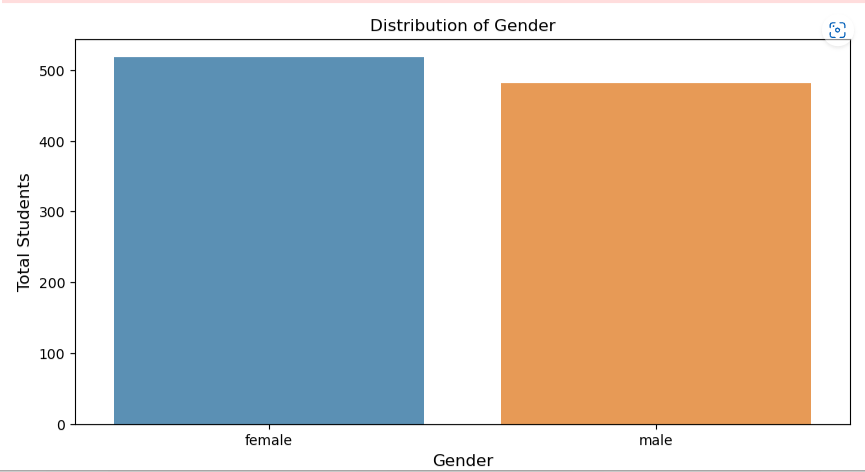
gender_count = df[‘gender’].value_counts()
gender_count = gender_count[:10,]
plt.figure(figsize=(10,5))
sns.barplot(gender_count.index, gender_count.values, alpha=0.8)
plt.title(‘Distribution of Gender’)
plt.ylabel(‘Total Students’, fontsize=12)
plt.xlabel(‘Gender’, fontsize=12)
plt.show()

df = pd.read_csv(r’C:\Users\laxmi\Documents\StudentsPerformance.csv’)
sns.barplot(data=df, x=”Gender”, y=”Total Students”)

import pandas as pd

import seaborn as sns

import matplotlib.pyplot as plt

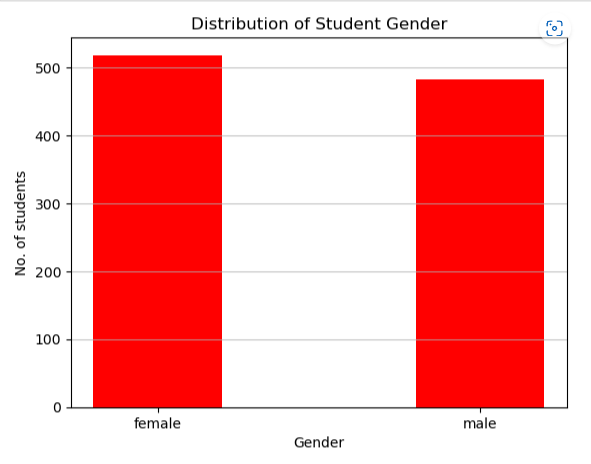
df_gender = df[‘gender’].value_counts()

plt.bar(df_gender.index, df_gender, color =’red’,
width = 0.4)

plt.xlabel(“Gender”)
plt.ylabel(“No. of students”)
plt.title(“Distribution of Student Gender”)
plt.grid(axis=”y”, alpha=0.75)
plt.show()

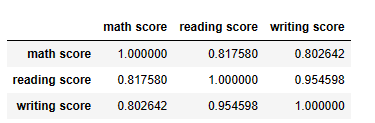
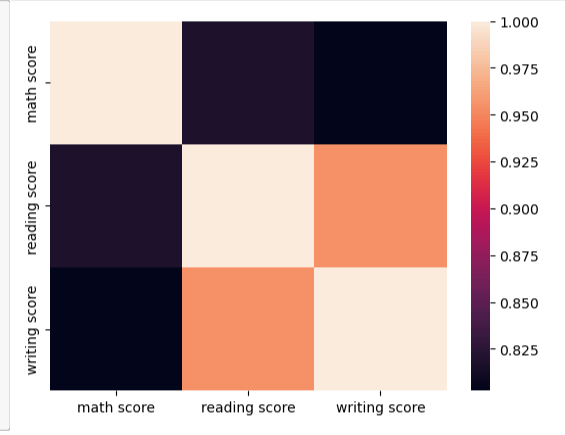
df.corr()

import seaborn as sns

sns.heatmap(df.corr());

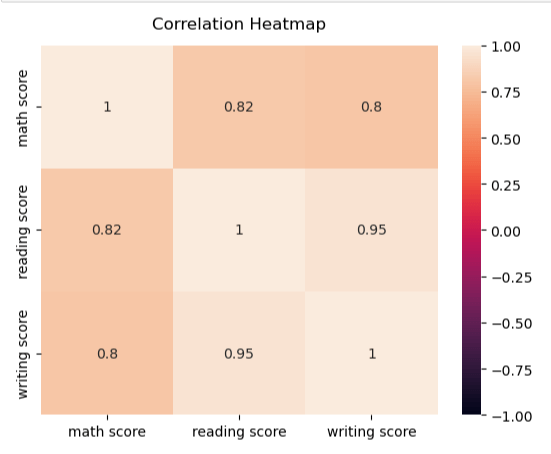
heatmap = sns.heatmap(df.corr(), vmin=-1, vmax=1, annot=True)

#Give a title to the heatmap. Pade defines the distance of the title from the top of the heatmap

heatmap.set_title(‘Correlation Heatmap’, fontdict={‘fontsize’:12}, pad=12);

import numpy as np

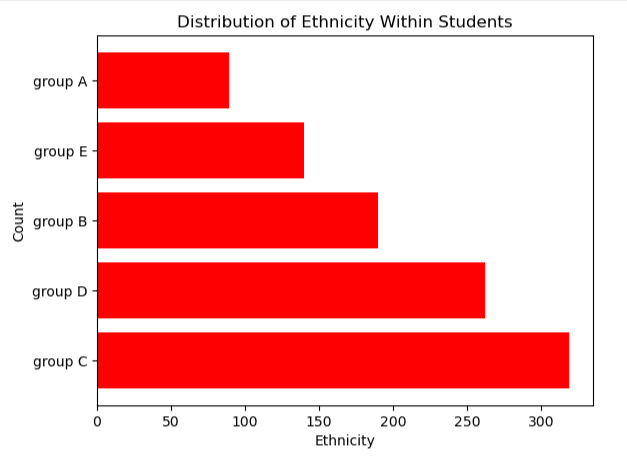
df_race = df[‘race/ethnicity’].value_counts()

plt.barh(df_race.index,df_race.values, color=’r’)

#Axis Label

plt.xlabel(‘Ethnicity’)
plt.ylabel(‘Count’)

#Title

plt.title(“Distribution of Ethnicity Within Students”)

plt.show()

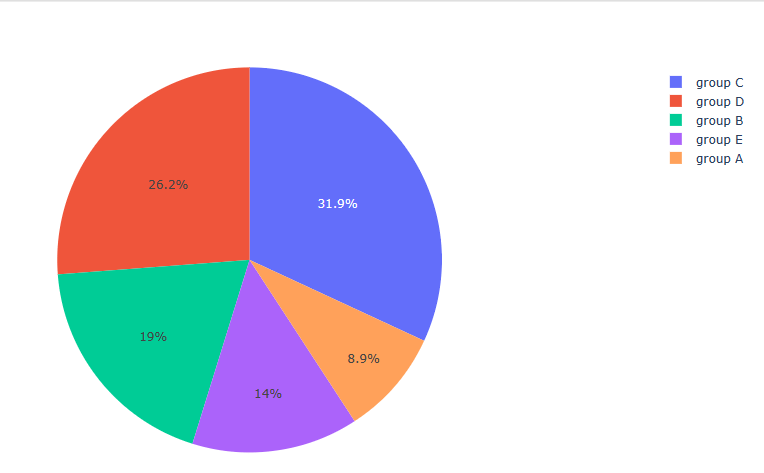
import plotly.express as px

fig2 = px.pie(df, values = df[‘parental level of education’].value_counts().values,
names = df[‘parental level of education’].value_counts()

fig3 = px.pie(df, values = df[‘race/ethnicity’].value_counts().values, names = df[‘race/ethnicity’].value_counts().index)
fig3.show()

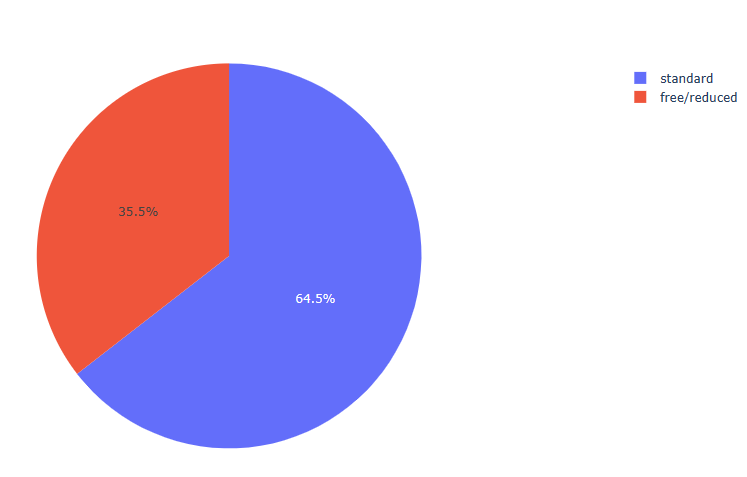
fig4 = px.pie(df, values = df[‘lunch’].value_counts().values, names = df[‘lunch’].value_counts().index)
fig4.show()

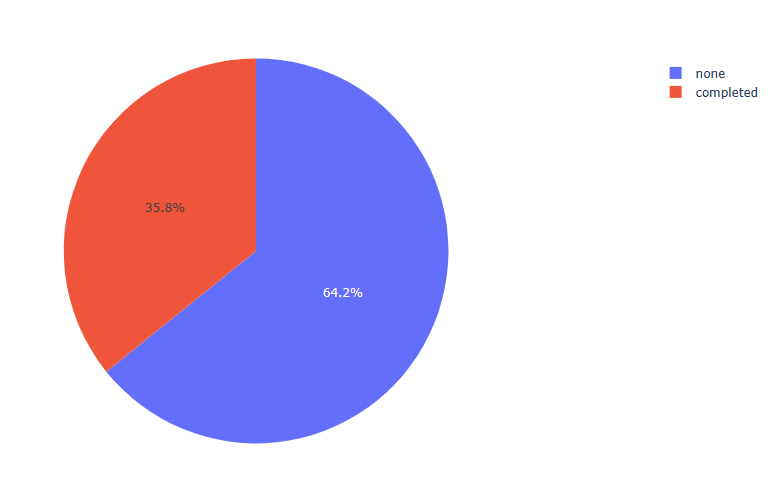
fig5 = px.pie(df, values = df[‘test preparation course’].value_counts().values, names = df[‘test preparation course’].value_counts().index)
fig5.show()

df[‘math score’].describe()

count    1000.00000
mean       66.08900
std        15.16308
min         0.00000
25%        57.00000
50%        66.00000
75%        77.00000
max       100.00000
Name: math score, dtype: float64


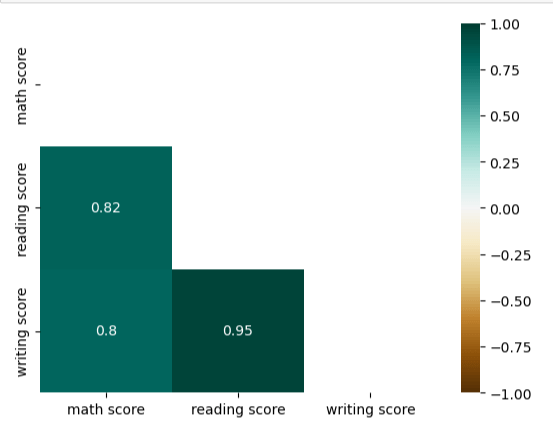
mask = np.triu(np.ones_like(df.corr(), dtype=bool))
heatmap = sns.heatmap(df.corr(), mask=mask, vmin=-1, vmax=1, annot=True, cmap='BrBG')


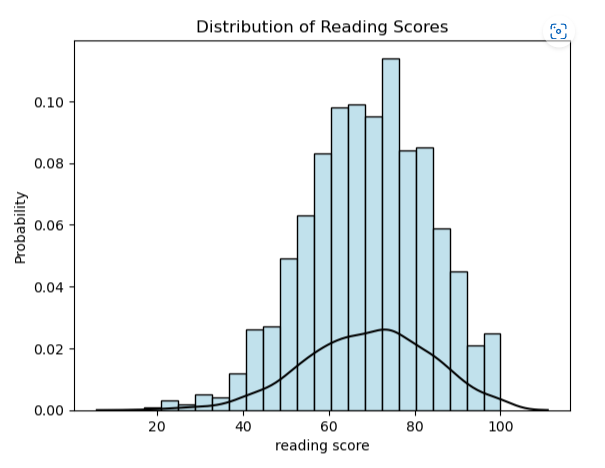
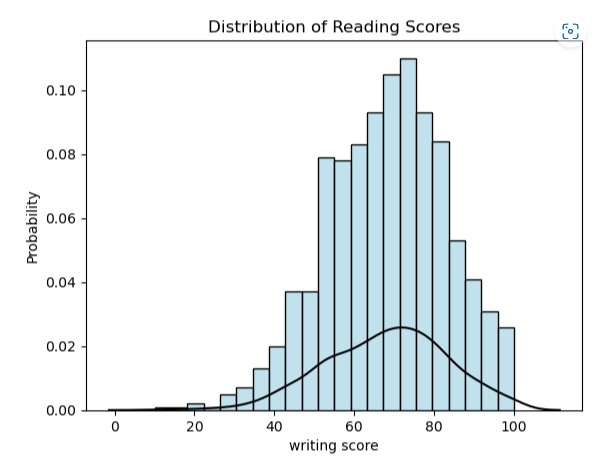
sns.histplot(df[‘reading score’], stat=”probability”, fill=True, color =’lightblue’).set(title=’Distribution of Reading Scores’)

Distribution Line

sns.kdeplot(df[‘reading score’], color=”black”)

import seaborn as sns

sns.histplot(df[‘writing score’], stat=”probability”, fill=True, color =’lightblue’).set(title=’Distribution of Reading Scores’)

Distribution Line

sns.kdeplot(df[‘writing score’], color=”black”)

nRowsRead = 1000 # specify ‘None’ if want to read whole file
df1 = pd.read_csv((r’C:\Users\laxmi\Documents\StudentsPerformance.csv’), delimiter=’,’, nrows = nRowsRead)
df1.dataframeName = ‘StudentsPerformance.csv’
nRow, nCol = df1.shape
print(f’There are {nRow} rows and {nCol} columns’)

There are 1000 rows and 8 columns

import plotly.express as px

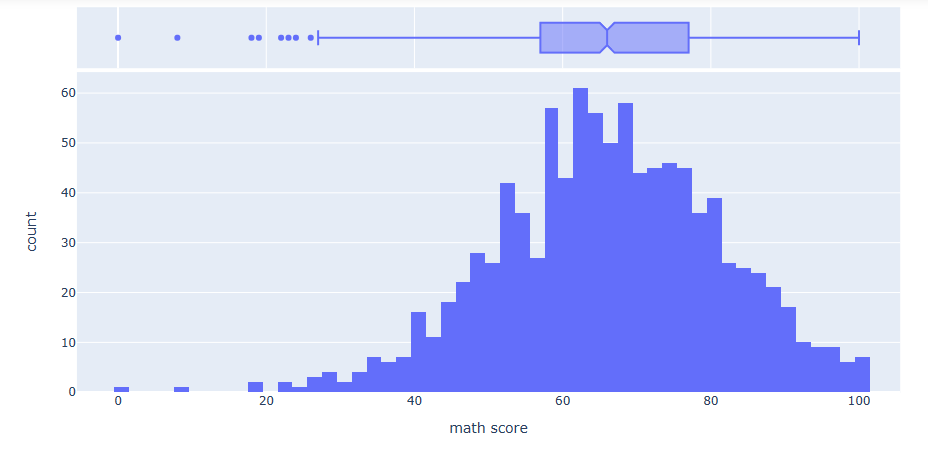
fig10 = px.histogram(df, x="math score", marginal = 'box')
fig10.show()


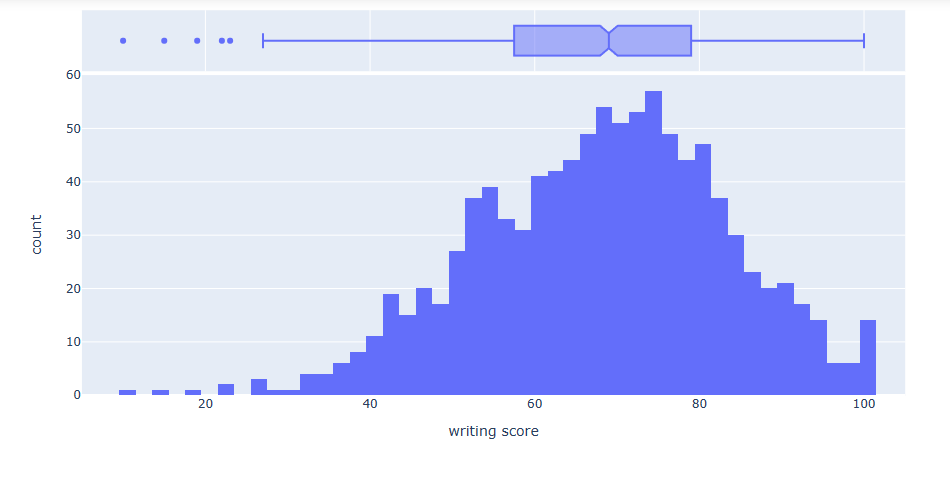
fig11 = px.histogram(df, x=”writing score”, marginal = ‘box’)
fig11.show()

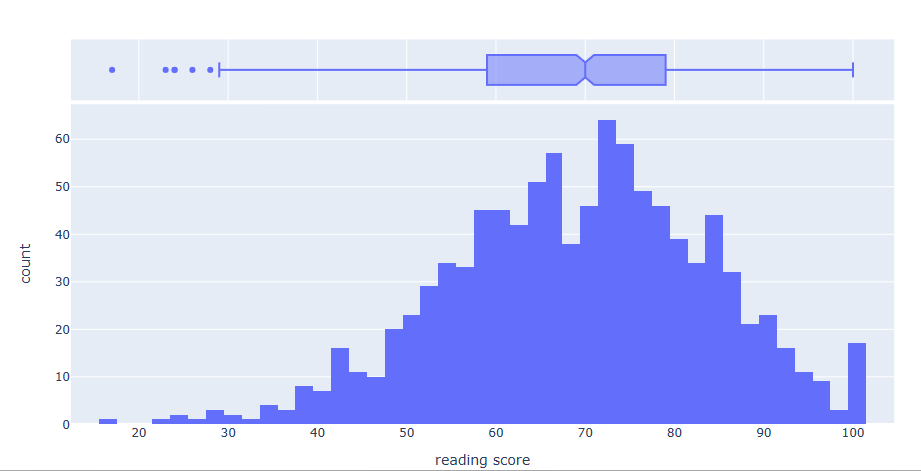
fig13 = px.histogram(df, x=”reading score”, marginal = ‘box’)
fig13.show()

import matplotlib.pyplot as plt

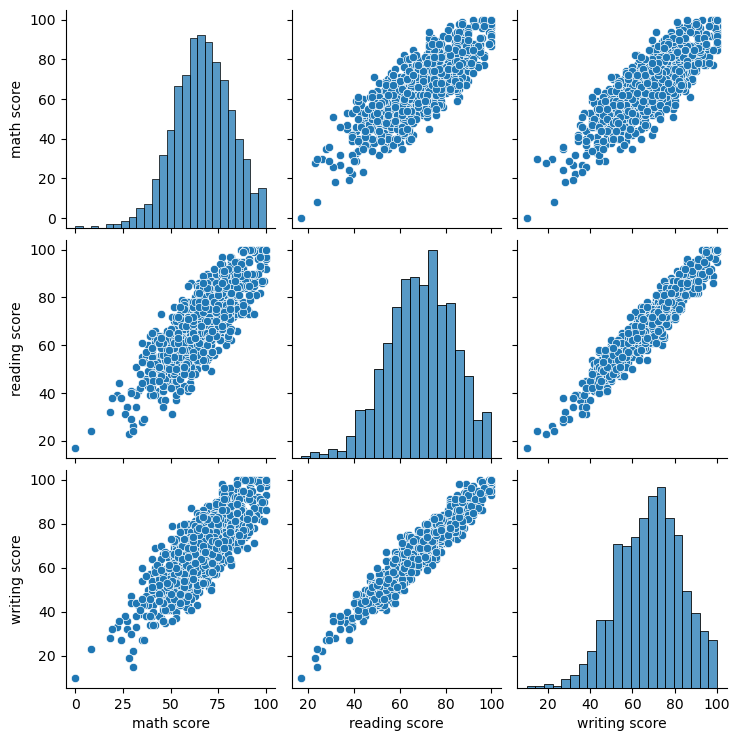
sns.pairplot(df)
plt.show()

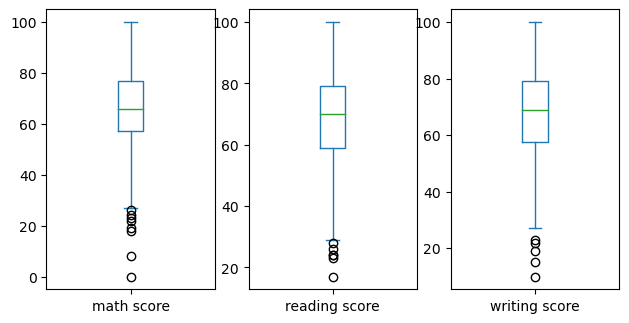
df.plot(kind=’box’, subplots=True, layout=(2,4), sharex=False, sharey=False, figsize=(10,8))
plt.show()

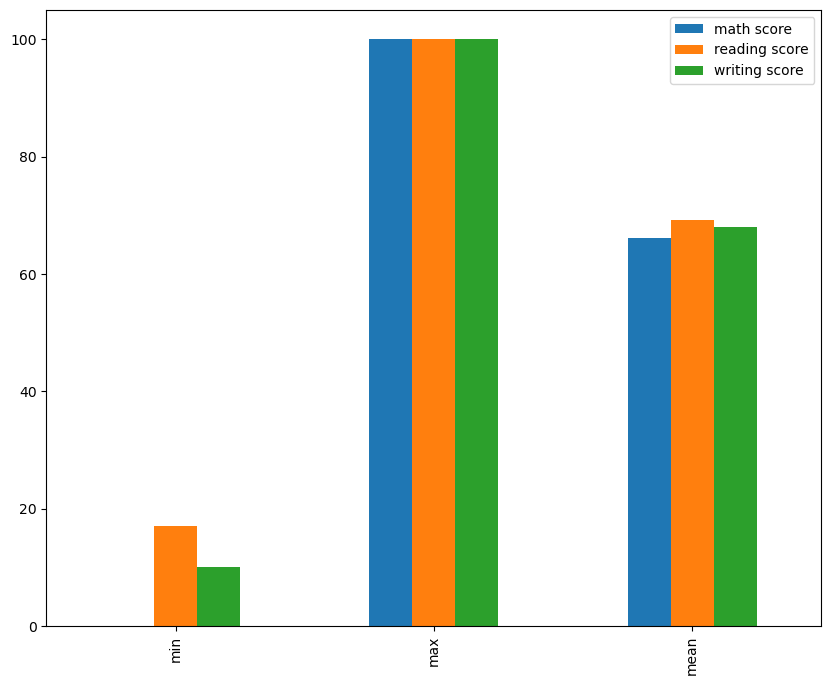
print(df.mean(numeric_only=True))

math score       66.089
reading score    69.169
writing score    68.054
dtype: float64


df.describe().loc[['min','max','mean']].plot(kind='bar', figsize=(10,8))
plt.show()


My git hub link for another project not this

Laxmihe/Pandas-Tricks: Pictorial display of plots (github.com)

https://tinyurl.com/2p8kpukb

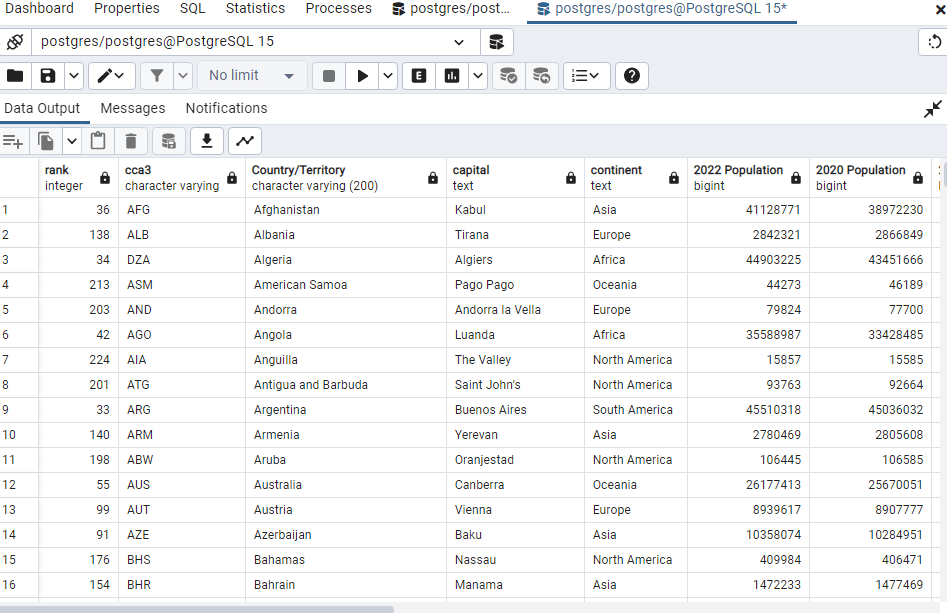
World Population Dataset

Data Analysis using Postgres SQL

–Download dataset from kaggle “World Population dataset–

https://www.kaggle.com/datasets/iamsouravbanerjee/world-population-dataset–

CREATE TABLE public.world_population (

Rank INT,

CCA3 Varchar,

“Country/Territory” VARCHAR(200),

Capital Text,

Continent Text,

“2022 Population” BIGINT,

“2020 Population” BIGINT,

“2015 Population” BIGINT,

“2010 Population” BIGINT,

“2000 Population” BIGINT,

“1990 Population” BIGINT,

“1980 Population” BIGINT,

“1970 Population” BIGINT,

“Area (km²)” NUMERIC(10,2),

“Density (per km²)” NUMERIC(10,2),

“Growth Rate” NUMERIC(10,2),

“World Population Percentage”NUMERIC(10,2)

);

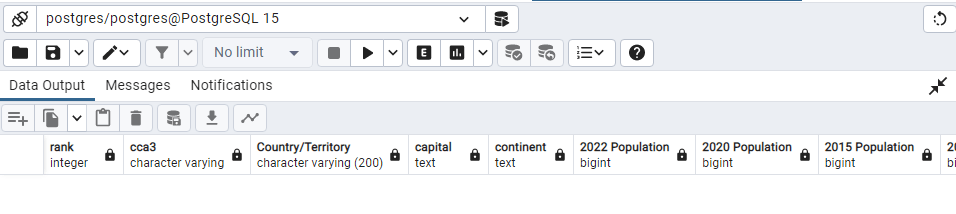
SELECT * FROM public.world_population;

COPY public.world_population

FROM ‘C:\Users\laxmi\Downloads\world_population.csv’

WITH (FORMAT CSV, HEADER);

SELECT * FROM public.world_population;

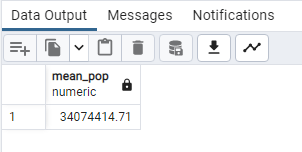
SELECT ROUND (AVG(“2022 Population”),2) AS mean_pop

FROM public.world_population;

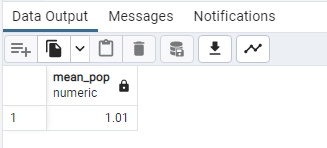
SELECT ROUND (AVG(“Growth Rate”),2) AS mean_pop

FROM public.world_population;

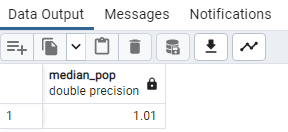
SELECT

PERCENTILE_CONT(0.5) WITHIN GROUP (ORDER BY “Growth Rate”) AS median_pop

FROM public.world_population;

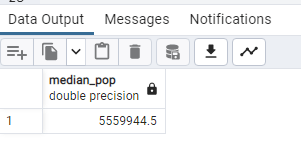
SELECT

PERCENTILE_CONT(0.5) WITHIN GROUP (ORDER BY “2022 Population”) AS median_pop

FROM public.world_population;

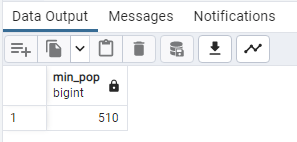
SELECT

MIN(“2022 Population”) AS min_pop

FROM public.world_population;

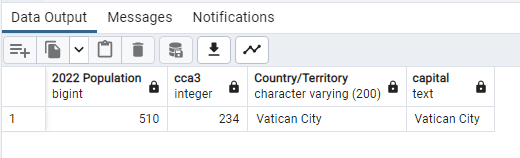
SELECT “2022 Population” ,”rank” “cca3”, “Country/Territory”, “capital”
FROM world_population
WHERE “2022 Population” = ‘510’;

–So Vatican City has minimum population–

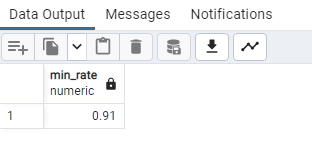
SELECT

MIN(“Growth Rate”) AS min_rate

FROM public.world_population;

ALTER TABLE public.world_population
ALTER COLUMN “Growth Rate” TYPE Numeric
USING “Growth Rate”::Numeric;

OR

SELECT “Growth Rate”, CAST (“Growth Rate” AS Numeric( 10,2))

FROM public.world population

SELECT “2022 Population” ,”rank” “cca3”, “Country/Territory”, “capital” “Growth Rate”
FROM world_population
WHERE “Growth Rate” = ‘0.91’;

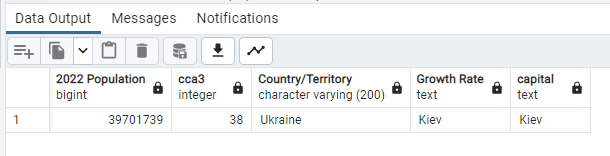
_–Minimum Growth rate is in Ukraine Kiev–

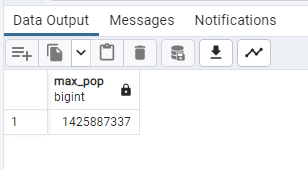
SELECT

MAX(“2022 Population”) AS Max_pop

FROM public.world_population;

SELECT “2022 Population” ,”rank” “cca3”, “Country/Territory”, “capital”
“Growth Rate”,”capital”
FROM world_population
WHERE “2022 Population” = ‘1425887337’;

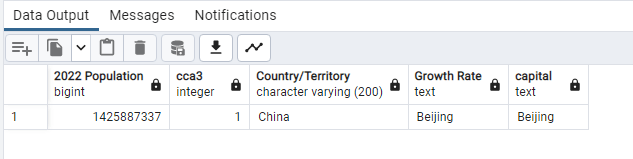
–So miximum population in 2022 was China Beijing–

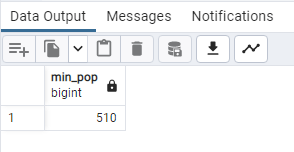
SELECT
MIN(“2022 Population”) AS Min_pop
FROM public.world_population;

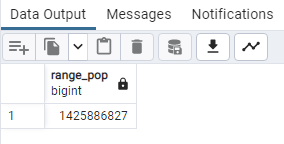
SELECT

MAX(“2022 Population”) – MIN(“2022 Population”) AS range_pop

FROM public.world_population;

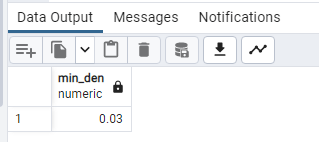
SELECT
MIN(“Density (per km²)”) AS Min_den
FROM public.world_population;

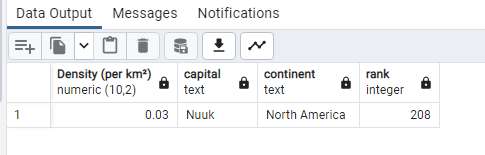
SELECT (“Density (per km²)”), “capital”, “continent”, “rank”
FROM world_population
WHERE (“Density (per km²)”) <= ‘0.03’

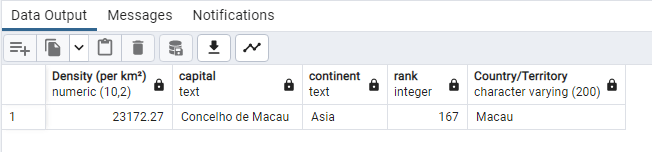
SELECT (“Density (per km²)”), “capital”, “continent”, “rank”,
“Country/Territory”
FROM world_population
WHERE (“Density (per km²)”) >= ‘23172.27’;

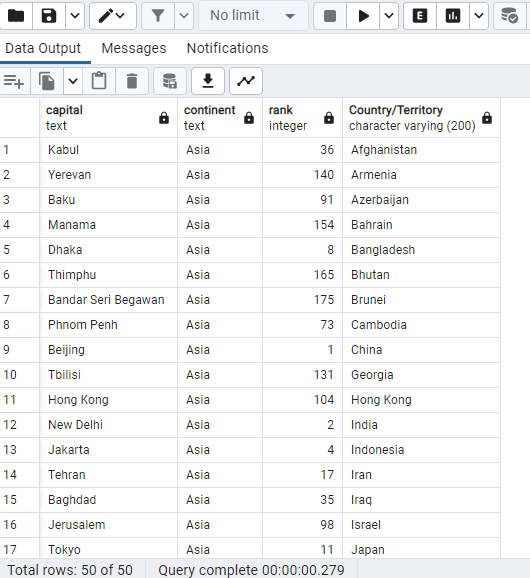
SELECT “capital”, “continent”, “rank”, “2022 Population”
“Country/Territory”
FROM world_population
WHERE (“continent”) = ‘Asia’;

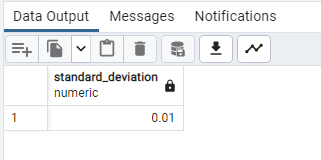
SELECT

ROUND(STDDEV(“2020 Population”), 2) AS standard_deviation

FROM public.world_population;

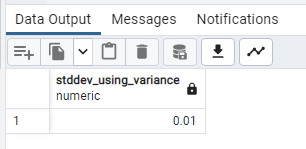
SELECT 

ROUND(SQRT(VARIANCE(“Growth Rate”)), 2) AS stddev_using_variance
FROM public.world_population;

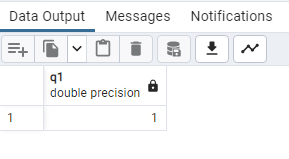
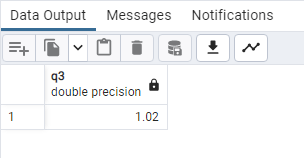
SELECT
PERCENTILE_CONT(0.25) WITHIN GROUP (ORDER BY “Growth Rate”) AS q1
FROM public.world_population;

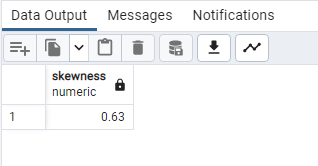
WITH mean_median_sd AS

(

SELECT

AVG(“2022 Population”) AS mean,

PERCENTILE_CONT(0.5) WITHIN GROUP (ORDER BY “2020 Population”) AS median,

STDDEV(“2022 Population”) AS stddev

FROM public.world_population

)

SELECT

ROUND(3 * (mean – median)::NUMERIC / stddev, 2) AS skewness

FROM mean_median_sd;

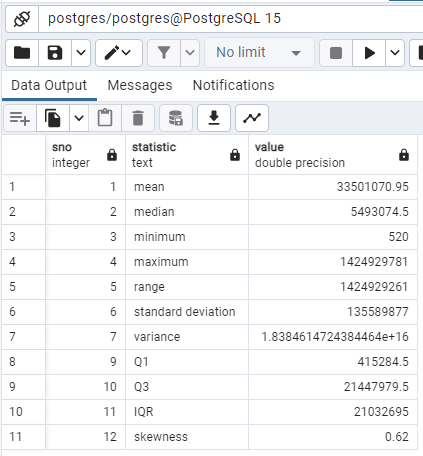
WITH RECURSIVE
summary_stats AS
(
SELECT
ROUND(AVG(“2020 Population”), 2) AS mean,
PERCENTILE_CONT(0.5) WITHIN GROUP (ORDER BY “2020 Population”) AS median,
MIN(“2020 Population”) AS min,
MAX(“2020 Population”) AS max,
MAX(“2020 Population”) – MIN(“2020 Population”) AS range,
ROUND(STDDEV(“2020 Population”), 2) AS standard_deviation,
ROUND(VARIANCE(“2020 Population”), 2) AS variance,
PERCENTILE_CONT(0.25) WITHIN GROUP (ORDER BY “2020 Population”) AS q1,
PERCENTILE_CONT(0.75) WITHIN GROUP (ORDER BY “2020 Population”) AS q3
FROM public.world_population
),
row_summary_stats AS
(
SELECT
1 AS sno,
‘mean’ AS statistic,
mean AS value
FROM summary_stats
UNION
SELECT
2,
‘median’,
median
FROM summary_stats
UNION
SELECT
3,
‘minimum’,
min
FROM summary_stats
UNION
SELECT
4,
‘maximum’,
max
FROM summary_stats
UNION
SELECT
5,
‘range’,
range
FROM summary_stats
UNION
SELECT
6,
‘standard deviation’,
standard_deviation
FROM summary_stats
UNION
SELECT
7,
‘variance’,
variance
FROM summary_stats
UNION
SELECT
9,
‘Q1’,
q1
FROM summary_stats
UNION
SELECT
10,
‘Q3’,
q3
FROM summary_stats
UNION
SELECT
11,
‘IQR’,
(q3 – q1)
FROM summary_stats
UNION
SELECT
12,
‘skewness’,
ROUND(3 * (mean – median)::NUMERIC / standard_deviation, 2) AS skewness
FROM summary_stats
)
SELECT *
FROM row_summary_stats
ORDER BY sno;

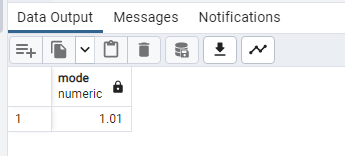
SELECT

MODE() WITHIN GROUP (ORDER BY “Growth Rate”) AS mode

FROM public.world_population;

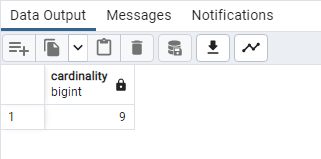
SELECT

COUNT(DISTINCT “Growth Rate”) AS cardinality

FROM public.world_population;

–Periodicity and relative periodicity
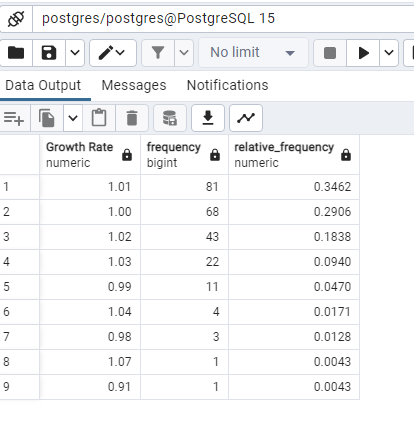
Using GROUP BY and COUNT in Postgres, we can determine how often each category appears in a categorical field. In order to calculate the relative frequency, we will utilize a CTE to count all of the values in the rating column. We’ll utilize CTE because not all databases allow window functions. We’ll also go over how to use window functions to calculate relative frequency.–

WITH total_count AS

(

SELECT

COUNT(“Growth Rate”) AS total_cnt

FROM public.world_population

)

SELECT

“Growth Rate”,

COUNT(“Growth Rate”) AS frequency,

ROUND(COUNT(“Growth Rate”)::NUMERIC /

(SELECT total_cnt FROM total_count), 4) AS relative_frequency

FROM public.world_population

GROUP BY “Growth Rate”

ORDER BY frequency DESC;

–The count of values in the rating field is captured by a CTE in the example above. The percentage/relative frequency of each category in the rating field was then determined using it. We’ll explore a less complicated method of computing relative frequency utilizing window functions as Postgres supports them. The total number of values in the rating field is determined by adding the counts of ratings across each category, which we will do using the OVER() function.–

SELECT

“Growth Rate”,

COUNT(“Growth Rate”) AS frequency,

ROUND(COUNT(“Growth Rate”)::NUMERIC / SUM(COUNT(“Growth Rate”)) OVER(), 4) AS relative_frequency

FROM public.world_population

GROUP BY “Growth Rate”

ORDER BY frequency DESC;

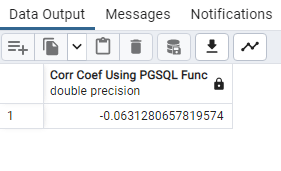
SELECT
corr(“Area (km²)”, “Density (per km²)”) as “Corr Coef Using PGSQL Func”

FROM public.world_population;


ALTER TABLE public.world_population

ALTER COLUMN “Area (km²)” TYPE Numeric

USING “Area (km²)”::Numeric;

–the slope, intercept, and R-squared value of a linear regression model with “Area (km²)” as the independent variable and “Density (per km²)” as the dependent variable. The resulting regression formula and R-squared value would be returned as a string with the alias “regression_formula_output”.

The regr_slope() function is used to calculate the slope of the linear regression line, which represents the average change in the dependent variable (“Density (per km²)”) for a unit change in the independent variable (“Area (km²)”).

The regr_intercept() function is used to calculate the y-intercept of the linear regression line, which represents the value of the dependent variable when the independent variable is zero.

The regr_r2() function is used to calculate the R-squared value of the linear regression model, which represents the proportion of the variance in the dependent variable that is explained by the independent variable.

It is important to note that this query will only work if the database you are querying has a table called “world_population” with columns called “Area (km²)” and “Density (per km²)”. It is also important to make sure that the data in these columns are numeric and appropriate for calculating a linear regression model.–

SELECT ‘Y=’ || regr_slope(“Area (km²)”, “Density (per km²)”) || ‘X+’ ||

regr_intercept(“Area (km²)”, “Density (per km²)”) ||

‘ is the regression formula with R-squared value of ‘ || regr_r2(“Area (km²)”, “Density (per km²)”) AS regression_formula_output

FROM public.world_population;

Textual Analysis for TF-IDF (Term Frequency-Inverse Document Frequency; Row-based and column-based, stop-word removal?

For text analysis download data from here;

https://drive.google.com/file/d/1rf4JDrfsxjLEAC-igRwDZr_cIaJiPm5a/view?usp=sharing

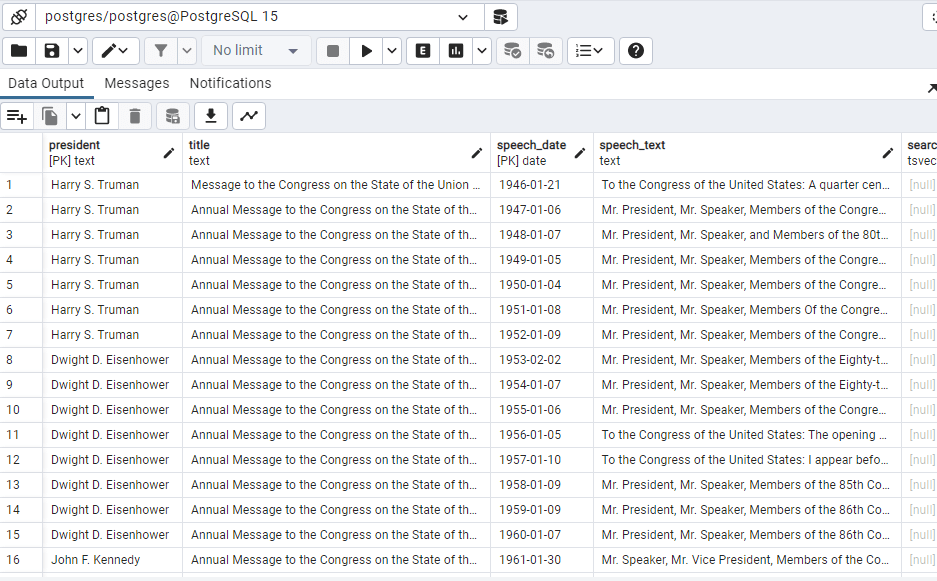
CREATE TABLE president_speeches (

president text NOT NULL,

title text NOT NULL,

speech_date date NOT NULL,

speech_text text NOT NULL,

search_speech_text tsvector,

CONSTRAINT speech_key PRIMARY KEY (president, speech_date)

);

COPY president_speeches (president, title, speech_date, speech_text)

FROM ‘C:\Users\laxmi\Documents\president_speeches.csv’

WITH (FORMAT CSV, DELIMITER ‘|’, HEADER OFF, QUOTE ‘@’);

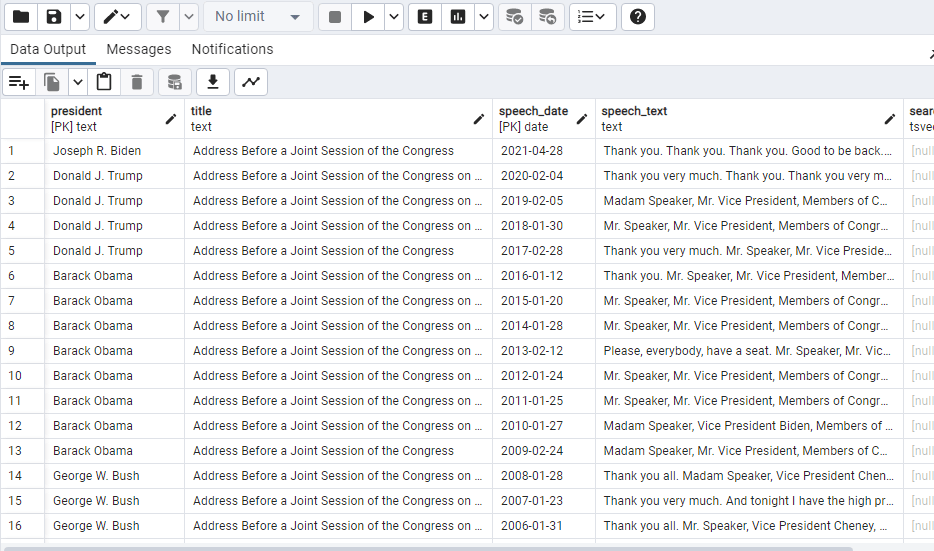
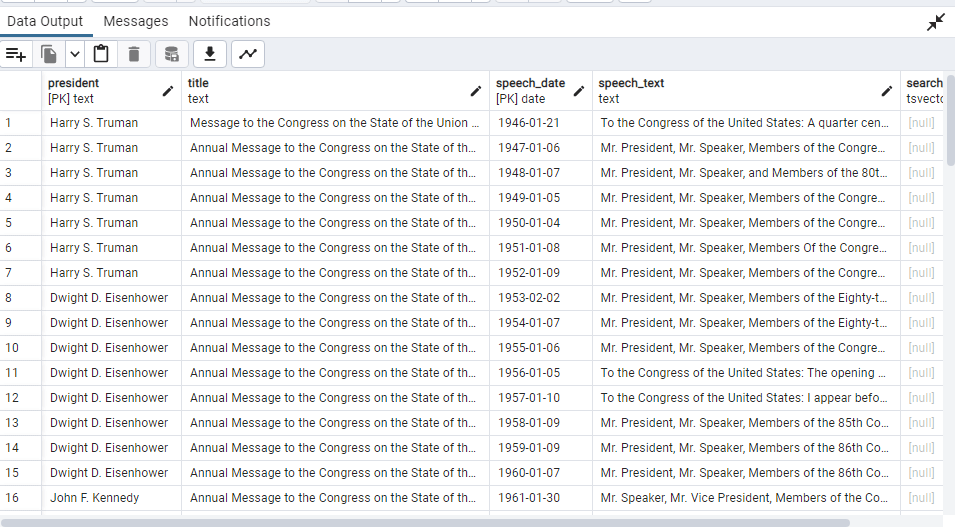
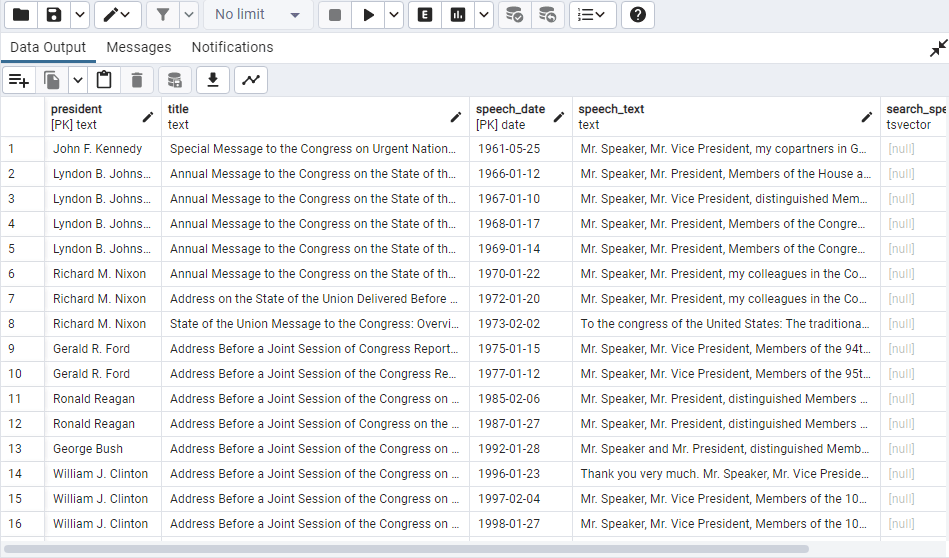
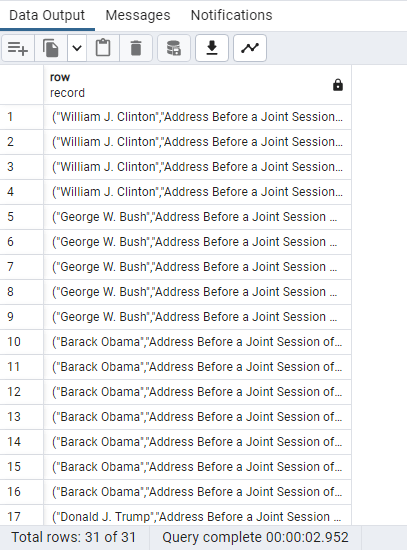
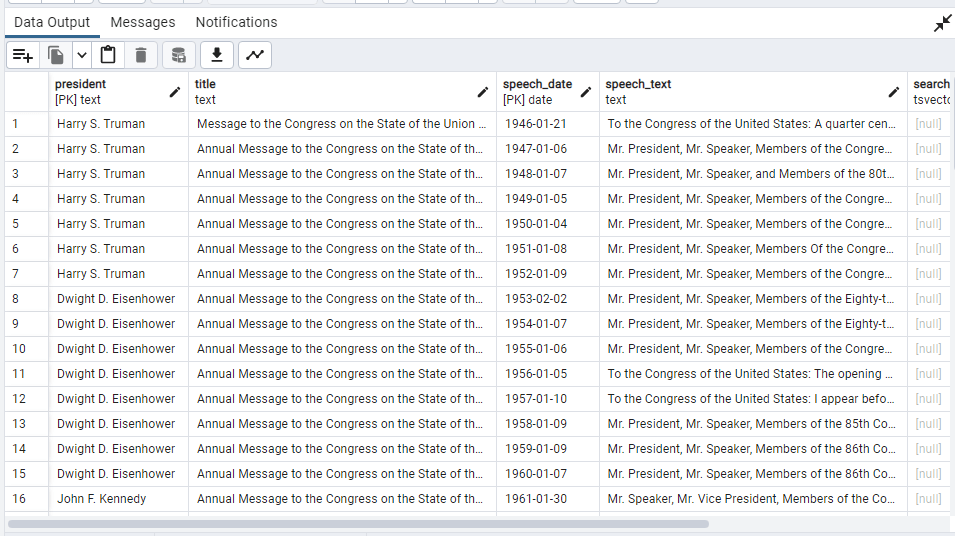
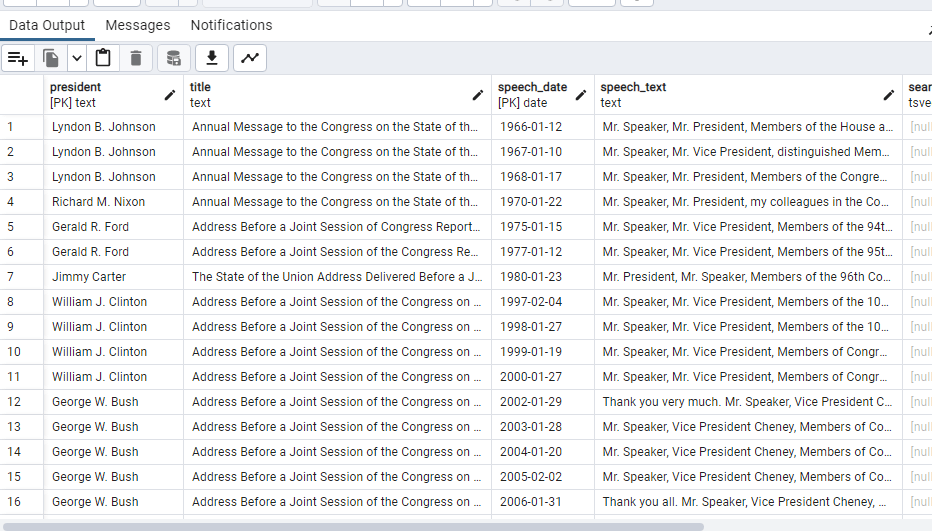
SELECT * FROM president_speeches;

SELECT * FROM president_speeches ORDER BY speech_date DESC;

SELECT * FROM president_speeches

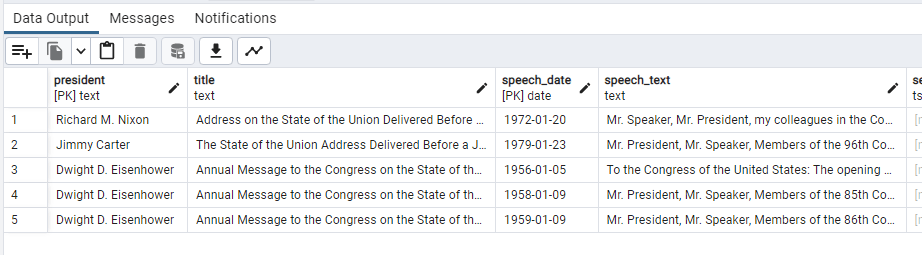
where to_tsvector(speech_text) @@ to_tsquery(‘government’);

–Speeches where word “government” is used–

ALTER TABLE president_speeches

ADD COLUMN document tsvector;

UPDATE president_speeches

SET document=to_tsvector

(president||”||title||”||speech_date||”||speech_text||”||search_speech_text);

SELECT * FROM president_speeches

where to_tsvector(speech_text) @@ to_tsquery(‘Vietnam’);

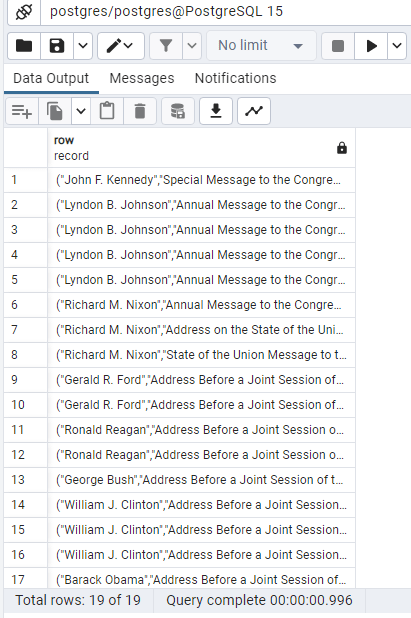
SELECT (president, title, speech_date, speech_text)

FROM president_speeches

where to_tsvector

(president||”|| title||”|| speech_date||”|| speech_text) @@ to_tsquery(‘Vietnam’);

UPDATE president_speeches

SET document_with_idx=to_tsvector

(president||”||title||”||speech_text||search_speech_text||”||document||coalesce(speech_text,”));

SELECT (president, title, speech_date, speech_text)
FROM president_speeches
where to_tsvector
(president||”|| title||”|| speech_date||”|| speech_text) @@ to_tsquery(‘Immigration’);

SELECT *
FROM president_speeches
where to_tsvector
(president||”|| title||”|| speech_date||”|| speech_text) @@ to_tsquery(‘tax’)
ORDER BY speech_date;

SELECT * FROM president_speeches
where to_tsvector(speech_text) @@ to_tsquery(‘Korea’);

SELECT * FROM president_speeches
where to_tsvector(speech_text) @@ to_tsquery(‘military <-> defense’);

My experiment with Power bi

Download Microsoft power bi Desktop version is free 🙂

Click get data

https://www.dropbox.com/sh/0wqw8fmiwrzr8ef/AABQijjQM522INXX1FCdamzma?dl=0

Download data from here

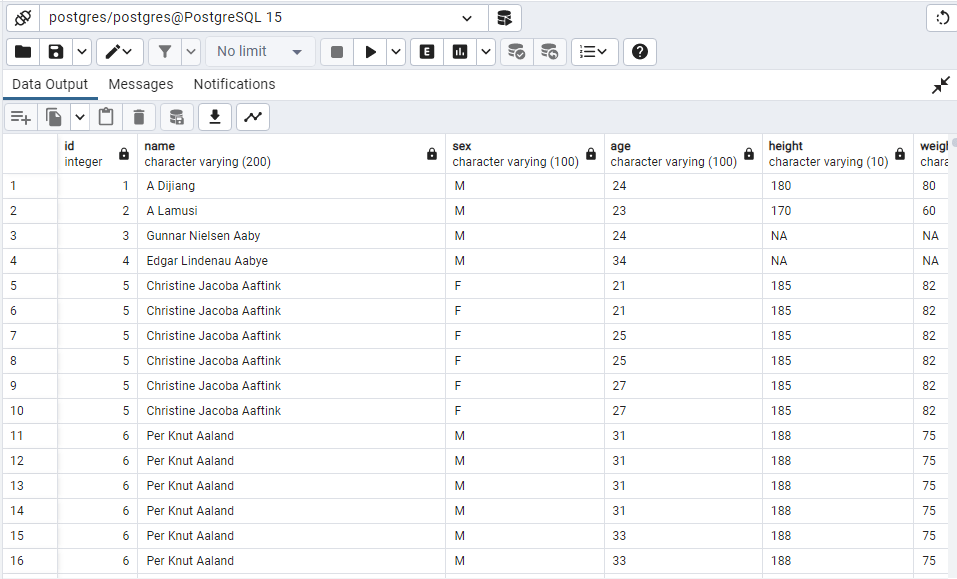
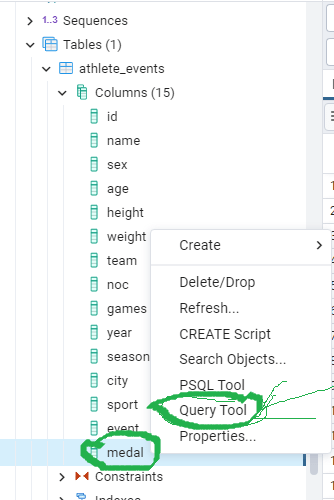
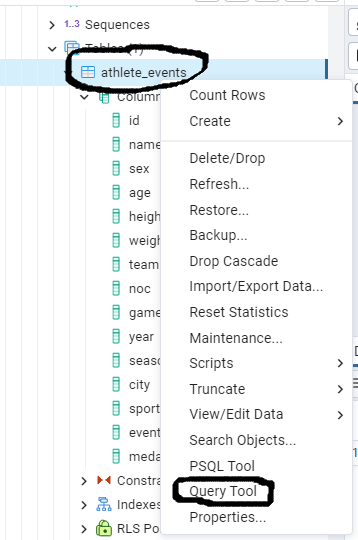
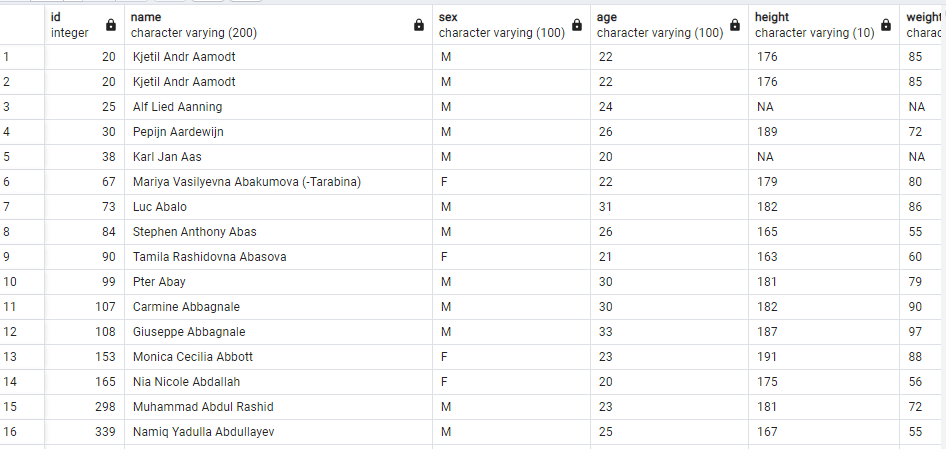
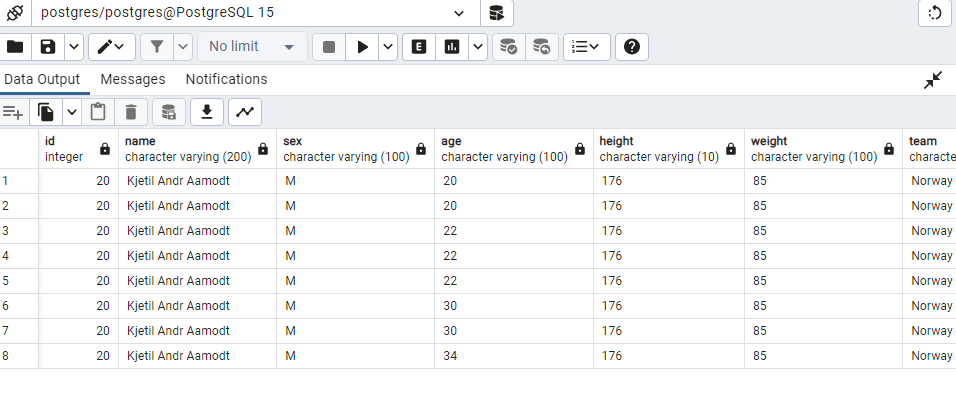
SportsStats (Olympics Dataset – 120 years of data)

A sports research company called SportsStats collaborates with professional personal trainers and local news outlets to offer “interesting” information that benefit their partners. For the aim of generating a news article or identifying important health insights, insights could be patterns or trends highlighting specific populations, occasions, or regions, among other things.

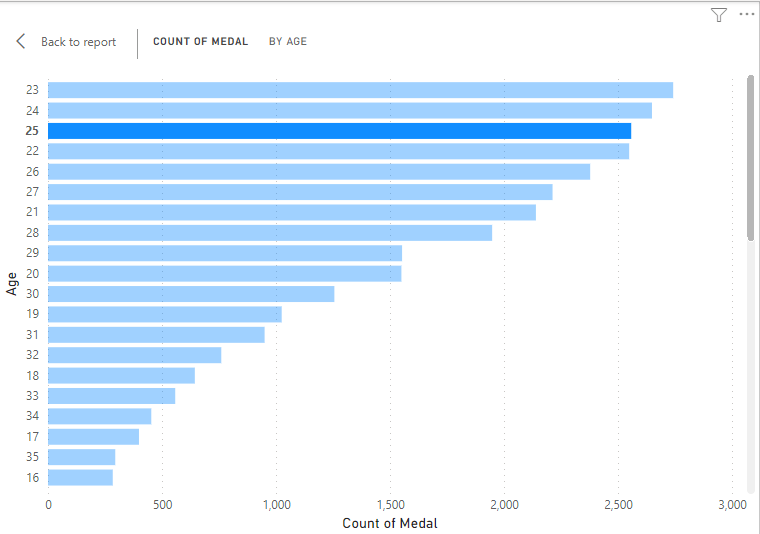
#Maximum count of medal has been earned by people in the age group of 23 years,

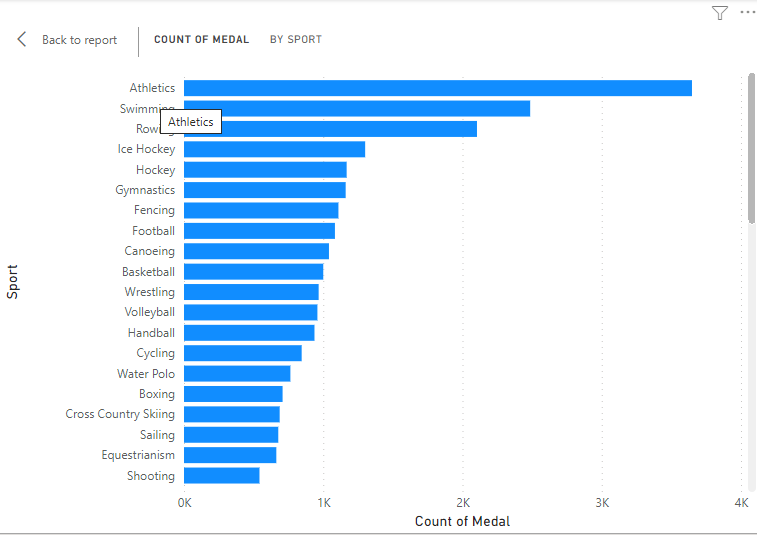
#Athletics and Swimming are the two sports for which maximum medals are awarded

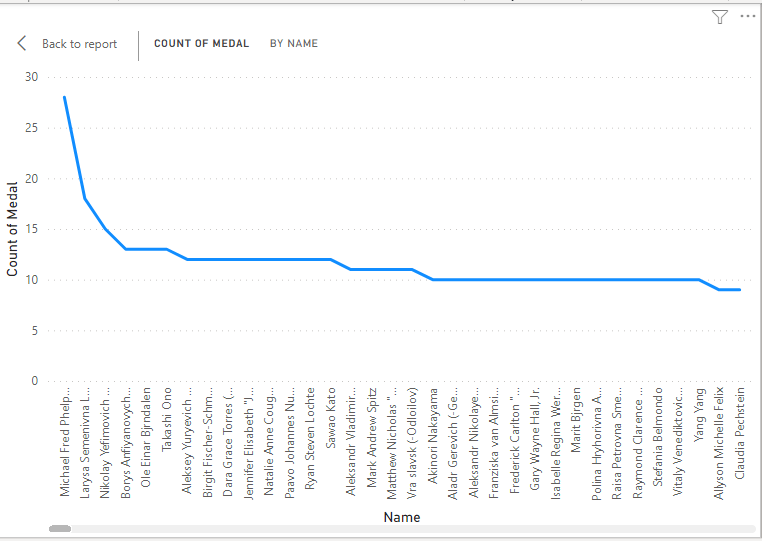
Michael Fred Phelp II has 28 Medals which is maximum!

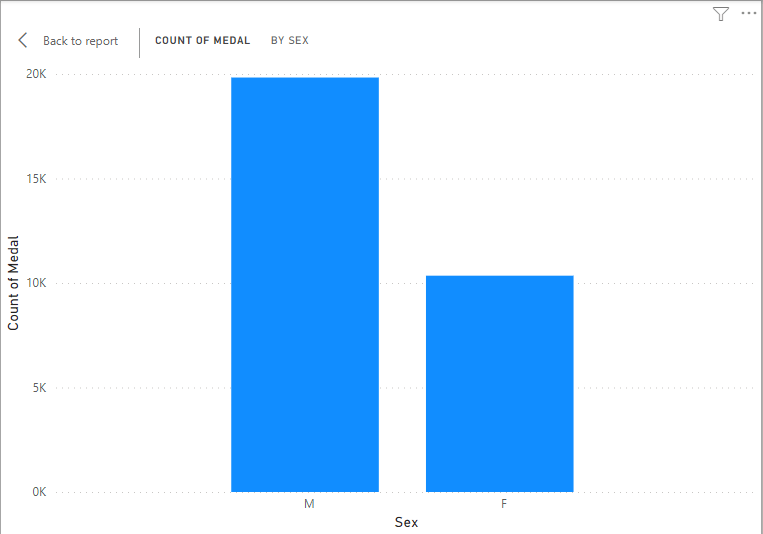
Male (19831Medals ) has more medals then females (10350 Medals)

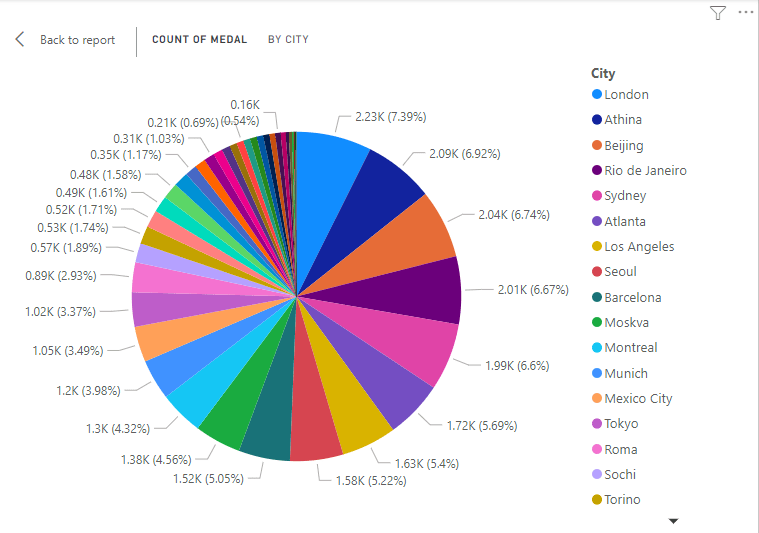
London city has the maximum number of medals ie. 2231 = 7.39%

My second experiment with powerbi

Monthly-Sales-Dashboard/Monthly 7 pbix.pbix at main · Laxmihe/Monthly-Sales-Dashboard (github.com)

Your Repositories (github.com)https://github.com/Laxmihe?tab=repositories

https://public.tableau.com/shared/4QKTXFSS8?:display_count=n&:origin=viz_share_link
Link to my Tableau Dashboard in Tableau Public
https://public.tableau.com/shared/4QKTXFSS8?:display_count=n&:origin=viz_share_link

https://tinyurl.com/mstpta98

https://public.tableau.com/views/Dashboard1_16781382242470/Dashboard1?:language=en

https://tinyurl.com/wf936zb9

https://public.tableau.com/app/profile/laxmi.hegde.nagaraj

https://tinyurl.com/ykp7vah5                        best

My experiment with EXCEL

https://cf-courses-data.s3.us.cloud-object-storage.appdomain.cloud/IBMDeveloperSkillsNetwork-DA0130EN-SkillsNetwork/Hands-on%20Labs/Peer%20Graded%20Assignment%20-%20Part%201/Montgomery_Fleet_Equipment_Inventory_FA_PART_1_START.csv

Create a free account here

http://www.office.com

https://cf-courses-data.s3.us.cloud-object-storage.appdomain.cloud/IBMDeveloperSkillsNetwork-DA0130EN-SkillsNetwork/Hands-on%20Labs/Peer%20Graded%20Assignment%20-%20Part%202/Montgomery_Fleet_Equipment_Inventory_FA_PART_2_START.xlsx

https://cf-courses-data.s3.us.cloud-object-storage.appdomain.cloud/IBMDeveloperSkillsNetwork-DV0130EN-SkillsNetwork/Hands-on%20Labs/Lab%201%20-%20Creating%20Basic%20Charts/Car_Sales_Kaggle_DV0130EN_Lab1_Start.xlsx

https://cf-courses-data.s3.us.cloud-object-storage.appdomain.cloud/IBMDeveloperSkillsNetwork-DV0130EN-SkillsNetwork/Hands-on%20Labs/Lab%202%20-%20Creating%20Advanced%20Charts%20/Car_Sales_Kaggle_DV0130EN_Lab2_Start.xlsx

My experiment with SQL

My second code for the same question

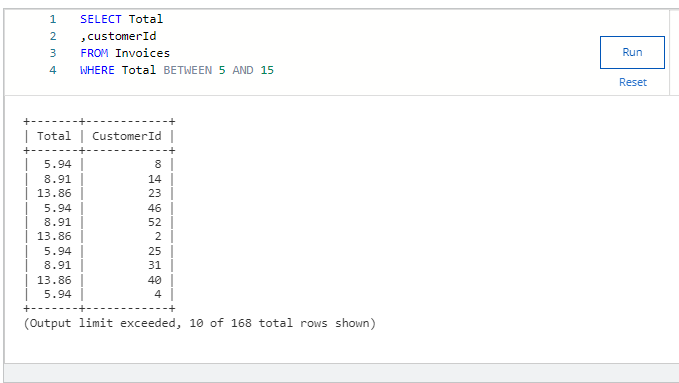
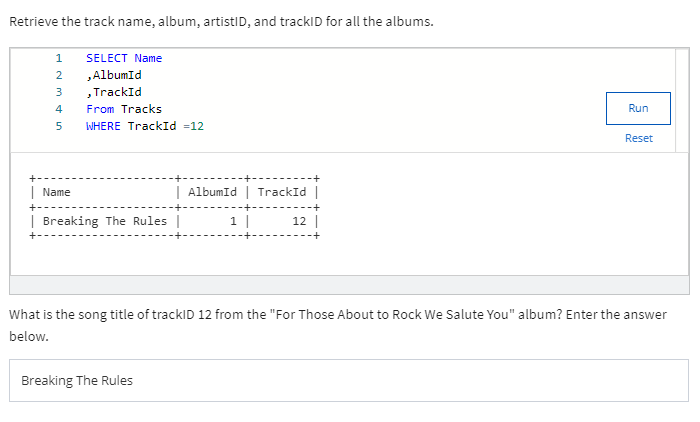
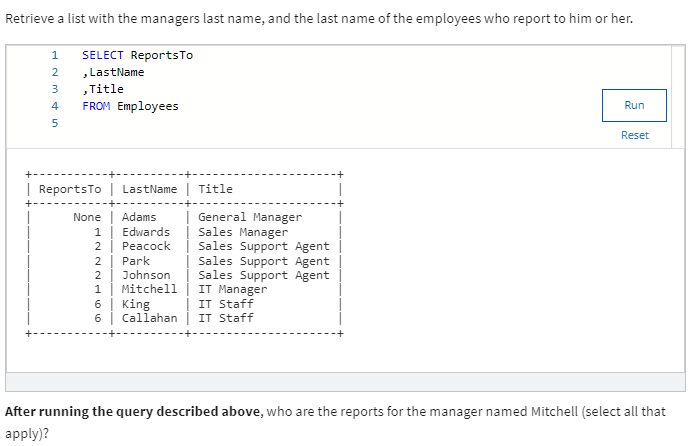
Run Query: Find all the invoices whose total is between $5 and $15 dollars.

While the query in this example is limited to 10 records, running the query correctly will indicate how many total records there are – enter that number below.

Answer = 168

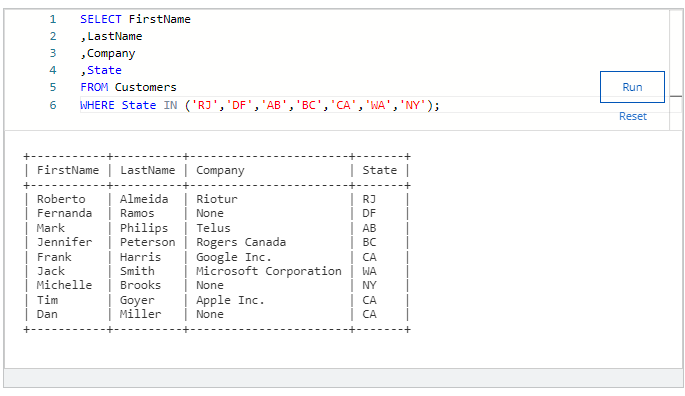
Run Query: Find all the customers from the following States: RJ, DF, AB, BC, CA, WA, NY.

What company does Jack Smith work for?
1 point


Microsoft Corp

Apple Inc.

Google Inc.

Rogers Canada

Answer : Microsoft Corp

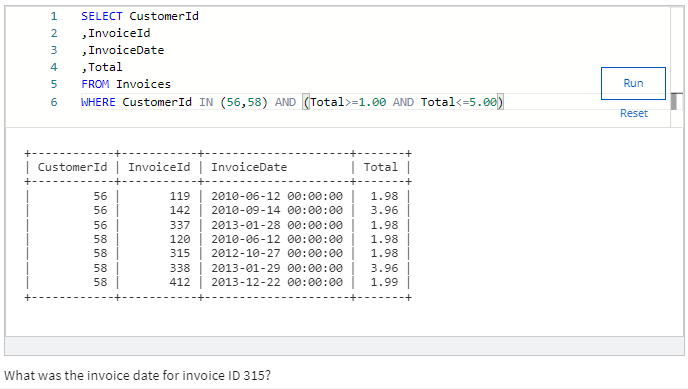
My different code for the same question

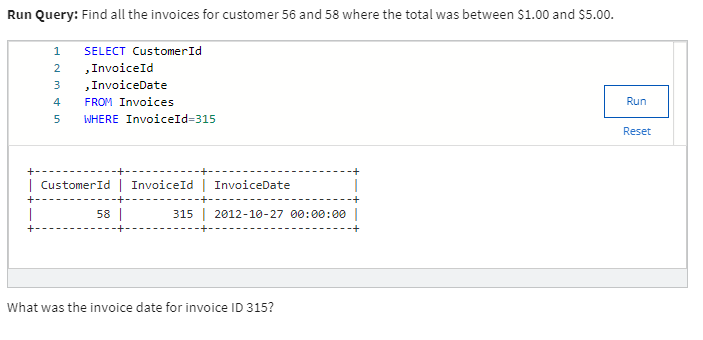
What was the invoice date for invoice ID 315?

Answer

10-27-2012

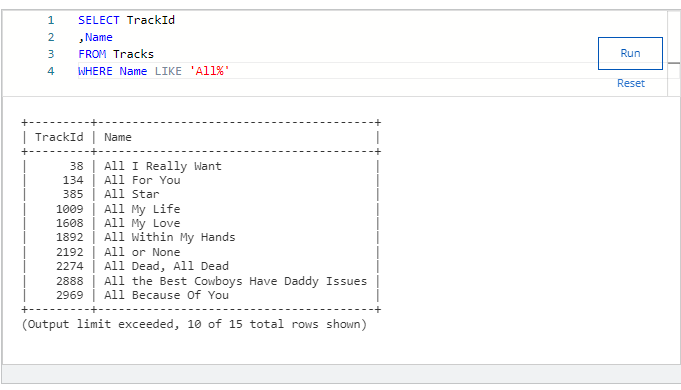
Run Query: Find all the tracks whose name starts with ‘All’.

While only 10 records are shown, the query will indicate how many total records there are for this query – enter that number below.

Answer = 15

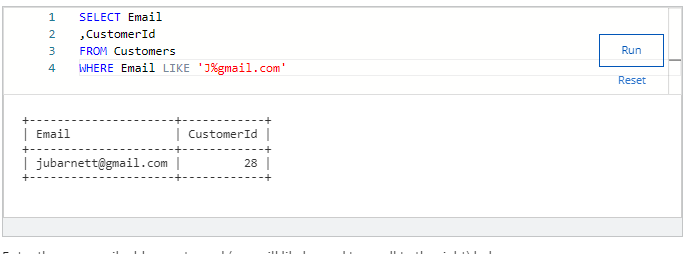
Run Query: Find all the customer emails that start with “J” and are from gmail.com.

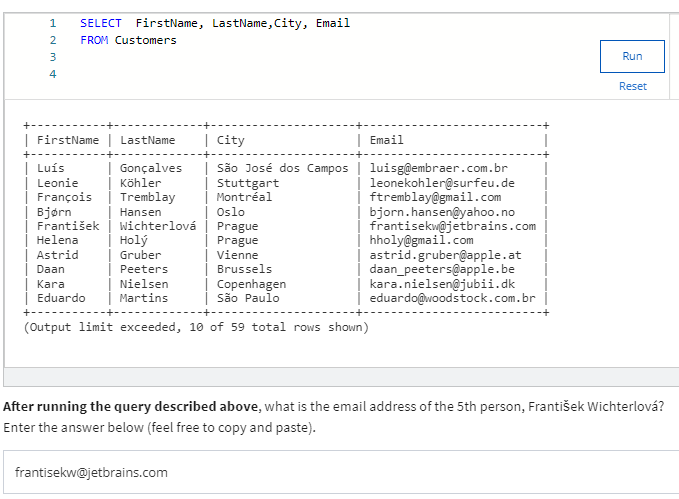
Enter the one email address returned (you will likely need to scroll to the right) below.

Answer :

jubarnett@gmail.com

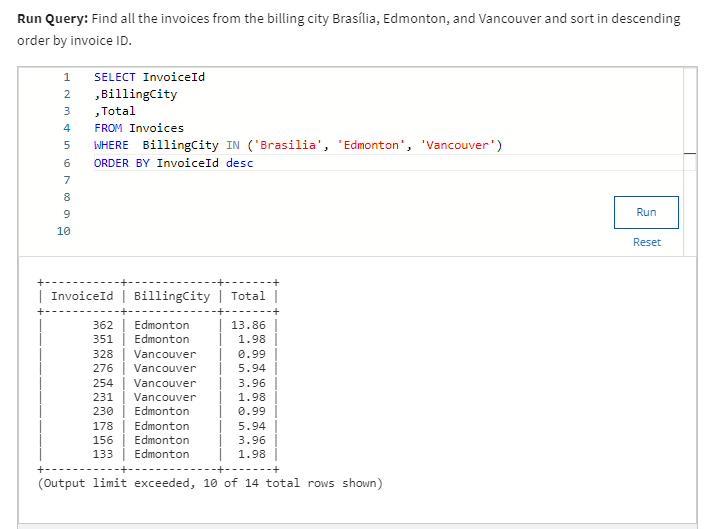
Run Query: Find all the invoices from the billing city Brasília, Edmonton, and Vancouver and sort in descending order by invoice ID.

What is the total invoice amount of the first record returned? Enter the number below without a $ sign. Remember to sort in descending order to get the correct answer.

Answer : 13.86

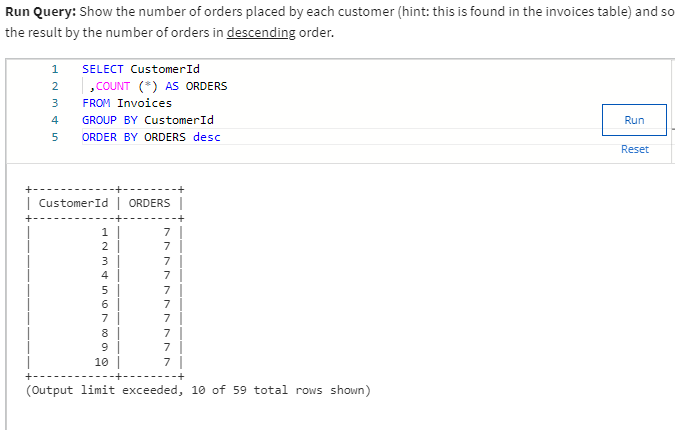
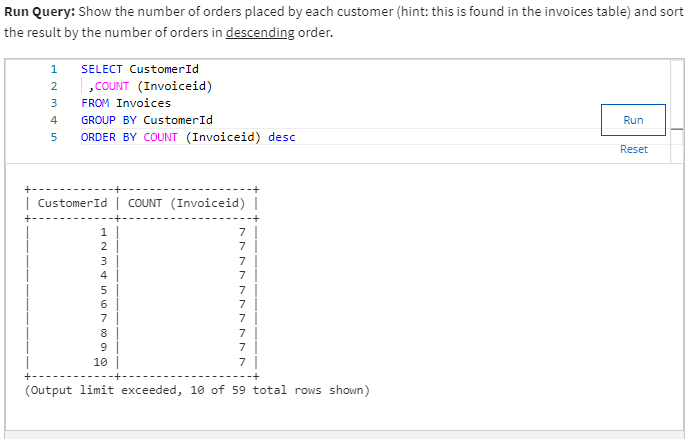
Run Query: Show the number of orders placed by each customer (hint: this is found in the invoices table) and sort the result by the number of orders in descending order.

What is the number of items placed for the 8th person on this list? Enter that number below.

Answer =7

Different code for the same question

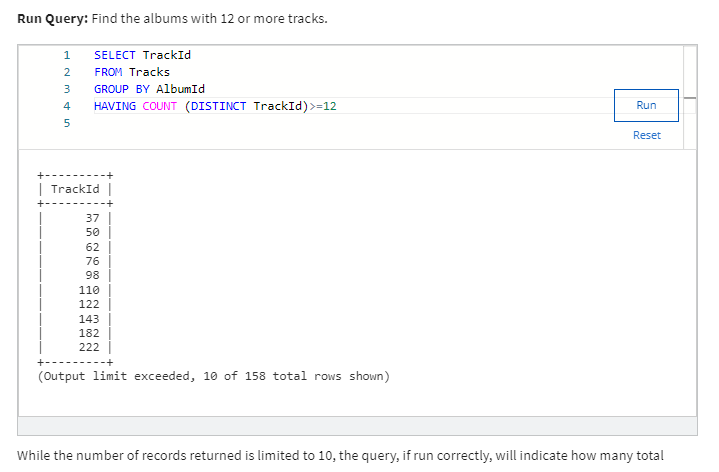
Run Query: Find the albums with 12 or more tracks.

While the number of records returned is limited to 10, the query, if run correctly, will indicate how many total records there are. Enter that number below.

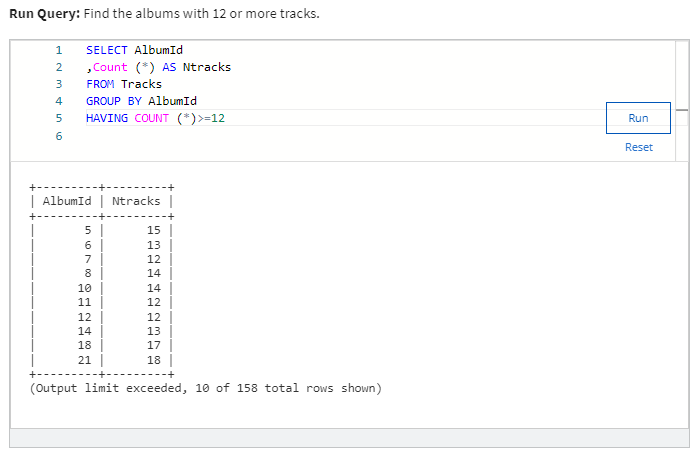
Answer : 158

Same question by different code

MODULE 2 Questions

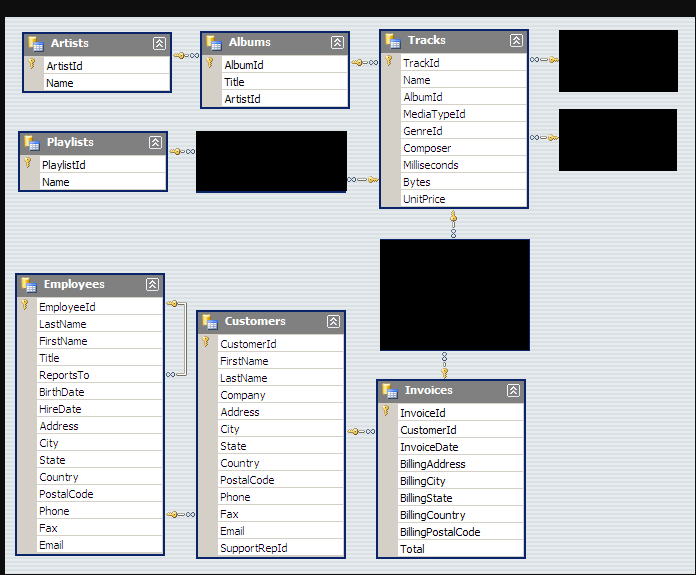
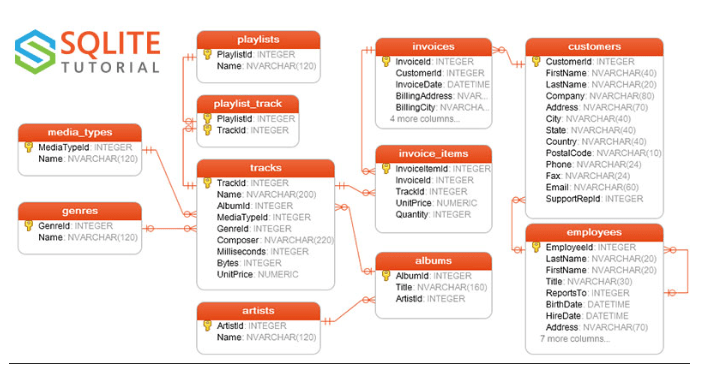
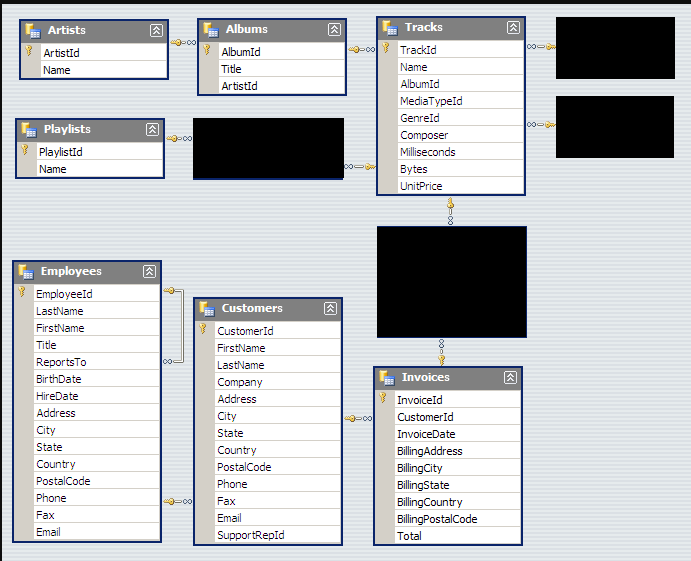
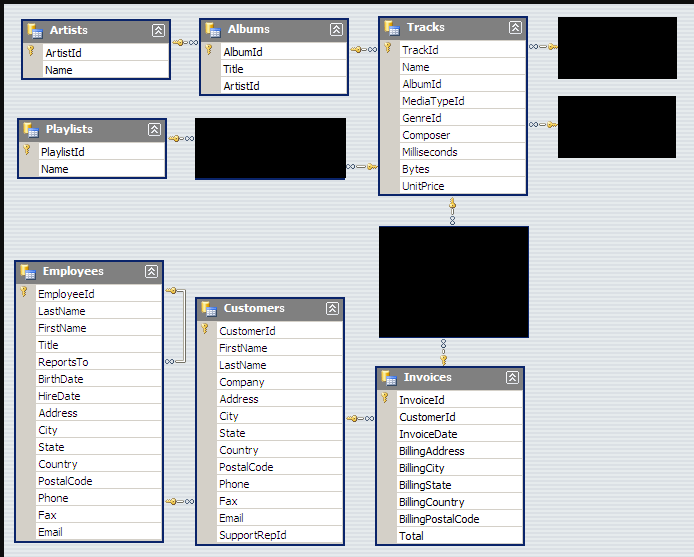
All of the questions in this quiz pull from the open source Chinook Database. Please refer to the ER Diagram below and familiarize yourself with the table and column names to write accurate queries and get the appropriate answers.

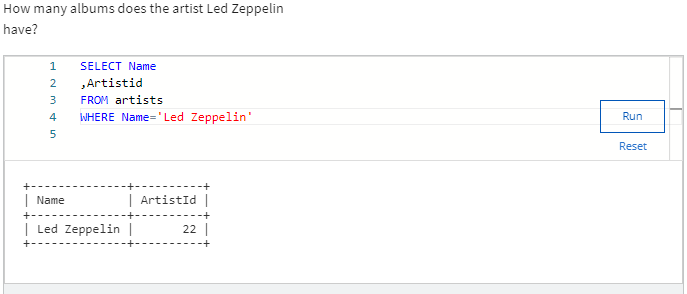
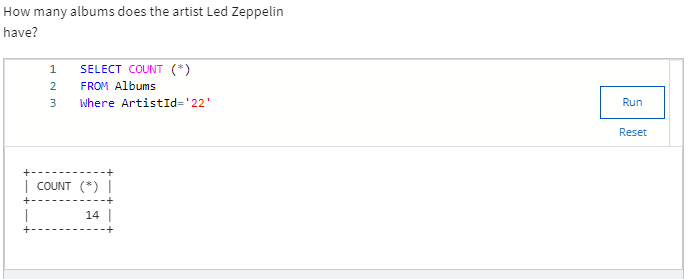
How many albums does the artist Led Zeppelin have?

Now Artist Led Zeppelin ID is 22

Here I used two codes to get the answer

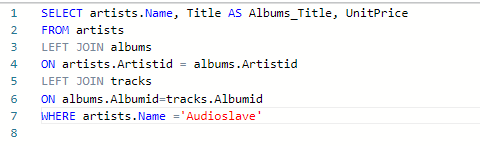
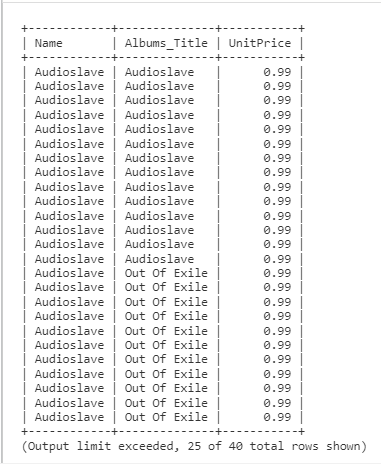
Create a list of album titles and the unit prices for the artist “Audioslave”.

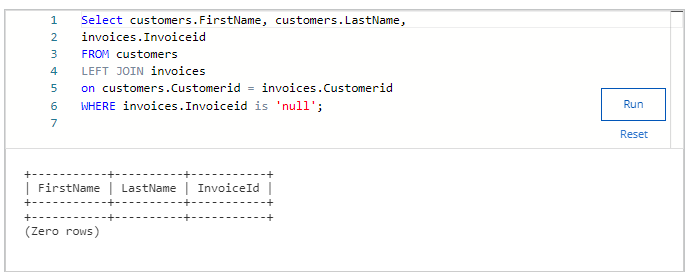
Find the first and last name of any customer who does not have an invoice. Are there any customers returned from the query?

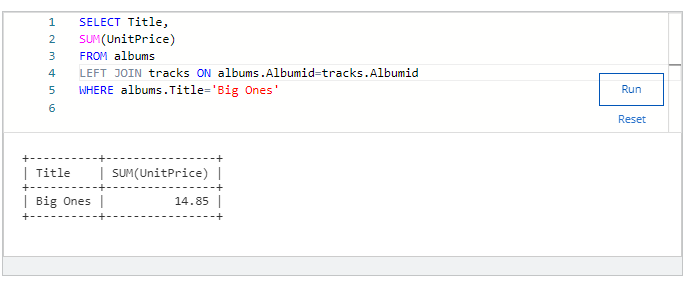
Find the total price for each album.

What is the total price for the album “Big Ones”?

ANS 14.85

How many records are created when you apply a Cartesian join to the invoice and invoice items table?

Answer 922880

Module 3 Coding Assignment

All of the questions in this quiz refer to the open source Chinook Database. Please familiarize yourself with the ER diagram in order to familiarize yourself with the table and column names in order to write accurate queries and get the appropriate answers.

Using a subquery, find the names of all the tracks for the album “Californication”.

ANS

8th track is

Porcelain

All of the questions in this quiz refer to the open source Chinook Database. Please familiarize yourself with the ER diagram in order to familiarize yourself with the table and column names in order to write accurate queries and get the appropriate answers.

Find the total number of invoices for each customer along with the customer’s full name, city and email.

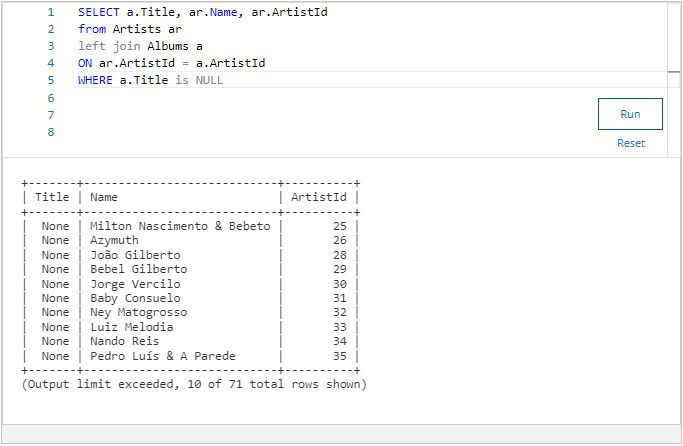
Find the name and ID of the artists who do not have albums.

After running the query described above, two of the records returned have the same last name. Enter that name below.

Gilberto

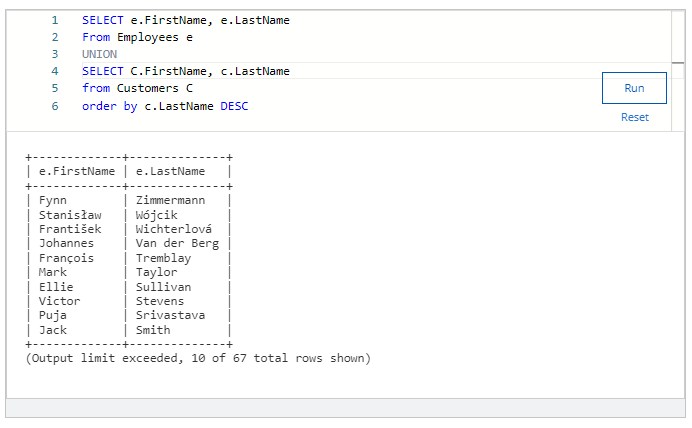
Use a UNION to create a list of all the employee’s and customer’s first names and last names ordered by the last name in descending order.

After running the query described above, determine what is the last name of the 6th record? Enter it below. Remember to order things in descending order to be sure to get the correct answer.

Taylor

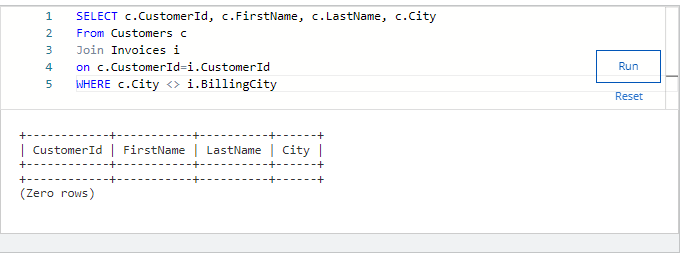
See if there are any customers who have a different city listed in their billing city versus their customer city.

Answer

No customers have a different city listed in their billing city versus customer city.

Week 4 Quiz

All of the questions in this quiz refer to the open source Chinook Database. Please familiarize yourself with the ER diagram in order to familiarize yourself with the table and column names in order to write accurate queries and get the appropriate answers.

Pull a list of customer ids with the customer’s full name, and address, along with combining their city and country together. Be sure to make a space in between these two and make it UPPER CASE. (e.g. LOS ANGELES USA)

2.

Question 2

All of the questions in this quiz refer to the open source Chinook Database. Please familiarize yourself with the ER diagram in order to familiarize yourself with the table and column names in order to write accurate queries and get the appropriate answers.

Create a new employee user id by combining the first 4 letters of the employee’s first name with the first 2 letters of the employee’s last name. Make the new field lower case and pull each individual step to show your work.

SELECT FirstName,

       LastName,

       ‘SUBSTR’ (FirstName, 1,4) AS A

       ‘SUBSTR'(LastName,1,2) AS B

       ‘SUBSTR'(FirstName,1,4)||’SUBSTR'(LastName,1,2) AS UserId

FROM Employees

What is the final result for Robert King?

RobeKi

All of the questions in this quiz refer to the open source Chinook Database. Please familiarize yourself with the ER diagram in order to familiarize yourself with the table and column names in order to write accurate queries and get the appropriate answers.

Show a list of employees who have worked for the company for 15 or more years using the current date function. Sort by lastname ascending.

What is the lastname of the last person on the list returned?

Peacock

All of the questions in this quiz refer to the open source Chinook Database. Please familiarize yourself with the ER diagram in order to familiarize yourself with the table and column names in order to write accurate queries and get the appropriate answers.

Profiling the Customers table, answer the following question.

SELECT COUNT(*)

FROM Customers

WHERE Phone IS NULL

FAX, Company, Phone , Postal code

All of the questions in this quiz refer to the open source Chinook Database. Please familiarize yourself with the ER diagram in order to familiarize yourself with the table and column names in order to write accurate queries and get the appropriate answers.

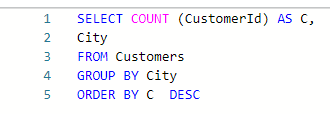
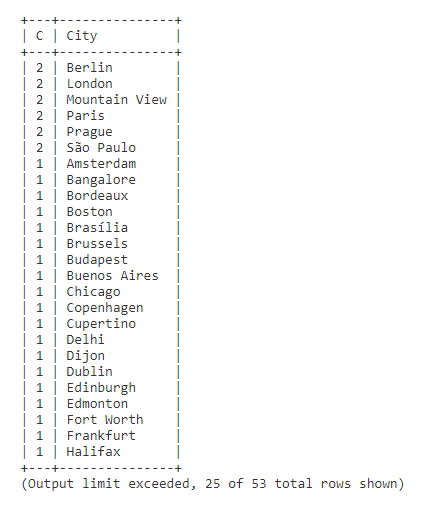
Find the cities with the most customers and rank in descending order.

ANS

London, Sao Paulo, Moutain View

All of the questions in this quiz refer to the open source Chinook Database. Please familiarize yourself with the ER diagram in order to familiarize yourself with the table and column names in order to write accurate queries and get the appropriate answers.

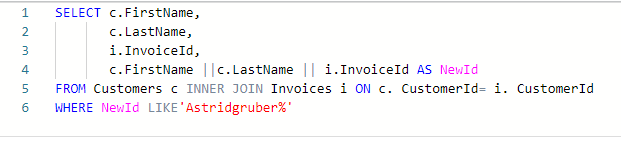
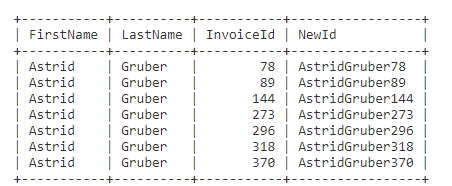
Create a new customer invoice id by combining a customer’s invoice id with their first and last name while ordering your query in the following order: firstname, lastname, and invoiceID.

Ans

Select all of the correct “AstridGruber” entries that are returned in your results below. Select all that apply.

AstridGruber273

AstridGruber296

AstridGruber370

Spin-off of “Project: Design a store database”

Made using: Khan Academy Computer Science

Spin-off of “More complex queries with AND/OR”

Made using: Khan Academy Computer Science

CREATE TABLE exercise_logs
(id INTEGER PRIMARY KEY AUTOINCREMENT,
type TEXT,
minutes INTEGER,
calories INTEGER,
heart_rate INTEGER);

INSERT INTO exercise_logs(type, minutes, calories, heart_rate) VALUES (“Yoga”, 30, 100, 110);
INSERT INTO exercise_logs(type, minutes, calories, heart_rate) VALUES (“biking”, 10, 30, 105);
INSERT INTO exercise_logs(type, minutes, calories, heart_rate) VALUES (“dancing”, 15, 200, 120);

SELECT*FROM exercise_logs WHERE calories>100 ORDER BY calories;

/* AND */
SELECT * FROM exercise_logs WHERE calories >50 AND minutes <30;

/OR/
SELECT *FROM exercise_logs WHERE calories >50 OR heart_rate>100;

DATABASE SCHEMA

exercise_logs3 rows
id (PK)INTEGER
typeTEXT
minutesINTEGER
caloriesINTEGER
heart_rateINTEGER

QUERY RESULTS

idtypeminutescaloriesheart_rate
3dancing15200120
idtypeminutescaloriesheart_rate
3dancing15200120
idtypeminutescaloriesheart_rate
1Yoga30100110
2biking1030105
3dancing15200120

Spin-off of “Project: Data dig”

Made using: Khan Academy Computer Science

https://www.khanacademy.org/computer-programming/spin-off-of-project-data-dig/4910651633352704

Spin-off of “Project: Data dig”

Made using: Khan Academy Computer Science

https://www.khanacademy.org/computer-programming/spin-off-of-project-data-dig/4579792032153600

Spin-off of “Project: Data dig”

Made using: Khan Academy Computer Science

https://www.khanacademy.org/computer-programming/spin-off-of-project-data-dig/4878908956131328

SELECT Speed,
CASE
WHEN Speed > 50 THEN “below normal”
WHEN Speed > 75 THEN “normal”
WHEN Speed > 100 THEN “above normal”
ELSE “below speed”
END as “Speed_zone”
FROM pokemon;

SpeedSpeed_zone
45below speed
60below normal
80below normal
80below normal
65below normal
80below normal
100below normal
100below normal
100below normal
43below speed
58below normal
78below normal
78below normal
45below speed
30below speed
70below normal
50below speed
35below speed
75below normal
145below normal
56below normal
71below normal
101below normal
121below normal
72below normal
97below normal
70below normal
100below normal
55below normal
80below normal
90below normal
110below normal
40below speed
65below normal
41below speed
56below normal
76below normal
50below speed
65below normal
85below normal
35below speed
60below normal
65below normal
100below normal
20below speed
45below speed
55below normal
90below normal
30below speed
40below speed
50below speed
25below speed
30below speed
45below speed
90below normal
95below normal
120below normal
90below normal
115below normal
55below normal
85below normal
70below normal
95below normal
60below normal
95below normal
90below normal
90below normal
70below normal
90below normal
105below normal
120below normal
150below normal
35below speed
45below speed
55below normal
40below speed
55below normal
70below normal
70below normal
100below normal
20below speed
35below speed
45below speed
90below normal
105below normal
15below speed
30below speed
30below speed
45below speed
70below normal
60below normal
75below normal
100below normal
45below speed
70below normal
25below speed
50below speed
40below speed
70below normal
80below normal
95below normal
110below normal
130below normal
70below normal
42below speed
67below normal
50below speed
75below normal
100below normal
140below normal
40below speed
55below normal
35below speed
45below speed
87below normal
76below normal
30below speed
35below speed
60below normal
25below speed
40below speed
50below speed
60below normal
90below normal
100below normal
60below normal
85below normal
63below normal
68below normal
85below normal
115below normal
90below normal
105below normal
95below normal
105below normal
93below normal
85below normal
105below normal
110below normal
80below normal
81below normal
81below normal
60below normal
48below speed
55below normal
65below normal
130below normal
65below normal
40below speed
35below speed
55below normal
55below normal
80below normal
130below normal
150below normal
30below speed
85below normal
100below normal
90below normal
50below speed
70below normal
80below normal
130below normal
130below normal
140below normal
100below normal
45below speed
60below normal
80below normal
65below normal
80below normal
100below normal
43below speed
58below normal
78below normal
20below speed
90below normal
50below speed
70below normal
55below normal
85below normal
30below speed
40below speed
130below normal
67below normal
67below normal
60below normal
15below speed
15below speed
20below speed
40below speed
70below normal
95below normal
35below speed
45below speed
55below normal
45below speed
50below speed
40below speed
50below speed
30below speed
70below normal
50below speed
80below normal
110below normal
85below normal
30below speed
30below speed
95below normal
15below speed
35below speed
110below normal
65below normal
91below normal
30below speed
85below normal
48below speed
33below speed
85below normal
15below speed
40below speed
45below speed
85below normal
30below speed
30below speed
30below speed
45below speed
85below normal
65below normal
75below normal
5below speed
85below normal
75below normal
115below normal
40below speed
55below normal
20below speed
30below speed
50below speed
50below speed
35below speed
65below normal
45below speed
75below normal
70below normal
70below normal
65below normal
95below normal
115below normal
85below normal
40below speed
50below speed
60below normal
85below normal
75below normal
35below speed
70below normal
65below normal
95below normal
83below normal
100below normal
55below normal
115below normal
100below normal
85below normal
41below speed
51below normal
61below normal
71below normal
110below normal
90below normal
100below normal
70below normal
95below normal
120below normal
145below normal
45below speed
55below normal
80below normal
100below normal
40below speed
50below speed
60below normal
70below normal
35below speed
70below normal
60below normal
100below normal
20below speed
15below speed
65below normal
15below speed
65below normal
30below speed
50below speed
70below normal
30below speed
60below normal
80below normal
85below normal
125below normal
85below normal
65below normal
40below speed
50below speed
80below normal
100below normal
65below normal
60below normal
35below speed
70below normal
30below speed
90below normal
100below normal
40below speed
160below normal
40below speed
28below speed
48below speed
68below normal
25below speed
50below speed
20below speed
30below speed
50below speed
70below normal
50below speed
20below speed
50below speed
50below speed
30below speed
40below speed
50below speed
50below speed
60below normal
80below normal
100below normal
65below normal
105below normal
135below normal
95below normal
95below normal
85below normal
85below normal
65below normal
40below speed
55below normal
65below normal
95below normal
105below normal
60below normal
60below normal
35below speed
40below speed
20below speed
20below speed
60below normal
80below normal
60below normal
10below speed
70below normal
100below normal
35below speed
55below normal
50below speed
80below normal
80below normal
90below normal
65below normal
70below normal
70below normal
60below normal
60below normal
35below speed
55below normal
55below normal
75below normal
23below speed
43below speed
75below normal
45below speed
80below normal
81below normal
70below normal
40below speed
45below speed
65below normal
75below normal
25below speed
25below speed
51below normal
65below normal
75below normal
115below normal
23below speed
50below speed
80below normal
100below normal
25below speed
45below speed
65below normal
32below speed
52below normal
52below normal
55below normal
97below normal
50below speed
50below speed
100below normal
120below normal
30below speed
50below speed
70below normal
110below normal
50below speed
50below speed
50below speed
110below normal
110below normal
110below normal
110below normal
90below normal
90below normal
90below normal
90below normal
95below normal
115below normal
100below normal
150below normal
150below normal
90below normal
180below normal
31below speed
36below speed
56below normal
61below normal
81below normal
108below normal
40below speed
50below speed
60below normal
60below normal
80below normal
100below normal
31below speed
71below normal
25below speed
65below normal
45below speed
60below normal
70below normal
55below normal
90below normal
58below normal
58below normal
30below speed
30below speed
36below speed
36below speed
36below speed
36below speed
66below normal
70below normal
40below speed
95below normal
85below normal
115below normal
35below speed
85below normal
34below speed
39below speed
115below normal
70below normal
80below normal
85below normal
105below normal
135below normal
105below normal
71below normal
85below normal
112below normal
45below speed
74below normal
84below normal
23below speed
33below speed
10below speed
60below normal
30below speed
91below normal
35below speed
42below speed
82below normal
102below normal
92below normal
5below speed
60below normal
90below normal
112below normal
32below speed
47below speed
65below normal
95below normal
50below speed
85below normal
46below speed
66below normal
91below normal
50below speed
40below speed
60below normal
30below speed
125below normal
60below normal
50below speed
40below speed
50below speed
95below normal
83below normal
80below normal
95below normal
95below normal
65below normal
95below normal
80below normal
90below normal
80below normal
110below normal
40below speed
45below speed
110below normal
91below normal
86below normal
86below normal
86below normal
86below normal
86below normal
95below normal
80below normal
115below normal
90below normal
100below normal
77below normal
100below normal
90below normal
90below normal
85below normal
80below normal
100below normal
125below normal
100below normal
127below normal
120below normal
100below normal
63below normal
83below normal
113below normal
45below speed
55below normal
65below normal
45below speed
60below normal
70below normal
42below speed
77below normal
55below normal
60below normal
80below normal
66below normal
106below normal
64below normal
101below normal
64below normal
101below normal
64below normal
101below normal
24below speed
29below speed
43below speed
65below normal
93below normal
76below normal
116below normal
15below speed
20below speed
25below speed
72below normal
114below normal
68below normal
88below normal
50below speed
50below speed
35below speed
40below speed
45below speed
64below normal
69below normal
74below normal
45below speed
85below normal
42below speed
42below speed
92below normal
57below normal
47below speed
112below normal
66below normal
116below normal
30below speed
90below normal
98below normal
65below normal
74below normal
92below normal
50below speed
95below normal
55below normal
60below normal
55below normal
45below speed
48below speed
58below normal
97below normal
30below speed
30below speed
22below speed
32below speed
70below normal
110below normal
65below normal
75below normal
65below normal
105below normal
75below normal
115below normal
45below speed
55below normal
65below normal
20below speed
30below speed
30below speed
55below normal
98below normal
44below speed
59below normal
79below normal
75below normal
95below normal
103below normal
60below normal
20below speed
15below speed
30below speed
40below speed
60below normal
65below normal
65below normal
108below normal
10below speed
20below speed
30below speed
50below speed
90below normal
60below normal
40below speed
50below speed
30below speed
40below speed
20below speed
55below normal
80below normal
57below normal
67below normal
97below normal
40below speed
50below speed
105below normal
25below speed
145below normal
32below speed
65below normal
105below normal
48below speed
35below speed
55below normal
60below normal
70below normal
55below normal
60below normal
80below normal
60below normal
80below normal
65below normal
109below normal
38below speed
58below normal
98below normal
60below normal
100below normal
108below normal
108below normal
108below normal
111below normal
121below normal
111below normal
101below normal
90below normal
90below normal
101below normal
91below normal
95below normal
95below normal
95below normal
108below normal
108below normal
90below normal
128below normal
99below normal
38below speed
57below normal
64below normal
60below normal
73below normal
104below normal
71below normal
97below normal
122below normal
57below normal
78below normal
62below normal
84below normal
126below normal
35below speed
29below speed
89below normal
72below normal
106below normal
42below speed
52below normal
75below normal
52below normal
68below normal
43below speed
58below normal
102below normal
68below normal
104below normal
104below normal
28below speed
35below speed
60below normal
60below normal
23below speed
29below speed
49below speed
72below normal
45below speed
73below normal
50below speed
68below normal
30below speed
44below speed
44below speed
59below normal
70below normal
109below normal
48below speed
71below normal
46below speed
58below normal
60below normal
118below normal
101below normal
50below speed
40below speed
60below normal
80below normal
75below normal
38below speed
56below normal
51below normal
56below normal
46below speed
41below speed
84below normal
99below normal
69below normal
54below normal
28below speed
28below speed
55below normal
123below normal
99below normal
99below normal
95below normal
50below speed
110below normal
70below normal
80below normal
70below normal

https://www.khanacademy.org/computer-programming/spin-off-of-challenge-dynamic-documents/4504908035833856

CREATE TABLE clothes (
id INTEGER PRIMARY KEY AUTOINCREMENT,
type TEXT,
design TEXT);

INSERT INTO clothes (type, design)
VALUES (“dress”, “pink polka dots”);
INSERT INTO clothes (type, design)
VALUES (“pants”, “rainbow tie-dye”);
INSERT INTO clothes (type, design)
VALUES (“blazer”, “black sequin”);
SELECT * FROM clothes;
ALTER TABLE clothes ADD price TEXT default “unknown”;
SELECT * FROM clothes;

DATABASE SCHEMA

clothes3 rows
id (PK)INTEGER
typeTEXT
designTEXT
priceTEXT

QUERY RESULTS

idtypedesign
1dresspink polka dots
2pantsrainbow tie-dye
3blazerblack sequin
idtypedesignprice
1dresspink polka dotsunknown
2pantsrainbow tie-dyeunknown
3blazerblack sequinunknown

Coursera SQL for Data Science project

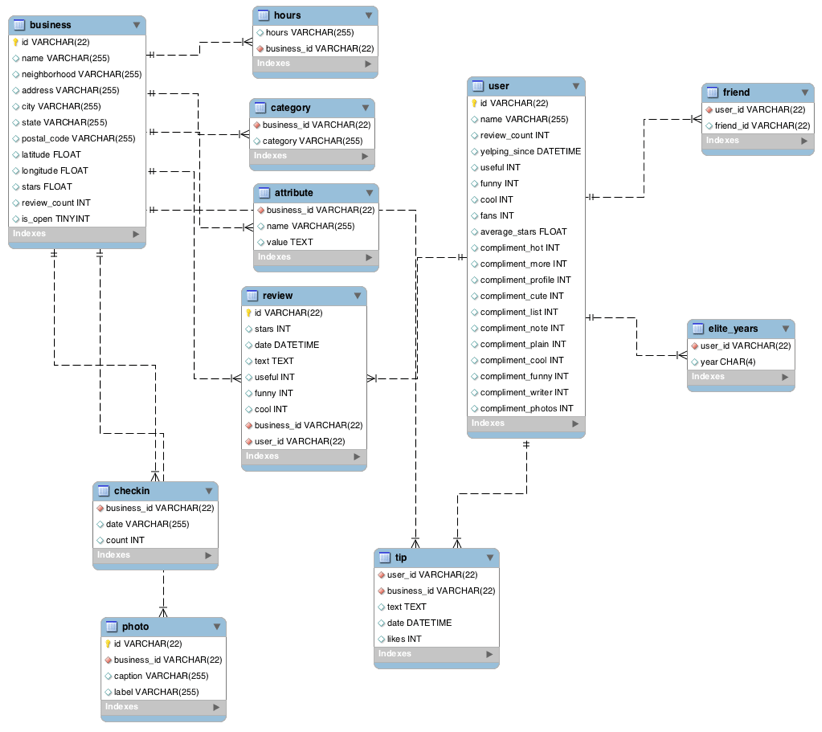
Yelp Dataset ER Diagram

less 

The entity-relationship (ER) diagram below, should help familiarize you with the design of the Yelp Dataset provided for this peer review activity.

Data Scientist Role Play: Profiling and Analyzing the Yelp Dataset Coursera Worksheet

This is a 2-part assignment. In the first part, you are asked a series of questions that
will help you profile and understand the data just like a data scientist would. For this
first part of the assignment, you will be assessed both on the correctness of your
findings, as well as the code you used to arrive at your answer. You will be graded on
how easy your code is to read, so remember to use proper formatting and comments where
necessary.

In the second part of the assignment, you are asked to come up with your own inferences
and analysis of the data for a particular research question you want to answer. You will be
required to prepare the dataset for the analysis you choose to do. As with the first part,
you will be graded, in part, on how easy your code is to read, so use proper formatting
and comments to illustrate and communicate your intent as required.

For both parts of this assignment, use this “worksheet.” It provides all the questions
you are being asked, and your job will be to transfer your answers and SQL coding where
indicated into this worksheet so that your peers can review your work. You should be able
to use any Text Editor (Windows Notepad, Apple TextEdit, Notepad ++, Sublime Text, etc.)
to copy and paste your answers. If you are going to use Word or some other page layout
application, just be careful to make sure your answers and code are lined appropriately.
In this case, you may want to save as a PDF to ensure your formatting remains intact
for you reviewer.

SELECT COUNT(*)
FROM ‘Attribute table;
Attribute table = 10000
Business table = 10000
category table = 10000
checkin table = 10000
elite_years table = 10000
friend table = 10000
hours table = 10000
photo table = 10000
review table = 10000
tip table = 10000
user table = 10000

/*
Find the total number of distinct records for each of the keys listed below:*/

SELECT COUNT (DISTINCT(id))
FROM business;

| COUNT (DISTINCT(id)) |
+———————-+
| 10000 |

Answer Business = 10000

SELECT COUNT (DISTINCT business_id)
FROM hours;

+——————————+
| COUNT (DISTINCT business_id) |
+——————————+
| 1562

Answer Hours = 1562

SELECT COUNT (DISTINCT business_id)
FROM category;

+——————————+
| COUNT (DISTINCT business_id) |
+——————————+
| 2643 |
+——————————

Answer Category =2643

SELECT COUNT (DISTINCT(business_id))
FROM attribute;

+——————————-+
| COUNT (DISTINCT(business_id)) |
+——————————-+
| 1115 |
+——————————-

Answer Attribute = 1115

SELECT COUNT (DISTINCT id)
FROM review;

+———————+
| COUNT (DISTINCT id) |
+———————+
| 10000 |
+———————
Answer Review = 10000

SELECT COUNT (DISTINCT business_id)
FROM checkin;

+——————————+
| COUNT (DISTINCT business_id) |
+——————————+
| 493 |
+——————————+

Answer Checkin = 493

SELECT COUNT (DISTINCT id)
FROM photo;

+———————+
| COUNT (DISTINCT id) |
+———————+
| 10000 |
+———————

Answer Photo =10000

SELECT COUNT (DISTINCT user_id)
FROM tip;

+————————–+
| COUNT (DISTINCT user_id) |
+————————–+
| 537

Answer Tip = 537

SELECT COUNT (DISTINCT id)
FROM user;

+———————+
| COUNT (DISTINCT id) |
+———————+
| 10000 |
+———————+

Answer User = 10000

SELECT COUNT (DISTINCT user_id)
FROM friend;

+————————–+
| COUNT (DISTINCT user_id) |
+————————–+
| 11 |
+————————–

Answer Friend = 11

SELECT COUNT (DISTINCT user_id)
FROM elite_years;

+————————–+
| COUNT (DISTINCT user_id) |
+————————–+
| 2780 |
+————————–

/*
Are there any columns with null values in the Users table? Indicate “yes,” or “no.”
Answer: “no”

SQL code used to arrive at answer:*/

SELECT id
,name
,review_count
,cool
,yelping_since
,useful
,funny
,fans
,average_stars
FROM user
WHERE id IS NULL OR
name IS NULL OR
review_count IS NULL ;

+—-+——+————–+——+—————+——–+——-+——+—————+
| id | name | review_count | cool | yelping_since | useful | funny | fans | average_stars |
+—-+——+————–+——+—————+——–+——-+——+—————+
+—-+——+————–+——+—————+——–+——-+——+—————+

Answer = no

/* Find the minimum, maximum, and average value for the following fields:*/

SELECT AVG (stars)
FROM review;

+————-+
| AVG (stars) |
+————-+
| 3.7082 |
+————-+
Average = 3,7082

i. Table: Review, Column: Stars

min: 1 max: 5 avg: 3.7082

SELECT MAX (stars)
FROM review;

+————-+
| MAX (stars) |
+————-+
| 5 |
+————-

Answer Max=5

SELECT Min (stars)
FROM review;

+————-+
| Min (stars) |
+————-+
| 1 |
+————-

Answer Min =1

SELECT Min (stars)
FROM business;

+————-+
| Min (stars) |
+————-+
| 1.0 |

Answer Business Min =1

SELECT Max (stars)
FROM business;

+————-+
| Max (stars) |
+————-+
| 5.0 |
+————-
+————-+
| MAX (stars) |
+————-+
| 5.0 |
+————-+

Answer Business Max=5

SELECT avg(stars)
FROM business;

+————+
| avg(stars) |
+————+
| 3.6549 |
+————+

Answer Business Average =3.6549

ii. Table: Business, Column: Stars

min: 1 max: 5 avg: 3.6549

SELECT min(likes)
FROM tip;

+————+
| min(likes) |
+————+
| 0 |
+————

Answer min of likes =0

SELECT max(likes)
FROM tip;

+————+
| max(likes) |
+————+
| 2 |
+————+

Answer max of likes = 2

SELECT avg(likes)
FROM tip;

————+
| avg(likes) |
+————+
| 0.0144 |
+————+

Answer avg of likes = 0.0144

iii. Table: Tip, Column: Likes

min: 0 max: 2 avg: 0.0144

SELECT min(count)
FROM checkin;

12


SELECT min(count)
FROM checkin;

+————+
| min(count) |
+————+
| 1 |
+————
Answer of count min =1

SELECT max(count)
FROM checkin;

+————+
| max(count) |
+————+
| 53 |
+————+

Answer of max of checkin is 53

SELECT avg(count)
FROM checkin;

+————+
| avg(count) |
+————+
| 1.9414 |
+————

Answer of avg of checkin = 1,9414

iv. Table: Checkin, Column: Count

min: 1 max: 53 avg: 1.9414

SELECT min(review_count)
FROM user;

——————-+
| min(review_count) |
+——————-+
| 0 |
+——————-

The answer of min of users =0

SELECT max(review_count)
FROM user;

max(review_count) |
+——————-+
| 2000 |

Answer of max of review count = 2000

SELECT avg(review_count)
FROM user;

+——————-+
| avg(review_count) |
+——————-+
| 24.2995 |
+——————-+

Answer average of review count = 24,2995

v. Table: User, Column: Review_count

min: 0 max: 2000 avg: 24.2995

/* List the cities with the most reviews in descending order:

SQL code used to arrive at the answer: */

SELECT city
, SUM (review_count) AS reviews
FROM business
GROUP BY city
ORDER BY reviews DESC

Copy and Paste the Result Below:

+—————–+———+
| city | reviews |
+—————–+———+
| Las Vegas | 82854 |
| Phoenix | 34503 |
| Toronto | 24113 |
| Scottsdale | 20614 |
| Charlotte | 12523 |
| Henderson | 10871 |
| Tempe | 10504 |
| Pittsburgh | 9798 |
| Montréal | 9448 |
| Chandler | 8112 |
| Mesa | 6875 |
| Gilbert | 6380 |
| Cleveland | 5593 |
| Madison | 5265 |
| Glendale | 4406 |
| Mississauga | 3814 |
| Edinburgh | 2792 |
| Peoria | 2624 |
| North Las Vegas | 2438 |
| Markham | 2352 |
| Champaign | 2029 |
| Stuttgart | 1849 |
| Surprise | 1520 |
| Lakewood | 1465 |
| Goodyear | 1155 |
+—————–+———+
(Output limit exceeded, 25 of 362 total rows shown)

/* Find the distribution of star ratings to the business in the following cities:

i. Avon

SQL code used to arrive at the answer:*/

SELECT (stars) AS star_rating
,city
FROM business
GROUP BY city
ORDER BY COUNT (star_rating)

Star Rating Count

0 0

1 0

1.5 1

2 0

2.5 2

3 0

3.5 3

4 2

4.5 1

5 1

/*ii. Beachwood

SQL code used to arrive at the answer:*/

SELECT stars,

SUM(review_count) AS count

FROM business

WHERE city == ‘Beachwood’

GROUP BY stars

Star Rating Count

0 0
1 0
1.5 0
2 1
2.5 1
3 2
3.5 2
4 1
4.5 2
5 5

/* Find the top 3 users based on their total number of reviews:

SQL code used to arrive at answer:*/

SELECT id
,name
,review_count
FROM user
ORDER BY review_count DESC
LIMIT 3 ;

Copy and Paste the Result Below:

+————————+——–+————–+
| id | name | review_count |
+————————+——–+————–+
| -G7Zkl1wIWBBmD0KRy_sCw | Gerald | 2000 |
| -3s52C4zL_DHRK0ULG6qtg | Sara | 1629 |
| -8lbUNlXVSoXqaRRiHiSNg | Yuri | 1339 |
+————————+——–+————–

/*8. Does posing more reviews correlate with more fans?

Yes, but you should also consider how long they have been yelping. Their fan base grows
as they have more reviews and longer-running Yelp accounts.

Please explain your findings and interpretation of the results:*/

SELECT id
,name
,review_count
,fans
,yelping_since
,useful
FROM user
ORDER BY fans DESC;

+————————+———–+————–+——+———————+——–+
| id | name | review_count | fans | yelping_since | useful |
+————————+———–+————–+——+———————+——–+
| -9I98YbNQnLdAmcYfb324Q | Amy | 609 | 503 | 2007-07-19 00:00:00 | 3226 |
| -8EnCioUmDygAbsYZmTeRQ | Mimi | 968 | 497 | 2011-03-30 00:00:00 | 257 |
| –2vR0DIsmQ6WfcSzKWigw | Harald | 1153 | 311 | 2012-11-27 00:00:00 | 122921 |
| -G7Zkl1wIWBBmD0KRy_sCw | Gerald | 2000 | 253 | 2012-12-16 00:00:00 | 17524 |
| -0IiMAZI2SsQ7VmyzJjokQ | Christine | 930 | 173 | 2009-07-08 00:00:00 | 4834 |
| -g3XIcCb2b-BD0QBCcq2Sw | Lisa | 813 | 159 | 2009-10-05 00:00:00 | 48 |
| -9bbDysuiWeo2VShFJJtcw | Cat | 377 | 133 | 2009-02-05 00:00:00 | 1062 |
| -FZBTkAZEXoP7CYvRV2ZwQ | William | 1215 | 126 | 2015-02-19 00:00:00 | 9363 |
| -9da1xk7zgnnfO1uTVYGkA | Fran | 862 | 124 | 2012-04-05 00:00:00 | 9851 |
| -lh59ko3dxChBSZ9U7LfUw | Lissa | 834 | 120 | 2007-08-14 00:00:00 | 455 |
| -B-QEUESGWHPE_889WJaeg | Mark | 861 | 115 | 2009-05-31 00:00:00 | 4008 |
| -DmqnhW4Omr3YhmnigaqHg | Tiffany | 408 | 111 | 2008-10-28 00:00:00 | 1366 |
| -cv9PPT7IHux7XUc9dOpkg | bernice | 255 | 105 | 2007-08-29 00:00:00 | 120 |
| -DFCC64NXgqrxlO8aLU5rg | Roanna | 1039 | 104 | 2006-03-28 00:00:00 | 2995 |
| -IgKkE8JvYNWeGu8ze4P8Q | Angela | 694 | 101 | 2010-10-01 00:00:00 | 158 |
| -K2Tcgh2EKX6e6HqqIrBIQ | .Hon | 1246 | 101 | 2006-07-19 00:00:00 | 7850 |
| -4viTt9UC44lWCFJwleMNQ | Ben | 307 | 96 | 2007-03-10 00:00:00 | 1180 |
| -3i9bhfvrM3F1wsC9XIB8g | Linda | 584 | 89 | 2005-08-07 00:00:00 | 3177 |
| -kLVfaJytOJY2-QdQoCcNQ | Christina | 842 | 85 | 2012-10-08 00:00:00 | 158 |
| -ePh4Prox7ZXnEBNGKyUEA | Jessica | 220 | 84 | 2009-01-12 00:00:00 | 2161 |
| -4BEUkLvHQntN6qPfKJP2w | Greg | 408 | 81 | 2008-02-16 00:00:00 | 820 |
| -C-l8EHSLXtZZVfUAUhsPA | Nieves | 178 | 80 | 2013-07-08 00:00:00 | 1091 |
| -dw8f7FLaUmWR7bfJ_Yf0w | Sui | 754 | 78 | 2009-09-07 00:00:00 | 9 |
| -8lbUNlXVSoXqaRRiHiSNg | Yuri | 1339 | 76 | 2008-01-03 00:00:00 | 1166 |
| -0zEEaDFIjABtPQni0XlHA | Nicole | 161 | 73 | 2009-04-30 00:00:00 | 13 |
+————————+———–+————–+——+———————+——–+
(Output limit exceeded, 25 of 10000 total rows shown)

/*9. Are there more reviews with the word “love” or with the word “hate” in them?

Answer: love has 1780, while hate only has 232 🙂 “Love triumphs”

SQL code used to arrive at answer:*/

SELECT COUNT (*)
FROM review
WHERE text LIKE ‘%love%’
;

+———–+
| COUNT (*) |
+———–+
| 1780 |
+———–+

SELECT COUNT (*)
FROM review
WHERE text LIKE ‘%hate%’
;

+———–+
| COUNT (*) |
+———–+
| 232 |
+———–

= 1780 = 232
Love is more

/*10. Find the top 10 users with the most fans:

SQL code used to arrive at answer:*/

SELECT id
,name
,fans
,yelping_since
FROM user
ORDER BY fans DESC
LIMIT 10;

Copy and Paste the Result Below:

+————————+———–+——+———————+
| id | name | fans | yelping_since |
+————————+———–+——+———————+
| -9I98YbNQnLdAmcYfb324Q | Amy | 503 | 2007-07-19 00:00:00 |
| -8EnCioUmDygAbsYZmTeRQ | Mimi | 497 | 2011-03-30 00:00:00 |
| –2vR0DIsmQ6WfcSzKWigw | Harald | 311 | 2012-11-27 00:00:00 |
| -G7Zkl1wIWBBmD0KRy_sCw | Gerald | 253 | 2012-12-16 00:00:00 |
| -0IiMAZI2SsQ7VmyzJjokQ | Christine | 173 | 2009-07-08 00:00:00 |
| -g3XIcCb2b-BD0QBCcq2Sw | Lisa | 159 | 2009-10-05 00:00:00 |
| -9bbDysuiWeo2VShFJJtcw | Cat | 133 | 2009-02-05 00:00:00 |
| -FZBTkAZEXoP7CYvRV2ZwQ | William | 126 | 2015-02-19 00:00:00 |
| -9da1xk7zgnnfO1uTVYGkA | Fran | 124 | 2012-04-05 00:00:00 |
| -lh59ko3dxChBSZ9U7LfUw | Lissa | 120 | 2007-08-14 00:00:00 |
+————————+———–+——+———————+

/*9. Are there more reviews with the word “love” or with the word “hate” in them?

Answer: love has 1780, while hate only has 232 🙂 “Love triumphs”*/

SQL code used to arrive at answer:

SQL code used to arrive at answer:*/

SELECT COUNT (*)
FROM review
WHERE text LIKE ‘%love%’ ;

+———–+
| COUNT (*) |
+———–+
| 1780 |
+———–+

SELECT COUNT (*)
FROM review
WHERE text LIKE ‘%hate%’ ;

+———–+
| COUNT (*) |
+———–+
| 232 |
+———–

= 1780 = 232
Love is more

= 1780 = 232

/*10. Find the top 10 users with the most fans:

SQL code used to arrive at answer:*/

SELECT id,

name,

fans

FROM user

ORDER BY fans DESC

LIMIT 10

Copy and Paste the Result Below:

+————————+———–+——+

| id | name | fans |

+————————+———–+——+

| -9I98YbNQnLdAmcYfb324Q | Amy | 503 |

| -8EnCioUmDygAbsYZmTeRQ | Mimi | 497 |

| –2vR0DIsmQ6WfcSzKWigw | Harald | 311 |

| -G7Zkl1wIWBBmD0KRy_sCw | Gerald | 253 |

| -0IiMAZI2SsQ7VmyzJjokQ | Christine | 173 |

| -g3XIcCb2b-BD0QBCcq2Sw | Lisa | 159 |

| -9bbDysuiWeo2VShFJJtcw | Cat | 133 |

| -FZBTkAZEXoP7CYvRV2ZwQ | William | 126 |

| -9da1xk7zgnnfO1uTVYGkA | Fran | 124 |

| -lh59ko3dxChBSZ9U7LfUw | Lissa | 120 |

/*11. Is there a strong correlation between having a high number of fans and being listed
as “useful” or “funny?”

Yes, see the interpretation.

SQL code used to arrive at answer: */

SELECT name
,fans
,useful
,funny
,review_count
,yelping_since
,cool
FROM user
ORDER BY fans DESC ;

+———–+——+——–+——–+————–+———————+——–+
| name | fans | useful | funny | review_count | yelping_since | cool |
+———–+——+——–+——–+————–+———————+——–+
| Amy | 503 | 3226 | 2554 | 609 | 2007-07-19 00:00:00 | 2751 |
| Mimi | 497 | 257 | 138 | 968 | 2011-03-30 00:00:00 | 159 |
| Harald | 311 | 122921 | 122419 | 1153 | 2012-11-27 00:00:00 | 122890 |
| Gerald | 253 | 17524 | 2324 | 2000 | 2012-12-16 00:00:00 | 15008 |
| Christine | 173 | 4834 | 6646 | 930 | 2009-07-08 00:00:00 | 4321 |
| Lisa | 159 | 48 | 13 | 813 | 2009-10-05 00:00:00 | 6 |
| Cat | 133 | 1062 | 672 | 377 | 2009-02-05 00:00:00 | 1076 |
| William | 126 | 9363 | 9361 | 1215 | 2015-02-19 00:00:00 | 9370 |
| Fran | 124 | 9851 | 7606 | 862 | 2012-04-05 00:00:00 | 9344 |
| Lissa | 120 | 455 | 150 | 834 | 2007-08-14 00:00:00 | 342 |
| Mark | 115 | 4008 | 570 | 861 | 2009-05-31 00:00:00 | 2765 |
| Tiffany | 111 | 1366 | 984 | 408 | 2008-10-28 00:00:00 | 1279 |
| bernice | 105 | 120 | 112 | 255 | 2007-08-29 00:00:00 | 109 |
| Roanna | 104 | 2995 | 1188 | 1039 | 2006-03-28 00:00:00 | 636 |
| Angela | 101 | 158 | 164 | 694 | 2010-10-01 00:00:00 | 105 |
| .Hon | 101 | 7850 | 5851 | 1246 | 2006-07-19 00:00:00 | 5104 |
| Ben | 96 | 1180 | 1155 | 307 | 2007-03-10 00:00:00 | 1143 |
| Linda | 89 | 3177 | 2736 | 584 | 2005-08-07 00:00:00 | 3019 |
| Christina | 85 | 158 | 34 | 842 | 2012-10-08 00:00:00 | 102 |
| Jessica | 84 | 2161 | 2091 | 220 | 2009-01-12 00:00:00 | 2067 |
| Greg | 81 | 820 | 753 | 408 | 2008-02-16 00:00:00 | 746 |
| Nieves | 80 | 1091 | 774 | 178 | 2013-07-08 00:00:00 | 940 |
| Sui | 78 | 9 | 18 | 754 | 2009-09-07 00:00:00 | 2 |
| Yuri | 76 | 1166 | 220 | 1339 | 2008-01-03 00:00:00 | 561 |
| Nicole | 73 | 13 | 10 | 161 | 2009-04-30 00:00:00 | 6 |
+———–+——+——–+——–+————–+———————+——–+

/*Please explain your findings and interpretation of the results:

Yes, but number three Harald does appear to be a significant anomaly.
More “helpful” “cool” and “funny” reviews get more fans for the other users,
but also in conjunction with the review count and length of time they have
been yelping

Part 2: Inferences and Analysis

  1. Pick one city and category of your choice and group the businesses in that city
    or category by their overall star rating. Compare the businesses with 2-3 stars to
    the businesses with 4-5 stars and answer the following questions. Include your code.

i. Do the two groups you chose to analyze have a different distribution of hours?

The 4-5 star group seems to have shorter hours then the 2-3 star group.
Please note the query returned only three businesses so not a great
sample size.

ii. Do the two groups you chose to analyze have a different number of reviews?

Yes and no, one of the 4-5 star group has a lot more reviews but then the other
4-5 star group has close to the same number of reviews as the 2-3 star group

iii. Are you able to infer anything from the location data provided between these two
groups? Explain.

No, every business is in a different zip-code.

SQL code used for analysis:

SELECT business_id
,category
FROM category
GROUP BY category
ORDER BY category=’%shopping%’;

+————————+————————+
| business_id | category |
+————————+————————+
| aNYlGDgtWjm6mmlQgmThkg | ATV Rentals/Tours |
| onf4yC67bqd3pczANjeiGA | Accessories |
| z8_dxxWDhT4uYLwRfDk-Zw | Accountants |
| OYVHaHAK6jphuq-Tu5OG-Q | Active Life |
| ZLT4EvjLUCkw7Vqq7LXdoQ | Acupuncture |
| zbeOniywMsbIuZmAaHoXVQ | Adult |
| Lj6tX9QOf-uxLNOZ8n97rQ | Adult Entertainment |
| sLEMDdMXdHE_5rOBjsNOhg | Advertising |
| LKjTkkEofaczTk4Du2HjFw | Air Duct Cleaning |
| i2KvYbYQyjoPwUke4lI2-A | Airlines |
| AKvX–qsEbh6jKJnGg0OWw | Airport Lounges |
| LVTJoOohLqrMwc1AhGQyVA | Airport Shuttles |
| qmKhpVcpY_yGeh2_D2LHeQ | Airport Terminals |
| OeQUmob9q5sbEixK2-Tozw | Airports |
| UhGzuKKUUmhUDvR4EtFqNA | Allergists |
| VC3UgPqdJOakhPdlwOD9ow | Amateur Sports Teams |
| 2lcK3d4K7FU6O8wXdWzOmA | American (New) |
| 6_JqE5olfHoz1T_m96G85g | American (Traditional) |
| 5MbnCl55_ARfILMU_n2T8g | Amusement Parks |
| cnTRpe5uBp82RdrfW9QShg | Animal Shelters |
| tPHYc6rKiA0zrXOcLaX7kQ | Antiques |
| 2RWjqLU44aptc5EIju_ocg | Apartments |
| hljT5HMTeq3mlrtNpBnhTA | Appliances |
| IETo39FTLKPa5-7QYBC4lw | Appliances & Repair |
| kFtuYklkAIlmYw8RZAieGw | Appraisal Services |
+————————+————————+

SELECT city
,id
,stars
FROM business
GROUP BY stars
ORDER BY 2 OR 3;

+————–+————————+——-+
| city | id | stars |
+————–+————————+——-+
| Montreal | 35jzGQtpvAoAbxNrjYYCEg | 1.0 |
| West Mifflin | 37pHO_A0Zsx46X7zUEkvoQ | 1.5 |
| Tempe | 382Kmrk5rdFSMlL7iJG_qg | 2.0 |
| Phoenix | 38tScZkvRLoa5h-wNPyjkw | 2.5 |
| Cleveland | 38Q56Fgl0OF1iLqq_Wwivg | 3.0 |
| Henderson | 38rXDufRtJeGSMP6ducaCw | 3.5 |
| Ingliston | 38s4jUZBkei3Gy-U5mtEJA | 4.0 |
| Charlotte | 38OrCpBBQG-dzhxfXrFQWQ | 4.5 |
| Stuttgart | 38cVxRnCm9cYY_di-qaUQg | 5.0 |
+————–+————————+——-+

SELECT city
,id
,stars
FROM business
WHERE stars BETWEEN 2 AND 3;

+——————+————————+——-+
| city | id | stars |
+——————+————————+——-+
| Richmond Hill | –6MefnULPED_I942VcFNA | 3.0 |
| Tempe | –9QQLMTbFzLJ_oT-ON3Xw | 3.0 |
| Pittsburgh | –cjBEbXMI2obtaRHNSFrA | 3.0 |
| Las Vegas | –DdmeR16TRb3LsjG0ejrQ | 3.0 |
| Charlotte | –KCl2FvVQpvjzmZSPyviA | 3.0 |
| Scottsdale | –KQsXc-clkO7oHRqGzSzg | 3.0 |
| Brunswick | –Ni3oJ4VOqfOEu7Sj2Vzg | 2.0 |
| Phoenix | –orEUqwTzz5QKbmyYbAWw | 2.5 |
| North York | –q6datkI-f0EoVheXNEeQ | 3.0 |
| Highland Heights | –S62v0QgkqQaVUhFnNHrw | 2.0 |
| Henderson | –TcDRzRIxhvHM4DSgEuMA | 2.0 |
| Chandler | –ttCFj_csKJhxnaMRNuiw | 3.0 |
| Indian Trail | –U98MNlDym2cLn36BBPgQ | 3.0 |
| Scottsdale | -01XupAWZEXbdNbxNg5mEg | 3.0 |
| Rantoul | -05uZNVbb8DhFweTEOoDVg | 2.0 |
| Toronto | -0aOudcaAyac0VJbMX-L1g | 3.0 |
| Las Vegas | -0BxAGlIk5DJAGVkpqBXxg | 3.0 |
| North York | -0CTrPQNiSyClxhdO4HSDQ | 2.0 |
| Toronto | -0d-BfFSU0bwLcnMaGRxYw | 3.0 |
| Markham | -0DET7VdEQOJVJ_v6klEug | 3.0 |
| Homestead | -0dWjxaPKrXAn8urSnkSLA | 3.0 |
| Madison | -0Hj1hb_XW6ybWq2M7QhGA | 3.0 |
| Glendale | -0jz6c3C6i7RG7Ag22K-Pg | 2.5 |
| Richmond Hill | -0KMvRFwDWdVBeTpT11iHw | 2.5 |
| Toronto | -0NhdsDJsdarxyDPR523ZQ | 3.0 |
+——————+————————+——-+
(Output limit exceeded, 25 of 2852 total rows shown)

SELECT city
,id
,stars
FROM business
WHERE stars BETWEEN 4 AND 5;

+————–+————————+——-+
| city | id | stars |
+————–+————————+——-+
| Huntersville | –7zmmkVg-IMGaXbuVd0SQ | 4.0 |
| Gilbert | –8LPVSo5i0Oo61X01sV9A | 4.5 |
| Las Vegas | –9e1ONYQuAa-CB_Rrw7Tw | 4.0 |
| Tempe | –ab39IjZR_xUf81WyTyHg | 4.0 |
| Pittsburgh | –cgVkbWTiga3OYTkymKqA | 5.0 |
| Charlotte | –cZ6Hhc9F7VkKXxHMVZSQ | 4.0 |
| Charlotte | –EX4rRznJrltyn-34Jz1w | 4.0 |
| Henderson | –FBCX-N37CMYDfs790Bnw | 4.0 |
| Phoenix | –g-a85VwrdZJNf0R95GcQ | 4.5 |
| Canonsburg | –GM_ORV2cYS-h38DSaCLw | 4.0 |
| Bay Village | –i1tTcggBi4cPkd-h5hDg | 4.5 |
| Toronto | –kinfHwmtdjz03g8B8z8Q | 4.5 |
| Henderson | –lpHMVmkCuji0ZrpHtXEA | 5.0 |
| Edinburgh | –LY7PrnEegglB7vnPCjQw | 4.0 |
| Phoenix | –phjqoPSPa8sLmUVNby9w | 4.0 |
| Las Vegas | –q7kSBRb0vWC8lSkXFByA | 4.0 |
| Chandler | –qvQS4MigHPykD2GV0-zw | 4.0 |
| Phoenix | –Rsj71PBe31h5YljVseKA | 4.0 |
| Huntersville | –sdH6tFAdEs7j4Msr7nPA | 5.0 |
| Stuttgart | –W4kqPWwXFycuqejFANmw | 4.5 |
| Pittsburgh | –wIGbLEhlpl_UeAIyDmZQ | 5.0 |
| Las Vegas | –WsruI0IGEoeRmkErU5Gg | 5.0 |
| Las Vegas | –Y7NhBKzLTbNliMUX_wfg | 5.0 |
| Las Vegas | –z7PM8AGaJP0aBmGMY7RA | 4.5 |
| Phoenix | -000aQFeK6tqVLndf7xORg | 5.0 |
+————–+————————+——-+
(Output limit exceeded, 25 of 5008 total rows shown)

  1. Group business based on the ones that are open and the ones that are closed. What
    differences can you find between the ones that are still open and the ones that are
    closed? List at least two differences and the SQL code you used to arrive at your
    answer.

i. Difference 1:

The businesses that are open tend to have more reviews than ones that
are closed on average.

Open: AVG(review_count) = 31.757
Closed: AVG(review_count0 = 23.198

/*ii. Difference 2:

The average star rating is higher for businesses that are open than
businesses that are closed.

Open: AVG(stars) = 3.679
Closed: AVG(stars) = 3.520

SQL code used for analysis: */

SELECT COUNT (DISTINCT (id))
,AVG (review_count)
FROM business;

+———————–+——————–+
| COUNT (DISTINCT (id)) | AVG (review_count) |
+———————–+——————–+
| 10000 | 30.4561 |
+———————–+——————–

SELECT COUNT (DISTINCT (id))
,AVG (review_count)
,SUM(review_count)
FROM business;

+———————–+——————–+——————-+
| COUNT (DISTINCT (id)) | AVG (review_count) | SUM(review_count) |
+———————–+——————–+——————-+
| 10000 | 30.4561 | 304561 |
+———————–+——————–+——————-+

SELECT COUNT (DISTINCT (id))
,AVG (review_count)
,SUM(review_count)
,AVG (stars)
FROM business;

+———————–+——————–+——————-+————-+
| COUNT (DISTINCT (id)) | AVG (review_count) | SUM(review_count) | AVG (stars) |
+———————–+——————–+——————-+————-+
| 10000 | 30.4561 | 304561 | 3.6549 |
+———————–+——————–+——————-+————-

SELECT COUNT (DISTINCT (id))
,AVG (review_count)
,SUM(review_count)
,AVG (stars)
,is_open
FROM business;

+———————–+——————–+——————-+————-+———+
| COUNT (DISTINCT (id)) | AVG (review_count) | SUM(review_count) | AVG (stars) | is_open |
+———————–+——-|————+——————-+————-+———+
| 10000 | |30.4561 | 304561 | 3.6549 | 1 |
+———————–+——————–+——————-+————-+———+

SELECT COUNT (DISTINCT (id))
,AVG (review_count)
,SUM(review_count)
,AVG (stars)
,is_open
FROM business
GROUP BY is_open;

+———————–+——————–+——————-+—————+———+
| COUNT (DISTINCT (id)) | AVG (review_count) | SUM(review_count) | AVG (stars) | is_open |
+———————–+——————–+——————-+—————+———+
| 1520 | 23.1980263158 | 35261 | 3.52039473684 | 0 |
| 8480 | 31.7570754717 | 269300 | 3.67900943396 | 1 |
+———————–+——————–+——————-+—————+———

Answer review count 35261 < 269300 so The businesses that are open tend to have more reviews

  1. For this last part of your analysis, you are going to choose the type of analysis you
    want to conduct on the Yelp dataset and are going to prepare the data for analysis.

Ideas for analysis include: Parsing out keywords and business attributes for sentiment
analysis, clustering businesses to find commonalities or anomalies between them,
predicting the overall star rating for a business, predicting the number of fans a
user will have, and so on. These are just a few examples to get you started, so feel
free to be creative and come up with your own problem you want to solve. Provide
answers, in-line, to all of the following:

i. Indicate the type of analysis you chose to do:

Predicting whether a business will stay open or close. We wish not to explicitly
examine the text of the reviews, but this would be an interesting analysis.

ii. Write 1-2 brief paragraphs on the type of data you will need for your analysis
and why you chose that data:

To better help businesses understand the importance of different factors which
will help their business stay open. Some data that may be important; number of
reviews, star rating of business, hours open, and of course location location
location. We will gather the latitude and longitude as well as city, state,
postal_code, and address to make processing easier later on. Categories and
attributes will be used to better distinguish between different types of
businesses. is_open will determine which business is open and which business
have closed (not hours) but permanently.

iii. Output of your finished dataset:

SELECT id
,is_open
,stars
,review_count
FROM business
GROUP BY review_count
ORDER BY review_count DESC
LIMIT 20 ;

+————————+———+——-+————–+
| id | is_open | stars | review_count |
+————————+———+——-+————–+
| 2weQS-RnoOBhb1KsHKyoSQ | 1 | 3.5 | 3873 |
| 0W4lkclzZThpx3V65bVgig | 1 | 4.0 | 1757 |
| 0FUtlsQrJI7LhqDPxLumEw | 1 | 4.0 | 1549 |
| 2iTsRqUsPGRH1li1WVRvKQ | 1 | 4.5 | 1410 |
| –9e1ONYQuAa-CB_Rrw7Tw | 1 | 4.0 | 1389 |
| -ed0Yc9on37RoIoG2ZgxBA | 1 | 4.0 | 1252 |
| 0NmTwqYEQiKErDv4a55obg | 1 | 4.0 | 1116 |
| 0AQnRQw34IQW9-1gJkYnMA | 1 | 3.0 | 1084 |
| -U7tvCtaraTQ9b0zBhpBMA | 1 | 2.5 | 961 |
| -6tvduBzjLI1ISfs3F_qTg | 1 | 4.0 | 902 |
| 364hhL5st0LV16UcBHRJ3A | 1 | 4.5 | 864 |
| -FLnsWAa4AGEW4NgE8Fqew | 1 | 3.5 | 823 |
| 2sx52lDoiEtef7xgPCaoBw | 1 | 4.5 | 821 |
| 0_aeYE2-VbsZts_UpILgDw | 1 | 4.0 | 786 |
| 0ldxjei8v4q95fApIei3Lg | 1 | 4.0 | 785 |
| -av1lZI1JDY_RZN2eTMnWg | 1 | 3.5 | 778 |
| 1ZnVfS-qP19upP_fwOhZsA | 1 | 4.0 | 768 |
| 0q_BHpxbikVtPRRLRu-U0g | 1 | 4.5 | 758 |
| 1d6c6Q2j2jwVzBfX_dLHlg | 1 | 4.0 | 726 |
| -Eu04UHRqmGGyvYRDY8-tg | 1 | 4.5 | 723 |
+————————+———+——-+————–+

SELECT id
,is_open
,stars
,review_count
FROM business
GROUP BY is_open
ORDER BY review_count DESC
LIMIT 20 ;

+————————+———+——-+————–+
| id | is_open | stars | review_count |
+————————+———+——-+————–+
| 38tScZkvRLoa5h-wNPyjkw | 1 | 2.5 | 25 |
| 38k_heLKR2J5P7JKV2AonQ | 0 | 3.5 | 19 |
+————————+———+——-+————–+

Answer is open has more reviews then the closed.

SELECT id
,review_count
,yelping_since
,useful
,funny
,cool
FROM user ;

————————+————–+———————+——–+——–+——–+
| id | review_count | yelping_since | useful | funny | cool |
+————————+————–+———————+——–+——–+——–+
| —1lKK3aKOuomHnwAkAow | 245 | 2007-06-04 00:00:00 | 67 | 22 | 9 |
| —94vtJ_5o_nikEs6hUjg | 2 | 2016-05-27 00:00:00 | 0 | 0 | 0 |
| —cu1hq55BP9DWVXXKHZg | 57 | 2009-04-18 00:00:00 | 34 | 14 | 0 |
| —fhiwiwBYrvqhpXgcWDQ | 8 | 2011-04-20 00:00:00 | 2 | 3 | 1 |
| —PLwSf5gKdIoVnyRHgBA | 2 | 2015-07-31 00:00:00 | 1 | 0 | 0 |
| —udAKDsn0yQXmzbWQNSw | 43 | 2014-07-12 00:00:00 | 1 | 0 | 0 |
| –0kuuLmuYBe3Rmu0Iycww | 26 | 2010-03-08 00:00:00 | 10 | 2 | 0 |
| –0RtXvcOIE4XbErYca6Rw | 2 | 2013-05-30 00:00:00 | 0 | 0 | 0 |
| –0sXNBv6IizZXuV-nl0Aw | 1 | 2013-01-09 00:00:00 | 0 | 0 | 0 |
| –0WZ5gklOfbUIodJuKfaQ | 7 | 2013-02-19 00:00:00 | 0 | 0 | 0 |
| –104qdWvE99vaoIsj9ZJQ | 3 | 2016-04-26 00:00:00 | 0 | 0 | 2 |
| –1av6NdbEbMiuBr7Aup9A | 9 | 2010-09-26 00:00:00 | 0 | 0 | 0 |
| –1mPJZdSY9KluaBYAGboQ | 5 | 2011-07-04 00:00:00 | 0 | 0 | 0 |
| –26jc8nCJBy4-7r3ZtmiQ | 2 | 2014-08-03 00:00:00 | 15 | 13 | 9 |
| –2bpE5vyR-2hAP7sZZ4lA | 23 | 2015-10-12 00:00:00 | 0 | 0 | 0 |
| –2HUmLkcNHZp0xw6AMBPg | 28 | 2016-07-28 00:00:00 | 7 | 1 | 0 |
| –2vR0DIsmQ6WfcSzKWigw | 1153 | 2012-11-27 00:00:00 | 122921 | 122419 | 122890 |
| –3B8LdT1NCD-bPkwS5-5g | 4 | 2016-11-10 00:00:00 | 0 | 0 | 0 |
| –3l8wysfp49Z2TLnyT0vg | 111 | 2013-12-14 00:00:00 | 97 | 57 | 32 |
| –3oMd6gjXpAzhjLBrsVCQ | 2 | 2010-03-22 00:00:00 | 1 | 0 | 0 |
| –3WaS23LcIXtxyFULJHTA | 213 | 2010-05-02 00:00:00 | 63 | 6 | 2 |
| –41c9Tl0C9OGewIR7Qyzg | 239 | 2011-07-03 00:00:00 | 64 | 15 | 3 |
| –44NNdtngXMzsxyN7ju6Q | 2 | 2013-01-22 00:00:00 | 0 | 0 | 0 |
| –4q8EyqThydQm-eKZpS-A | 400 | 2008-01-07 00:00:00 | 405 | 313 | 72 |
| –4rAAfZnEIAKJE80aIiYg | 25 | 2013-09-14 00:00:00 | 12 | 5 | 1 |
+————————+————–+———————+——–+——–+——–+
(Output limit exceeded, 25 of 10000 total rows shown)

-2vR0DIsmQ6WfcSzKWigw | 1153 | 2012-11-27 00:00:00 | 122921 | 122419 | 122890 | has many review count and many more

+————————+——————————–+—————————–+—————+——-+————-+———-+———–+————–+——-+————–+—————+—————–+—————-+————–+—————-+————–+————————————————————————————————————————————————————————————————————+————————————————————————————————————————————————————————————————————————————————————————————————————————————-+———+
| id | name | address | city | state | postal_code | latitude | longitude | review_count | stars | monday_hours | tuesday_hours | wednesday_hours | thursday_hours | friday_hours | saturday_hours | sunday_hours | categories | attributes | is_open |

My new project Here I am using Postgres PG Admin 4

Download data from here

https://www.dropbox.com/sh/0wqw8fmiwrzr8ef/AABQijjQM522INXX1FCdamzma?dl=0

Then open Pgadmin4

Type this code

CREATE TABLE public.athlete_events

(ID integer,

Name varchar (200),

Sex varchar (100),

Age varchar (100),

Height varchar (10),

Weight varchar (100),

Team varchar (100),

NOC varchar (5),

Games varchar (100),

Year varchar (100),

Season varchar(100),

City varchar (100),

Sport varchar (100),

Event varchar (100),

Medal varchar (100));

Then Refresh Tables

Then type this code in query tool

COPY athlete_events
FROM ‘C:\Users\laxmi\Downloads\athlete_events.csv’
WITH (FORMAT CSV, HEADER);

you see this in messages

COPY 271116 Query returned successfully in 2 secs 158 msec.

Refresh again!

then type this code to check the table

SELECT *FROM athlete_events;

You should see this

–Minumum age of the participants–

SELECT Age FROM public.athlete_events

ORDER BY Age;

you should see this

–Minimum Age looks like it is 10 Years,

–minimum height–

SELECT Height FROM public.athlete_events

ORDER BY Height;

–minimum height is 127–

It looks like this

SELECT Year FROM public.athlete_events

ORDER BY Year;

This is how it looks

–Minimum year is 1896

First go to medal then to query tool

medal >Query tool then type this

DELETE FROM athlete_events

WHERE medal = ‘NA’;

you should see this

DELETE 231333 Query returned successfully in 1 secs 467 msec.

go back to athlete_events then to query tool like in this image

type this code

SELECT COUNT (*)Sex

FROM public.athlete_events

WHERE Sex= ‘M’

ORDER BY Sex;

you should see this

2853

type this code in query tool

SELECT COUNT (*)Sex

FROM public.athlete_events

WHERE Sex= ‘F’

ORDER BY Sex;

you should see this

11253

so Male = 2853 , Female = 11253

type this code

SELECT COUNT (*)medal

FROM public.athlete_events

WHERE medal= ‘Gold’;

you will see this

13372

so gold = 13372

type this code

SELECT COUNT (*)medal

FROM public.athlete_events

WHERE medal= ‘Silver’;

–So silver is 13116–

Type this code

SELECT COUNT (*)medal

FROM public.athlete_events

WHERE medal= ‘Bronze’;

— Bronze is 13295–

type this code

SELECT COUNT (*)medal,Sex

FROM public.athlete_events

GROUP BY Sex;

you will see this

Male 28530

Female 11253

Type this code

SELECT * FROM athlete_events
WHERE medal = (
SELECT MAX (medal)
FROM athlete_events);

You should see this

SO maximum medal is won by Kjetil Andr Aamodt!

SELECT COUNT (*) Name

FROM athlete_events

WHERE Name = (‘Kjetil Andr Aamodt’);

Kjetil won 8 medals

Type this code

SELECT *

FROM athlete_events

WHERE Name = (‘Kjetil Andr Aamodt’);

you should see this

DELETE FROM athlete_events
WHERE Age = ‘NA’;

you should see this

DELETE 732 Query returned successfully in 439 msec.

type this code to alter table

ALTER TABLE athlete_events

ALTER COLUMN Age TYPE INT

USING Age::INT;

you should see this

ALTER TABLE Query returned successfully in 679 msec.

–Changed data type of Age to Integer–

–After changing data type from varchar to integer then only we can calculate average–

SELECT ROUND (AVG(Age), 2) avg_Age
FROM athlete_events;

You should see this

25.93

_so the average age of the participants is 25.93–

ALTER TABLE athlete_events
ALTER COLUMN Height TYPE INT
USING Height::INT;

or you can you can use this code output is same

SELECT Year ::Numeric(10)
FROM athlete_events;

you should see this

ALTER TABLE Query returned successfully in 546 msec.

SELECT ROUND (AVG(Height), 2) avg_Height
FROM athlete_events;

–you should see this 177.56–

SELECT COUNT (*)NOC

FROM

athlete_events

WHERE NOC=’USA’

GROUP BY NOC;

__you should see this–

–4595–

SELECT COUNT (*)NOC

FROM
athlete_events
WHERE NOC=’CHN’

GROUP BY NOC;

–985–

SELECT COUNT (*)NOC

FROM
athlete_events
WHERE NOC=’RUS’

GROUP BY NOC;

–you should see this–

–1145–

https://youtu.be/KfaMwgQelTc

Palmer Penguins

My journey from a Teacher to Data analysis

https://www.credly.com/badges/17bb38b0-40d2-490f-adbf-eb82de46aadb/public_url

R Studio Programme

This week’s dataset involved deep diving into penguin habits to understand their body mass and other aspects:

The Palmer Penguins is a dataset constructed by Dr. Kirsten Gorman and relates to the structural size measurements of 3 species of penguins: adult, male and female Adelie, Chinstrap and Gentoo penguins. The data was collected at Palmer station Antarctica LTER between the period 2007-09. For each species, 4 structural size measurements were collected: bill length, bill depth, flipper length, and body mass. In total 344 samples were collected (however 2 samples have missing structural size measurements).

The data on the 3 different species of Penguins was collected from 3 islands in the Palmer archipelago in Antarctica. These islands are the Dream island, Torgerson island and Biscoe island

cite artwork @allison horst

https://public.tableau.com/app/profile/laxmi.hegde.nagaraj/viz/PalmerPenguin_16612261191200/Sheet2

My analysis of the following bar graph

Of all the Palmer penguins, Gentoos are the largest. The second is Chinstrap and the last is Adelie.


Adelie species of Torgersen Island penguin’s male and female have negligible differentiation in body mass, flipper length, culmen depth, and culmen length

let’s start coding

install r studio

install.packages(tidyverse)

library (tidyverse)

Install.packages(ggplot2)

library(ggplot2)

install.packages(palmerpenguins)

library(palmerpenguins)

head(penguins)

ggplot(data=penguins, aes(x=flipper_length_mm, y=body_mass_g))+geom_point()

ggplot(data=penguins, aes(x=flipper_length_mm, y=body_mass_g))+geom_point(color=”red”)

ggplot(data=penguins, aes(x=flipper_length_mm, y=body_mass_g))+geom_point(aes(color=species))

ggplot(data=penguins, aes(x=flipper_length_mm, y=body_mass_g))+geom_bar(aes(shape=species, color=species))

ggplot(data=penguins, aes(x=flipper_length_mm, y=body_mass_g))+geom_bar(aes(shape=species, color=species))

ggplot(data=penguins, aes(x=flipper_length_mm, y=body_mass_g))+geom_boxplot(aes( color=species))

ggplot(data=penguins, aes(x=flipper_length_mm, y=body_mass_g))+geom_col(aes( color=species))

str(penguins)

penguins %>%

group_by(species) %>%

summarize(across(where(is.numeric), mean, na.rm = TRUE))

penguins %>%

filter(island == “Torgersen”

penguins %>%

arrange(species)

penguins_subset <- penguins %>%

sample_n(12)

view(penguins_subset)

penguins_subset %>%

mutate(body_weight_pounds = body_mass_g / 453.59237)

penguins_subset %>%
      summarise(avg_body_mass = mean(body_mass_g))

Houston Texas Real Estate Listings (2107 Fortuna Bella Drive Pearland, TX)

2107 Fortuna Bella Drive Pearland,

TX Single-Family

PRICE $ 450,000

This mansion in the sought-after Villa Verde neighborhood will leave you speechless. With almost 3,000 square feet of area, you won’t be short on options. Enjoy movie night in your own personal media room, complete with sound wall panels for a cinematic experience. Work from home in the spacious study adjacent to the dining room at the front of the house. The living area has HIGH ceilings and LARGE windows. Relax on the rear patio, which is shaded and has a ceiling fan. A great area for grilling or a cup of coffee in the morning. Finally, unwind in the main bedroom and en suite, which includes a walk-in master closet. This property includes a tandem garage for EXTRA storage. *Buyers should do their homework and double-check dimensions.
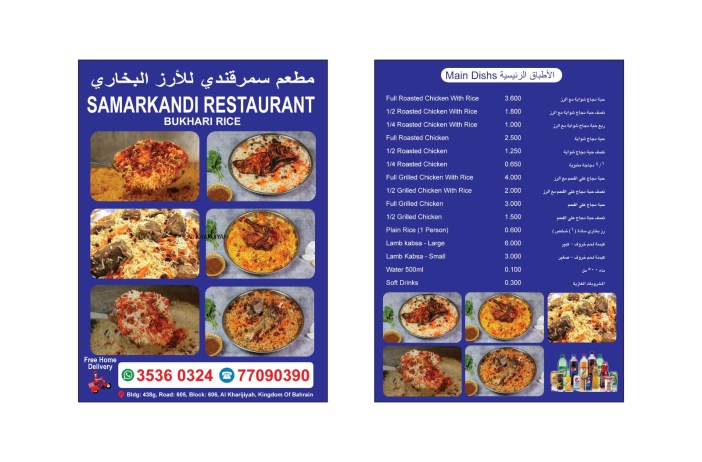
Link to this property website

2107 Fortuna Bella Drive, Pearland, TX, 77581 – Photos, Videos & More! (exprealty.com)

https://laxminagaraj.exprealty.com/details.phpmls=67&mlsid=54894979#rslt

#shorts

Information about Brokerage Services https://drive.google.com/file/d/1bfiF7Eg54zaUU7yPE77obCfT6Sh4ubcS/view?usp=sharing

Consumer protection notice

https://drive.google.com/file/d/1V8Er38R7a8gIfqtUymfq4ddhfLpqz85/view?usp=sharing

Text :Fortuna phone: 325-213-5484