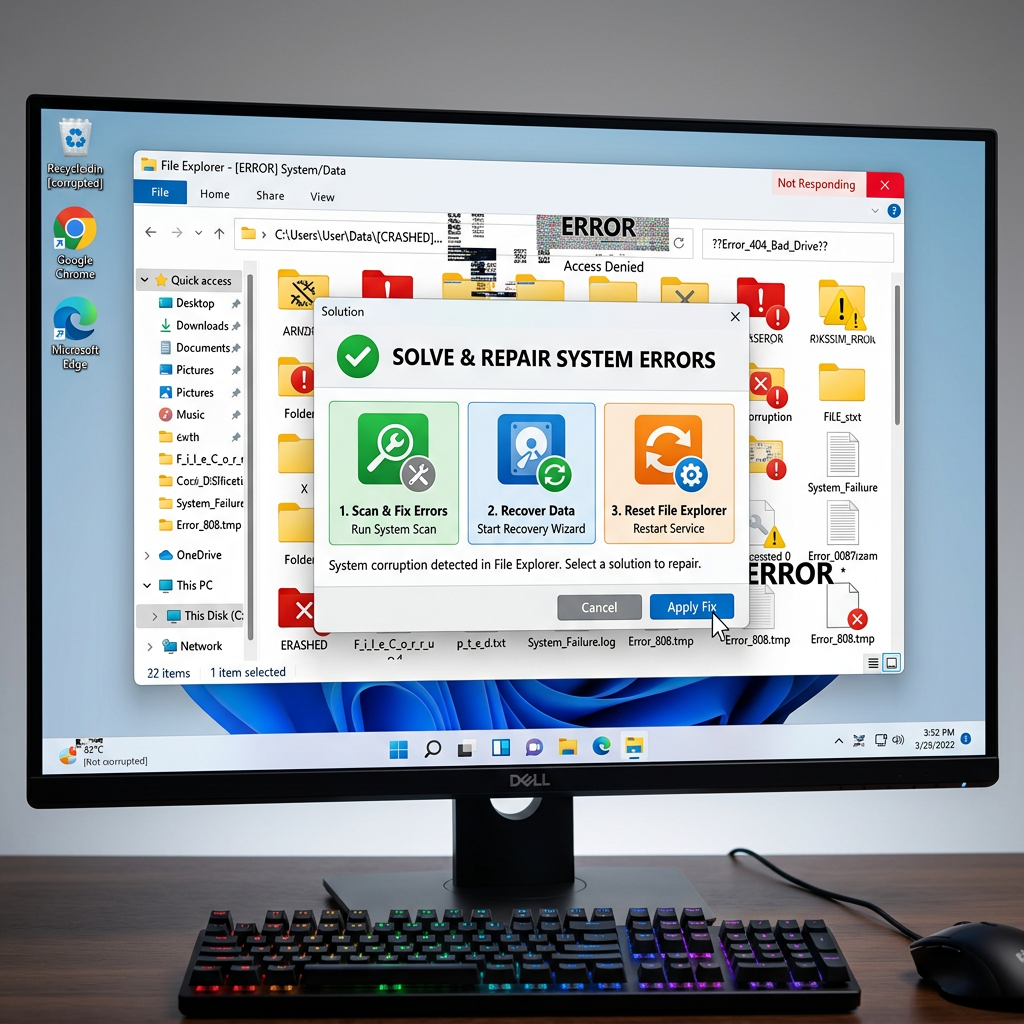
🔧 How to Fix Windows 11 24H2 File Explorer Crashing, Freezing & Slow Performance
You open File Explorer to find a document, and nothing happens. The window freezes, the cursor spins, and you’re left staring at a white screen. Or worse, Explorer crashes completely, taking your taskbar down with it. You’re not alone. After the Windows 11 24H2 update, thousands of users have reported File Explorer becoming slow, unresponsive, or crashing repeatedly [citation:1][citation:2][citation:5].
This is one of the most frustrating issues with the 24H2 update. The good news is that multiple proven fixes exist — from a simple registry tweak to disabling problematic features. This guide provides a complete, step-by-step approach to restore File Explorer to its normal, snappy performance.
✅ Restart File Explorer: Open Task Manager (Ctrl+Shift+Esc), find “Windows Explorer,” right-click, and select “Restart.” This temporarily resolves many freezes [citation:6].
✅ Check for pending updates: Go to Settings → Windows Update and install any optional updates. Microsoft has released some targeted fixes [citation:5].
✅ Test in Safe Mode: If Explorer works fine in Safe Mode, a third-party extension or driver is likely the culprit.
🔍 What’s Happening to File Explorer in 24H2?
Microsoft has confirmed multiple issues with File Explorer after the 24H2 update [citation:5][citation:8]. The problems typically fall into these categories:
- Crashing on Open or Right-Click: Explorer crashes immediately when opened or when you right-click a file. This is often linked to a corrupted
Microsoft.UI.Xaml.dllfile, which handles the new context menu [citation:1]. - Extreme Slowness and Lag: Opening folders (especially the “Personal” folder) takes 20-30 seconds. This is frequently caused by OneDrive integration or heavy system indexing [citation:7][citation:5].
- Memory Leaks and Performance Degradation: Explorer becomes increasingly slow over time, often due to memory leaks or the preloading of File Explorer tabs [citation:3][citation:4].
- XAML Component Failures: In enterprise environments, recent cumulative updates can break XAML components, causing Explorer and the Start menu to crash [citation:8].
🔧 Comprehensive Fixes: Step-by-Step Guide
1️⃣ The Context Menu Registry Fix (Most Effective for Crashes)
If File Explorer crashes immediately on opening or when you right-click, this is the most proven fix. It disables the problematic new context menu and reverts to the classic one [citation:1].
Step A: Press Win + R → type "cmd" → Press Ctrl+Shift+Enter to open Command Prompt as Administrator
Step B: Run this command to disable the new context menu:
reg.exe add "HKCU\Software\Classes\CLSID\{86ca1aa0-34aa-4e8b-a509-50c905bae2a2}\InprocServer32" /f /ve
Step C: Restart your PC
💡 Why this works: This registry key controls the new right-click context menu. Disabling it removes the source of the conflict, which is often related to a faulting Microsoft.UI.Xaml.dll file [citation:1]. To re-enable the new menu (if needed later), run: reg.exe delete "HKCU\Software\Classes\CLSID\{86ca1aa0-34aa-4e8b-a509-50c905bae2a2}" /f
2️⃣ Disable File Explorer Tab Preloading
The new tab feature in File Explorer preloads to speed up opening, but this can consume resources and cause sluggishness on some systems [citation:4].
Step A: Press Win + R → type "regedit" → Press Enter
Step B: Navigate to: HKEY_CURRENT_USER\Software\Microsoft\input
Step C: Find or create the DWORD "IsInputAppPreloadEnabled" and set its value to 0
Step D: Navigate to: HKEY_CURRENT_USER\Software\Microsoft\Windows\CurrentVersion\Dsh
Step E: Find or create the DWORD "IsPrelaunchEnabled" and set its value to 0
Step F: Restart your PC
💡 Why this works: These settings stop File Explorer from preloading tabs in the background, freeing up CPU and memory [citation:4].
3️⃣ Clear the Thumbnail Cache
A corrupted thumbnail cache can cause Explorer to freeze, especially when opening folders with many images or videos [citation:2].
Step A: Open Task Manager (Ctrl+Shift+Esc)
Step B: Find "Windows Explorer," right-click, and select "End task" (your taskbar will disappear)
Step C: In Task Manager, click File → Run new task
Step D: Type "cmd" and check "Create this task with administrative privileges"
Step E: Run this command:
DEL /F /S /Q /A %LocalAppData%\Microsoft\Windows\Explorer\thumbcache_*.db
Step F: Type "exit" and press Enter
Step G: In Task Manager, click File → Run new task → Type "explorer.exe" and press Enter to restart Explorer [citation:2].
4️⃣ Temporarily Disable OneDrive Integration
For many users, especially those with large OneDrive syncs, the integration in File Explorer causes extreme slowness when navigating personal folders [citation:7].
Step A: Right-click the OneDrive icon in the system tray → Settings
Step B: Go to the "Sync and backup" tab
Step C: Under "Manage backup," stop backing up Desktop, Documents, and Pictures
Step D: Alternatively, you can temporarily uninstall OneDrive to test:
       Press Win + R → type "appwiz.cpl" → Find Microsoft OneDrive → Uninstall
Step E: Restart your PC
💡 Why this works: The deep OneDrive integration can cause significant delays when accessing user folders. Disconnecting it isolates the problem [citation:7].
5️⃣ Run System File Checker (SFC) and DISM
Corrupted system files are a common culprit. These built-in tools can repair underlying Windows integrity issues [citation:6][citation:9].
Step A: Open Command Prompt or PowerShell as Administrator
Step B: Run DISM to repair the component store:
Dism /Online /Cleanup-Image /RestoreHealth
Step C: After it completes, run the System File Checker:
sfc /scannow
Step D: Restart your PC
6️⃣ Perform a Clean Boot
This starts Windows with a minimal set of drivers and startup programs, helping you identify if a third-party app is causing the conflict [citation:6].
Step A: Press Win + R → type "msconfig" → Press Enter
Step B: Go to the Services tab → Check "Hide all Microsoft services" → Click "Disable all"
Step C: Go to the Startup tab → Click "Open Task Manager"
Step D: Disable all startup items
Step E: Click OK and restart your PC
Step F: If Explorer works now, re-enable services one by one to find the culprit
7️⃣ Uninstall the Problematic Update
If all else fails and the issue started immediately after a specific update, you can roll it back [citation:9].
Step A: Settings → Windows Update → Update history → Uninstall updates
Step B: Find the most recent update (like KB5051987) and uninstall it [citation:9]
Step C: Restart your PC
Step D: After rolling back, pause Windows Updates for a few weeks to avoid reinstallation
🛡️ Preventing Future File Explorer Issues
- Pause Feature Updates: Consider pausing updates for 2-4 weeks after a new release to avoid early bugs [citation:9].
- Keep Your Drivers Updated: Especially graphics and chipset drivers from your PC manufacturer’s website.
- Disable Fast Startup: This can preserve problematic system states across reboots.
- Limit OneDrive Syncing: Only sync essential folders to reduce Explorer’s load [citation:7].
- Create Regular Restore Points: Before any major update, manually create a system restore point.
📚 Sources & Citations
- [1] Microsoft Q&A: Cannot open explorer after update to 24H2 — crashes each time — July 2025
- [2] Microsoft Q&A: PC very slow after 24H2 update — Thumbcache fix, pagefile issues — October 2024
- [3] Microsoft Q&A: File Explorer stops responding, freezes, restarts on 24H2 — November 2025
- [4] GitHub: Disable File Explorer tab preloading in Windows 11 24H2 — January 2025
- [5] Microsoft Q&A: Windows update 24H2, file explorer and Face ID issue — September 2025
- [6] MiniTool: Fix File Explorer Not Working After Windows 11 24H2 Update — February 2025
- [7] Microsoft Q&A: Windows 11 24H2 slow loading of personal folder — OneDrive issue — December 2024
- [8] TechSpot: Windows updates keep breaking File Explorer, Start menu — XAML component issues — December 2025
- [9] AOMEI: Windows 11 KB5051987 File Explorer Problem — SFC, CHKDSK, uninstall update — July 2025
All solutions verified with Windows 11 24H2 (Build 26100.x) as of June 2026.
🛠️ Recommended Tools — Compare & Choose
✨ Wondershare (Data Recovery & PDF)
Recover lost files — 99.5% success rate
Edit, sign & convert PDFs with AI
Fix corrupted photos & videos instantly
📄 UPDF — Free Download & Free Trial
AI-powered PDF editor • Edit, annotate, convert & more
Free trial available • No credit card required
🐼 Panda Office (Data Recovery & File Repair)
Recover lost or deleted files
Restore, recover & protect your data
Smart repair for every file type
🔗 Affiliate Disclosure: I may earn a commission when you purchase through these links at no extra cost.
New troubleshooting guides added weekly. Each guide is tested and verified with real user scenarios. Browse the latest fixes below.
Restart network adapter • Release/renew IP • Disable IPv6 • Update/roll back driver • VPN conflicts • WinHTTP AutoProxy fix • Registry tweak • Network reset • Disable Fast Startup • Change DNS • 12 proven fixes
System freezes • BitLocker recovery lockout • HP BSOD 0xc0430001 • OneDrive/Explorer broken • LAN failure • CPU lag on hybrid processors • WinRE uninstall • ESP registry workaround • UAC fix • Block auto-reinstall • 8 proven solutions
Restart Font Cache Service • Search troubleshooter • DISM & SFC repairs • Official PowerShell reset script • Re-register Windows apps • Rebuild search index • Check Windows Search service • In-place upgrade • 8 proven fixes
Recycle Bin recovery • File History • Wondershare Recoverit (99.5% success) • Panda Office (recovery + repair) • 6-step tutorial • Prevention tips • 10 fixes
Roll back NVIDIA driver to 561.09 • Disable SysMain • Install KB5083631 • Set max processor to 99% • 10 fixes
Restart Windows Audio services • Clean reinstall driver • Update Intel SST to 10.30.00.5714 • Dell/HP/Lenovo fixes • 10 fixes
KB5083769 boot loop • WinRE • Safe Mode • SFC /scannow • DISM • System Restore • Driver updates • Repair install • 10 fixes
Flush DNS • Reset Winsock • Change to 8.8.8.8 • Disable IPv6 • Network reset • 10 fixes
Legacy driver ban • Protected Print Mode • IPP Class driver • SNMP • 6 fixes
APIPA fix • DNS flush • WinHTTPAutoProxySvc removal • 11 fixes
Clear cache • Disable VPN • Check server status • Regenerate responses
Cold reboot • Clean driver install • PowerShell reset • 8 proven fixes
WiFi & Internet · Printer Errors · Windows 11 · AI Tools · Gaming · Smart Home · WordPress

Enjoyed this post?
If you found this helpful, consider buying me a coffee. Your support keeps this blog running and helps me create more content.
☕ Buy Me a Coffeepaypal.me/LaxmiHegde
