
Claude Cowork · Complete Guide for Non-Techies
Claude Cowork:
The Complete Guide for Non-Techies
Automate 10+ Hours a Week Without Coding
Free download · No credit card required · 2-page PDF
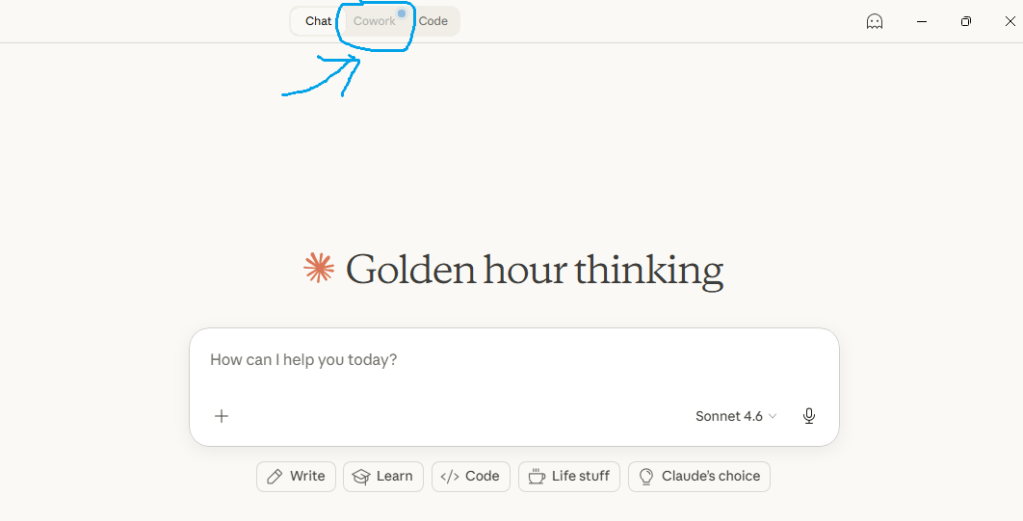



⚙️ Troubleshooting Tip: Enable Virtual Machine Platform in Windows Features (search “Windows Features” in Start menu) or install WSL 2. Restart your computer. The Claude Cowork app will work immediately after.


⚙️ Almost there: Once you click “Enable,” Virtual Machine Platform installs automatically. The progress bar takes 2-3 minutes to reach 100%. After that, restart Claude Cowork — and you’re ready to automate.
Step 1: The error message
Step 2: Enabling in progress


🔄 Almost done: Once Virtual Machine Platform reaches 100%, click “Restart now” or restart your computer manually. After reboot, open Claude Cowork — and you’re ready to start automating.
Step 1: Initial error
Step 2: Enabling…
Step 3: Restart required
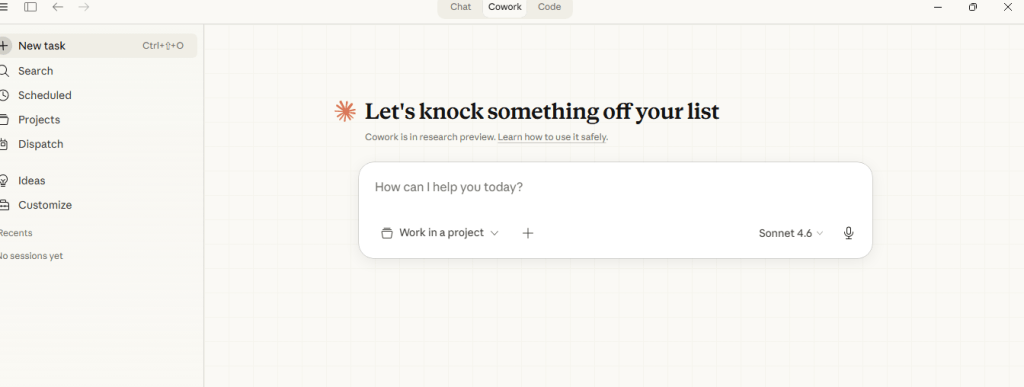

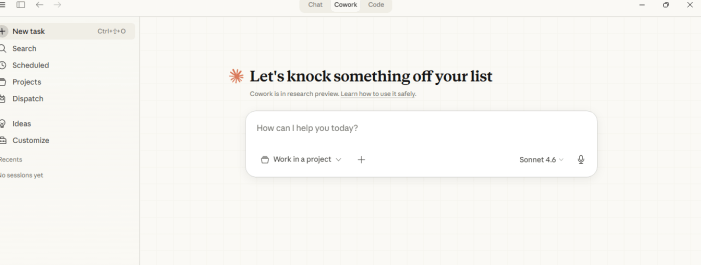
✅ Ready to automate: After restart, Claude Cowork opens to this clean dashboard. Type “How can I help you today?” — then describe the task you want to automate. No coding. No complex setup. Just describe and done.
📋 Windows Setup at a Glance:
1️⃣ Initial error
2️⃣ Enabling…
3️⃣ Restart required
4️⃣ Ready to use! ✅
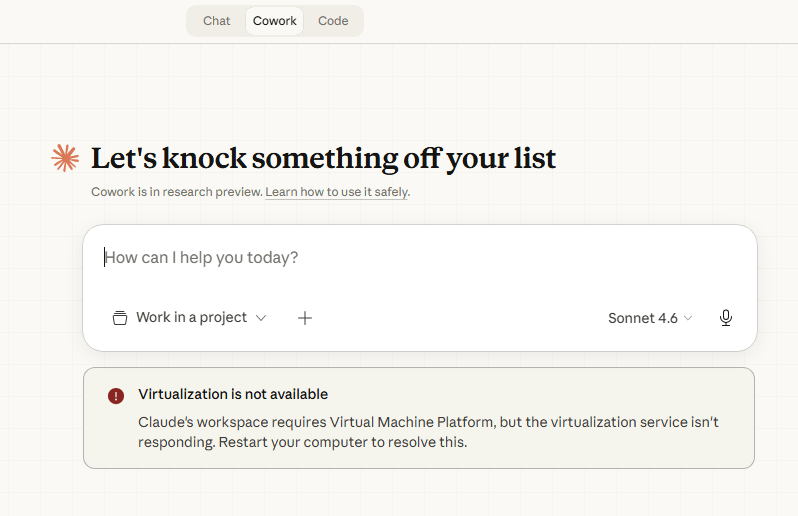

⚠️ Persistent error? If restarting doesn’t fix it, you need to manually enable Virtual Machine Platform. Search “Windows Features” in the Start menu, scroll down to “Virtual Machine Platform,” check the box, click OK, and restart your computer. Claude Cowork will work immediately after.
⚠️ Still seeing “Virtualization is not available”?
If the automatic “Enable” button didn’t work — or you’re seeing this error even after restarting — here’s the manual fix:
Open Windows Features
Press Windows Key → type “Windows Features” → click “Turn Windows features on or off”
Enable Virtual Machine Platform
Scroll down → Check ✓ Virtual Machine Platform → Click OK
Restart Your Computer
Windows will install the feature → Restart when prompted
✅ After restart: Open Claude Cowork. The error should be gone, and you’ll see the “How can I help you today?” prompt. Ready to automate!
🔧 Quick Fix — Copy This Command (Admin PowerShell)
Enable-WindowsOptionalFeature -Online -FeatureName VirtualMachinePlatform
Run as Administrator → Restart → Done
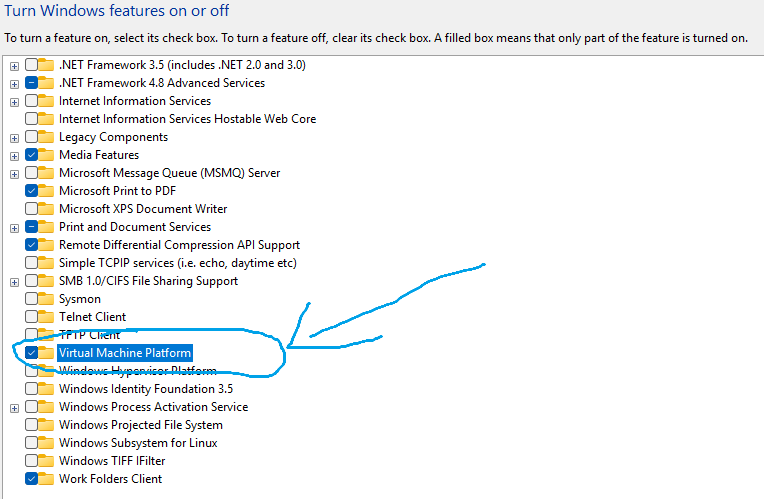

🪟 Manual fix: Press Windows Key + R, type optionalfeatures, press Enter. Scroll down to Virtual Machine Platform, check the box, click OK, and restart your computer. Claude Cowork will work immediately after reboot.
🪟 How to Manually Enable Virtual Machine Platform (60 seconds):
Open Run dialog
Press Windows Key + R
Type command
Type optionalfeatures → Enter
Enable Virtual Machine Platform
Check the box → Click OK
Restart your computer
Windows installs the feature → Restart
💻 Alternative: Enable via PowerShell (Run as Administrator)
Enable-WindowsOptionalFeature -Online -FeatureName VirtualMachinePlatform
Run this command → Restart → Claude Cowork works immediately
✨ Your First Automation — Try This:
“I have 10 customer emails in this document. For each one, understand what they’re asking and write a friendly, helpful response. Save the responses in a new document.”
Copy this prompt, paste it into Claude Cowork, and watch it work. That’s it. No coding. No complex setup.
⚠️ Windows Users: Fix the “Virtual Machine Platform” Error
The first time you open Claude Cowork on Windows, you might see an error about Virtual Machine Platform. Here’s the 2-minute fix:
Click “Enable” on the error message
Wait 2-3 minutes for installation
Restart your computer
Open Claude Cowork — ready to use!
💡 Pro tip: If the “Enable” button doesn’t work, manually enable Virtual Machine Platform in Windows Features (search “Windows Features” in Start menu). Check “Virtual Machine Platform” and “Windows Subsystem for Linux,” then restart.
“What if you could automatically handle the tasks that steal 10+ hours from your week?”
Not through hiring someone. Not through expensive software. But through an AI that actually does the work for you? That’s Claude Cowork. And unlike what you might think, you don’t need to be a programmer or AI expert to use it. In fact, I built my first automation in 15 minutes – no coding, no technical knowledge, just me and a simple tool.
What Is Claude Cowork? (Simple Explanation)
Claude Cowork is an AI agent that does tasks for you. Think of it like having a digital assistant that never sleeps, never complains, and costs a fraction of what you’d pay a human.
Unlike ChatGPT (which answers questions), Claude Cowork actually takes actions. It can:
- Write and send emails
- Process data automatically
- Create content for you
- Organize information
- Extract data from documents
- And much more
✨ The magic part?
You don’t need to code anything. You just describe what you want, and Claude Cowork figures out how to do it.
Why This Matters
Here’s what I’ve discovered: The difference between successful entrepreneurs and burned-out ones isn’t talent or intelligence. It’s automation.
Successful people automate the repetitive stuff so they can focus on what actually matters – growing their business, helping their customers, living their life. Claude Cowork makes automation accessible to EVERYONE – not just tech people.
📋 What You’ll Learn
How It Works (In Plain English)
Imagine you have a to-do list: process 100 customer emails, extract data from 50 invoices, write 5 blog post outlines, organize research notes. Normally, you’d spend hours doing this manually.
With Claude Cowork, you just describe the task. It reads your instructions, understands what you want, and does it.
The process:
Why It’s Different From ChatGPT Agents
ChatGPT is amazing for answering questions and helping you think through problems. But it stops there – it gives you information, not action. Claude Cowork is built specifically to take action. It can connect to your tools, execute tasks in sequence, remember context across long workflows, handle complex multi-step processes, and make decisions based on data.
Claude Cowork vs ChatGPT Agents
| Feature | Claude Cowork | ChatGPT Agents |
|---|
✅ Use Claude Cowork when:
You have repetitive tasks, want actual work done (not just advice), aren’t technical, and want to save real time (10+ hours/week).
💡 Use ChatGPT when:
You need brainstorming or feedback, want to learn something, need writing help, or are thinking through a problem.
⚠️ Use both together (best approach):
Brainstorm with ChatGPT, then use Claude Cowork to execute. This is actually the most powerful workflow.
✅ Pros
- Actually does the work
- No coding needed
- Handles long tasks
- Very affordable
- Integrates with your tools
- Gets better with feedback
- Non-technical friendly
❌ Cons
- Newer than ChatGPT (fewer tutorials)
- Not all integrations available yet
- Works best for English-language tasks
- Needs clear instructions
How to Get Started (5 Easy Steps)
1 Create Your Account (2 minutes)
Go to Claude.ai and sign up. No credit card needed for the free trial.
2 Understand the Interface (3 minutes)
Type what you want done → Claude Cowork does it → You review the results. That’s it.
3 Choose Your First Task (2 minutes)
Start small. Pick ONE task: email responses, spreadsheet organization, or weekly newsletter.
4 Give Clear Instructions (5 minutes)
Be specific. Instead of “Process these emails,” try “Read the 10 customer emails. For each, understand their question and write a friendly response.”
5 Test and Refine (3 minutes)
Run your first automation, review the results, adjust if needed. Congratulations – you’ve just automated something!
📥 Ready to start?
Get the Free Setup Checklist →| Feature | Claude Cowork | ChatGPT Agents |
|---|---|---|
| Takes Action | ✅ Yes | Limited |
| No Coding Required | ✅ Yes | Yes |
| Handles Long Tasks | ✅ Yes (very good) | No |
| Integrations | ✅ Growing | Growing |
| Learning Curve | ✅ Very easy | Easy |
| Best For | Automation | Questions & brainstorming |
5 Real Use Cases (Your Business Can Copy)
📝 Use Case #1: Content Creation
From 4 hours to 30 minutes. Describe your topic, Claude Cowork researches and writes a draft. You edit.
⏱ Time saved: 3.5 hours/week = 182 hours/year
📊 Use Case #2: Data Processing
50 invoices, 5 minutes. Upload documents, tell it what data to extract, get organized spreadsheet.
⏱ Time saved: 2.75 hours/week = 143 hours/year
📧 Use Case #3: Customer Service
20 emails daily → 15 minutes review. Claude Cowork reads, categorizes, drafts responses.
⏱ Time saved: 1.75 hours/day = 455 hours/year
🎯 Use Case #4: Lead Qualification
Inbound leads processed automatically. Claude Cowork scores and qualifies, you only see hot leads.
⏱ Time saved: 50+ minutes/day = 12 hours/month
📈 Use Case #5: Business Planning
Quarterly plan from 8 hours to 1 hour. Describe goals, get draft plan with action items.
⏱ Time saved: 7 hours/quarter = 28 hours/year
How to Calculate Your ROI
The Simple Calculation:
Time saved per week × Your hourly rate = Weekly value
Weekly value × 52 = Annual ROI
Email Automation
5 hrs/week × $75 = $19,500/year
Content Automation
3 hrs/week × $100 = $15,600/year
Data Processing
8 hrs/week × $50 = $20,800/year
Tools That Integrate with Claude Cowork
Email (Gmail, Outlook)
Google Sheets
Notion
Zapier/Make
Common Mistakes (Learn From Others)
Mistake #1: Automating Everything at Once
Start with ONE task. Master it. Then add another.
Mistake #2: Vague Instructions
Be specific. Clear instructions = Better results.
Mistake #3: Not Reviewing First Result
Always review and adjust. Then it runs great.
“The future belongs to people who automate.”
Start this week. Pick ONE task. Automate it. Feel the relief. Then automate the next.
📥 Download Free Setup Checklist →No credit card required · 2-page PDF · Start in 15 minutes
⚠ For educational purposes only. AI tools, features, and pricing are subject to change. Always verify current capabilities directly with Claude.ai before making purchasing decisions. The ROI calculations are estimates based on user-reported data and may vary based on individual usage patterns.
© 2026 ConfidenceBuildings.com · Laxmi Hegde, MBA in Finance
 Home Home sweet sweet home