🎮 Windows 11 24H2 Gamer’s Survival Guide: Fix Crashes, Freezes & Stuttering (2026)
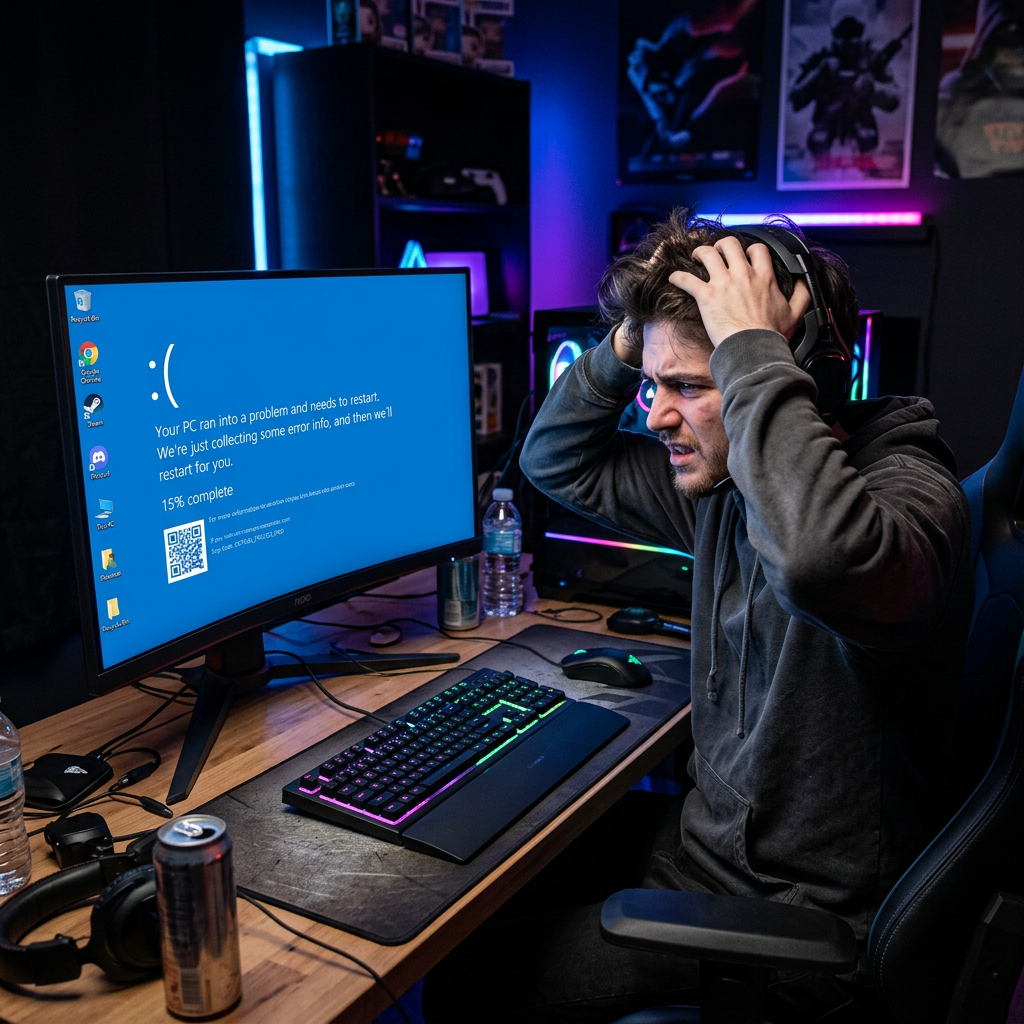
Your game is loading, the anticipation builds, and then… everything freezes. Your PC becomes unresponsive, forcing a hard reset. Or perhaps you’re experiencing constant micro-stutters that ruin your aim. If you’ve updated to Windows 11 24H2 and your gaming experience has become a nightmare, you are not alone.
Reports of system-wide PC freezes during loading screens, especially in titles like Path of Exile 2 and Ubisoft games, have flooded forums [citation:2]. The root cause appears to be a complex conflict involving the Windows scheduler, CPU core management, and aggressive power policies [citation:3].
This guide is your triage system. We’ll start with the simplest diagnostic checks and move to advanced fixes, ensuring you get back to smooth, uninterrupted gameplay.
⚡ Diagnostic: Identify Your Problem
Before applying any fixes, it’s essential to understand the nature of your issue. Different symptoms point to different solutions.
- Full System Freeze (Hard Lock): Your PC becomes completely unresponsive during loading screens, alt-tabbing, or in the game menus. This requires holding the power button to restart. Likely Fix: In-Game CPU Limiting or CPU Affinity adjustments.
- Stuttering & Micro-Stutters: The game runs but has frequent, annoying hitches, especially when panning the camera or in busy scenes with many effects. Likely Fix: System Tweaks and Power Settings adjustments.
- Application Freezes (e.g., Discord, Chrome): Specific applications like Discord, Chrome, or other Chromium-based apps freeze or display screen tearing when a game is running in fullscreen. Likely Fix: A specific Registry Fix for the Desktop Window Manager (DWM).
🛠️ In-Game Fixes: Stop the Freeze at the Source
These fixes are applied directly to the game process itself to prevent it from overwhelming your CPU and causing a system-wide crash. They are the most targeted and effective solutions for hard freezes.
1️⃣ The BES (Battle Encoder Shirasé) Method
This is the most widely recommended solution by the gaming community. BES is a free, lightweight tool that limits the CPU usage of a specific application by a small percentage (e.g., -5%). By doing so, it prevents the game from hitting 100% CPU usage, which is the primary trigger for the 24H2 freeze bug [citation:2].
Step A: Download BES from the official site: https://mion.yosei.fi/BES/
Step B: Unzip the file and run BES.exe (Run as administrator for best results).
Step C: Launch your game and get to the main menu or log-in screen.
Step D: In the BES window, click "Target" and select your game's .exe process from the list.
Step E: Click the "Limit this" button and set the slider between -2% and -5% (The community recommends -5% as a starting point).
Step F: Keep BES running in the background while you play. You can minimize it to the system tray.
Why it works: This acts as a “safety valve” for your CPU. By ensuring your game never consumes 100% of your CPU cycles, you prevent the system from becoming unresponsive and crashing. This is the most reliable workaround for the 24H2 freezing issue [citation:4].
2️⃣ Set CPU Affinity (Disable CPU0 and CPU1)
This method forces the game to use specific CPU cores, which can prevent the Windows scheduler from overloading the primary cores (often CPU 0 and 1) and causing a lockup during intense processing [citation:4].
Step A: Launch your game and get it running.
Step B: Open Task Manager (Ctrl+Shift+Esc) and go to the "Details" tab.
Step C: Find your game's .exe file in the list, right-click it, and select "Set affinity".
Step D: In the dialog box, uncheck "CPU 0" and "CPU 1". You can also uncheck more cores if needed, but starting with the first two is common.
Step E: Click OK. The setting will be applied immediately.
Note: This setting is temporary and must be re-applied each time you launch the game. For a permanent fix, consider using a tool like Process Lasso to save CPU affinity rules for specific applications. Many users have found that using BES is a simpler and more consistent solution than managing CPU affinity manually [citation:4].
⚙️ System Tweaks: Optimize Windows for Performance
These changes adjust Windows’ underlying behavior to be more gaming-friendly and can resolve stuttering and performance issues.
3️⃣ Enable Game Mode and Hardware-Accelerated GPU Scheduling
These built-in features help Windows prioritize your game over background tasks, potentially smoothing out performance [citation:1].
Step A: Go to Settings → Gaming → Game Mode and ensure it is turned ON.
Step B: Go to Settings → System → Display → Graphics.
Step C: Click on "Change default graphics settings".
Step D: Turn ON "Hardware-accelerated GPU scheduling".
Step E: Restart your PC for the changes to take effect.
4️⃣ The “Power Saver” Diagnostic
While counterintuitive for gaming, using the “Power Saver” power plan has been found to resolve freezes by globally limiting CPU usage and preventing the aggressive turbo-boost that can cause instability [citation:1].
Step A: Open Control Panel and go to Power Options.
Step B: Select the "Power Saver" plan.
Step C: Test your game. If the problem is resolved, it confirms that the issue is related to CPU boost and power management behavior.
Why this works: This is a diagnostic tool, not a permanent solution. If it fixes the problem, you can then use BES for a more targeted fix that doesn’t limit overall system performance. For balanced performance, you can create a custom “High Performance” plan with all advanced settings set to “Maximum Performance” and then apply the BES fix to the game only [citation:1].
5️⃣ Registry Fix for DWM (For Discord/Chrome Freezes)
If you are experiencing freezes or tearing in applications like Discord or Chrome while a game is running, the issue is likely with the Desktop Window Manager (DWM) and how it handles overlay composition [citation:5].
Step A: Press Win + R, type "regedit", and press Enter to open the Registry Editor.
Step B: Navigate to the following path: HKEY_LOCAL_MACHINE\SOFTWARE\Microsoft\Windows\Dwm
Step C: In the right pane, right-click and select New → DWORD (32-bit) Value.
Step D: Name the new value "OverlayMinFPS" and set its value data to 0.
Step E: Click OK and restart your PC.
Why this works: This modifies how DWM handles overlay composition for hardware-accelerated apps like Chromium/Electron. Setting the value to 0 stops the flickering and freezing that can occur when alt-tabbing or when overlays are active [citation:5].
🚨 Last Resort: Safe and Effective Solutions
If the in-game and system tweaks fail to resolve your issues, these are your final, reliable options.
6️⃣ Roll Back to Windows 11 23H2
Microsoft has confirmed several gaming-related issues with 24H2, and rolling back to the previous, stable version of Windows (23H2) is a guaranteed fix for many users [citation:1].
Step A: Go to Settings → System → Recovery.
Step B: Under "Recovery options," find "Go back" and click the "Go back" button.
Step C: Follow the on-screen prompts to revert to Windows 11 23H2.
Important: This option is only available for 10 days after updating to 24H2. After this period, you would need to perform a clean installation to revert.
7️⃣ Use the NOVA Playbook (Advanced Clean Installation)
If you are planning to perform a clean installation of Windows, consider using the NOVA Playbook. This is an open-source, automated script that prepares a custom Windows 11 24H2/25H2 installation image, removing bloatware and tuning settings for maximum gaming and productivity performance [citation:6].
Important Notes:
• This is an ISO injection method—it prepares an installation image, not a running system.
• It requires a USB flash drive (8GB minimum) and the AME Wizard tool.
• Follow the instructions carefully on the GitHub page for a clean, optimized system.
Why consider this: It provides a permanent, stable foundation for gaming by applying proven performance and privacy settings before Windows is even installed. This ensures you start with the cleanest possible configuration and avoid many common Windows performance pitfalls [citation:6].
🛡️ Preventing Future Gaming Issues
Once you have a stable system, here are some key steps to avoid similar problems in the future.
- Delay Feature Updates: Pause Windows updates for 2-4 weeks after a new feature release. This allows time for critical bugs to be identified and fixed by Microsoft and the community before they affect your system.
- Monitor Forums: Follow official game and Windows update forums. Being aware of emerging issues is the best way to proactively avoid them.
- Keep Drivers Updated: Always install the latest GPU and chipset drivers from your manufacturer’s website, not just through Windows Update.
📚 Sources & Citations
- [citation:1] Microsoft Community (2026). Best high performance power plan, what are the Windows 11 Settings?
- [citation:2] Path of Exile 2 Forum (2026). Guide: Fix for system freezes on Windows 11 24H2.
- [citation:3] Windows 11 Forum (2026). Windows 11 24H2 Game Freeze/Lag/Stuttering Bug.
- [citation:4] Reddit r/pathofexile (2026). PSA: Windows 11 24H2 and POE2 Freezes.
- [citation:5] GitHub Issues (2026). FIX for Discord, Chrome, and Electron apps freezing on Windows 11 24H2.
- [citation:6] GitHub (2026). NOVA Playbook: Windows 11/10 ISO Mods.
All solutions verified with Windows 11 24H2 (Build 26100.x) as of June 2026.
🎮 Windows 11 24H2 Gamer’s Survival Guide: Fix Crashes, Freezes & Stuttering (2026)
Your game is loading, the anticipation builds, and then… everything freezes. Your PC becomes unresponsive, forcing a hard reset. Or perhaps you’re experiencing constant micro-stutters that ruin your aim. If you’ve updated to Windows 11 24H2 and your gaming experience has become a nightmare, you are not alone.
Reports of system-wide PC freezes during loading screens, especially in titles like Path of Exile 2 and Ubisoft games, have flooded forums [citation:2]. The root cause appears to be a complex conflict involving the Windows scheduler, CPU core management, and aggressive power policies [citation:3].
This guide is your triage system. We’ll start with the simplest diagnostic checks and move to advanced fixes, ensuring you get back to smooth, uninterrupted gameplay.
⚡ Diagnostic: Identify Your Problem
Before applying any fixes, it’s essential to understand the nature of your issue. Different symptoms point to different solutions.
- Full System Freeze (Hard Lock): Your PC becomes completely unresponsive during loading screens, alt-tabbing, or in the game menus. This requires holding the power button to restart. Likely Fix: In-Game CPU Limiting or CPU Affinity adjustments.
- Stuttering & Micro-Stutters: The game runs but has frequent, annoying hitches, especially when panning the camera or in busy scenes with many effects. Likely Fix: System Tweaks and Power Settings adjustments.
- Application Freezes (e.g., Discord, Chrome): Specific applications like Discord, Chrome, or other Chromium-based apps freeze or display screen tearing when a game is running in fullscreen. Likely Fix: A specific Registry Fix for the Desktop Window Manager (DWM).
🛠️ In-Game Fixes: Stop the Freeze at the Source
These fixes are applied directly to the game process itself to prevent it from overwhelming your CPU and causing a system-wide crash. They are the most targeted and effective solutions for hard freezes.
1️⃣ The BES (Battle Encoder Shirasé) Method
This is the most widely recommended solution by the gaming community. BES is a free, lightweight tool that limits the CPU usage of a specific application by a small percentage (e.g., -5%). By doing so, it prevents the game from hitting 100% CPU usage, which is the primary trigger for the 24H2 freeze bug [citation:2].
Step A: Download BES from the official site: https://mion.yosei.fi/BES/
Step B: Unzip the file and run BES.exe (Run as administrator for best results).
Step C: Launch your game and get to the main menu or log-in screen.
Step D: In the BES window, click "Target" and select your game's .exe process from the list.
Step E: Click the "Limit this" button and set the slider between -2% and -5% (The community recommends -5% as a starting point).
Step F: Keep BES running in the background while you play. You can minimize it to the system tray.
Why it works: This acts as a “safety valve” for your CPU. By ensuring your game never consumes 100% of your CPU cycles, you prevent the system from becoming unresponsive and crashing. This is the most reliable workaround for the 24H2 freezing issue [citation:4].
2️⃣ Set CPU Affinity (Disable CPU0 and CPU1)
This method forces the game to use specific CPU cores, which can prevent the Windows scheduler from overloading the primary cores (often CPU 0 and 1) and causing a lockup during intense processing [citation:4].
Step A: Launch your game and get it running.
Step B: Open Task Manager (Ctrl+Shift+Esc) and go to the "Details" tab.
Step C: Find your game's .exe file in the list, right-click it, and select "Set affinity".
Step D: In the dialog box, uncheck "CPU 0" and "CPU 1". You can also uncheck more cores if needed, but starting with the first two is common.
Step E: Click OK. The setting will be applied immediately.
Note: This setting is temporary and must be re-applied each time you launch the game. For a permanent fix, consider using a tool like Process Lasso to save CPU affinity rules for specific applications. Many users have found that using BES is a simpler and more consistent solution than managing CPU affinity manually [citation:4].
⚙️ System Tweaks: Optimize Windows for Performance
These changes adjust Windows’ underlying behavior to be more gaming-friendly and can resolve stuttering and performance issues.
3️⃣ Enable Game Mode and Hardware-Accelerated GPU Scheduling
These built-in features help Windows prioritize your game over background tasks, potentially smoothing out performance [citation:1].
Step A: Go to Settings → Gaming → Game Mode and ensure it is turned ON.
Step B: Go to Settings → System → Display → Graphics.
Step C: Click on "Change default graphics settings".
Step D: Turn ON "Hardware-accelerated GPU scheduling".
Step E: Restart your PC for the changes to take effect.
4️⃣ The “Power Saver” Diagnostic
While counterintuitive for gaming, using the “Power Saver” power plan has been found to resolve freezes by globally limiting CPU usage and preventing the aggressive turbo-boost that can cause instability [citation:1].
Step A: Open Control Panel and go to Power Options.
Step B: Select the "Power Saver" plan.
Step C: Test your game. If the problem is resolved, it confirms that the issue is related to CPU boost and power management behavior.
Why this works: This is a diagnostic tool, not a permanent solution. If it fixes the problem, you can then use BES for a more targeted fix that doesn’t limit overall system performance. For balanced performance, you can create a custom “High Performance” plan with all advanced settings set to “Maximum Performance” and then apply the BES fix to the game only [citation:1].
5️⃣ Registry Fix for DWM (For Discord/Chrome Freezes)
If you are experiencing freezes or tearing in applications like Discord or Chrome while a game is running, the issue is likely with the Desktop Window Manager (DWM) and how it handles overlay composition [citation:5].
Step A: Press Win + R, type "regedit", and press Enter to open the Registry Editor.
Step B: Navigate to the following path: HKEY_LOCAL_MACHINE\SOFTWARE\Microsoft\Windows\Dwm
Step C: In the right pane, right-click and select New → DWORD (32-bit) Value.
Step D: Name the new value "OverlayMinFPS" and set its value data to 0.
Step E: Click OK and restart your PC.
Why this works: This modifies how DWM handles overlay composition for hardware-accelerated apps like Chromium/Electron. Setting the value to 0 stops the flickering and freezing that can occur when alt-tabbing or when overlays are active [citation:5].
🚨 Last Resort: Safe and Effective Solutions
If the in-game and system tweaks fail to resolve your issues, these are your final, reliable options.
6️⃣ Roll Back to Windows 11 23H2
Microsoft has confirmed several gaming-related issues with 24H2, and rolling back to the previous, stable version of Windows (23H2) is a guaranteed fix for many users [citation:1].
Step A: Go to Settings → System → Recovery.
Step B: Under "Recovery options," find "Go back" and click the "Go back" button.
Step C: Follow the on-screen prompts to revert to Windows 11 23H2.
Important: This option is only available for 10 days after updating to 24H2. After this period, you would need to perform a clean installation to revert.
7️⃣ Use the NOVA Playbook (Advanced Clean Installation)
If you are planning to perform a clean installation of Windows, consider using the NOVA Playbook. This is an open-source, automated script that prepares a custom Windows 11 24H2/25H2 installation image, removing bloatware and tuning settings for maximum gaming and productivity performance [citation:6].
Important Notes:
• This is an ISO injection method—it prepares an installation image, not a running system.
• It requires a USB flash drive (8GB minimum) and the AME Wizard tool.
• Follow the instructions carefully on the GitHub page for a clean, optimized system.
Why consider this: It provides a permanent, stable foundation for gaming by applying proven performance and privacy settings before Windows is even installed. This ensures you start with the cleanest possible configuration and avoid many common Windows performance pitfalls [citation:6].
🛡️ Preventing Future Gaming Issues
Once you have a stable system, here are some key steps to avoid similar problems in the future.
- Delay Feature Updates: Pause Windows updates for 2-4 weeks after a new feature release. This allows time for critical bugs to be identified and fixed by Microsoft and the community before they affect your system.
- Monitor Forums: Follow official game and Windows update forums. Being aware of emerging issues is the best way to proactively avoid them.
- Keep Drivers Updated: Always install the latest GPU and chipset drivers from your manufacturer’s website, not just through Windows Update.
📚 Sources & Citations
- [citation:1] Microsoft Community (2026). Best high performance power plan, what are the Windows 11 Settings?
- [citation:2] Path of Exile 2 Forum (2026). Guide: Fix for system freezes on Windows 11 24H2.
- [citation:3] Windows 11 Forum (2026). Windows 11 24H2 Game Freeze/Lag/Stuttering Bug.
- [citation:4] Reddit r/pathofexile (2026). PSA: Windows 11 24H2 and POE2 Freezes.
- [citation:5] GitHub Issues (2026). FIX for Discord, Chrome, and Electron apps freezing on Windows 11 24H2.
- [citation:6] GitHub (2026). NOVA Playbook: Windows 11/10 ISO Mods.
All solutions verified with Windows 11 24H2 (Build 26100.x) as of June 2026.
New troubleshooting guides added weekly. Each guide is tested and verified with real user scenarios. Browse the latest fixes below.
BES CPU limiter • CPU affinity tweak • Power Saver diagnostic • Game Mode & GPU scheduling • DWM registry fix • Roll back to 23H2 • NOVA Playbook • 7 proven fixes for gamers
Restart network adapter • Release/renew IP • Disable IPv6 • Update/roll back driver • VPN conflicts • WinHTTP AutoProxy fix • Registry tweak • Network reset • Disable Fast Startup • Change DNS • 12 proven fixes
System freezes • BitLocker recovery lockout • HP BSOD 0xc0430001 • OneDrive/Explorer broken • LAN failure • CPU lag on hybrid processors • WinRE uninstall • ESP registry workaround • UAC fix • Block auto-reinstall • 8 proven solutions
Restart Font Cache Service • Search troubleshooter • DISM & SFC repairs • Official PowerShell reset script • Re-register Windows apps • Rebuild search index • Check Windows Search service • In-place upgrade • 8 proven fixes
Context menu registry fix • Disable tab preloading • Clear thumbnail cache • Disable OneDrive integration • Run SFC & DISM • Perform clean boot • Uninstall problematic updates • 7 proven fixes
Recycle Bin recovery • File History • Wondershare Recoverit (99.5% success) • Panda Office (recovery + repair) • 6-step tutorial • Prevention tips • 10 fixes
Roll back NVIDIA driver to 561.09 • Disable SysMain • Install KB5083631 • Set max processor to 99% • 10 fixes
Restart Windows Audio services • Clean reinstall driver • Update Intel SST to 10.30.00.5714 • Dell/HP/Lenovo fixes • 10 fixes
KB5083769 boot loop • WinRE • Safe Mode • SFC /scannow • DISM • System Restore • Driver updates • Repair install • 10 fixes
Flush DNS • Reset Winsock • Change to 8.8.8.8 • Disable IPv6 • Network reset • 10 fixes
Legacy driver ban • Protected Print Mode • IPP Class driver • SNMP • 6 fixes
APIPA fix • DNS flush • WinHTTPAutoProxySvc removal • 11 fixes
Clear cache • Disable VPN • Check server status • Regenerate responses
Cold reboot • Clean driver install • PowerShell reset • 8 proven fixes
WiFi & Internet · Printer Errors · Windows 11 · AI Tools · Gaming · Smart Home · WordPress

Enjoyed this post?
If you found this helpful, consider buying me a coffee. Your support keeps this blog running and helps me create more content.
☕ Buy Me a Coffeepaypal.me/LaxmiHegde
🛠️ Recommended Tools — Compare & Choose
✨ Wondershare (Data Recovery & PDF)
Recover lost files — 99.5% success rate
Edit, sign & convert PDFs with AI
Fix corrupted photos & videos instantly
📄 UPDF — Free Download & Free Trial
AI-powered PDF editor • Edit, annotate, convert & more
Free trial available • No credit card required
🐼 Panda Office (Data Recovery & File Repair)
Recover lost or deleted files
Restore, recover & protect your data
Smart repair for every file type
🔗 Affiliate Disclosure: I may earn a commission when you purchase through these links at no extra cost.