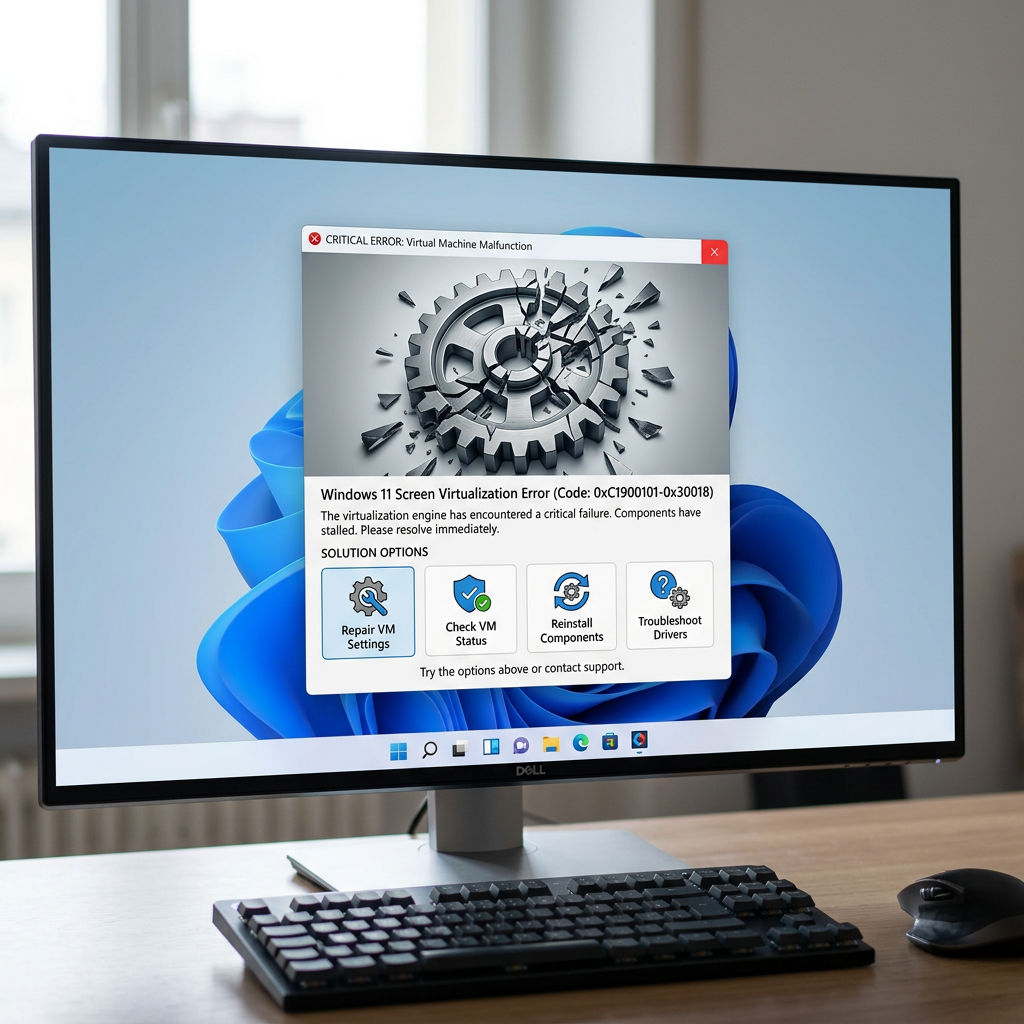
How to Fix “yukonSilver not supported” & “Virtualization Not Available” on Claude Desktop for Windows 11 (2026 Guide)
If you’re trying to use Claude Desktop on Windows 11 and encounter the errors “yukonSilver not supported” or “Virtualization Not Available”, you’re not alone. These messages typically indicate that your system is missing required virtualization features or that hardware virtualization is disabled. In this guide, we’ll walk through the most effective troubleshooting steps to get Claude Desktop working again.
Why Do These Errors Appear?
Claude Desktop relies on virtualization technologies to provide a secure runtime for certain features. If Windows cannot detect virtualization support or if your PC doesn’t meet the required configuration, you may see one of these errors:
- yukonSilver not supported
- Virtualization Not Available
- Virtual Machine Platform unavailable
- Hypervisor could not be initialized
These errors are commonly caused by disabled BIOS settings, missing Windows features, outdated firmware, or incompatible hardware.
Solution 1: Check Whether Virtualization Is Enabled
Press Ctrl + Shift + Esc to open Task Manager and select the Performance tab. Click on CPU. On the lower-right side, look for Virtualization.
- If it says Enabled, continue to the next solution.
- If it says Disabled, you’ll need to enable virtualization from your BIOS or UEFI firmware.
Solution 2: Enable Intel VT-x or AMD-V in BIOS
Restart your PC and enter BIOS/UEFI settings by pressing the appropriate key during startup (commonly F2, Delete, Esc, or F10).
Locate one of the following settings:
- Intel Virtualization Technology (VT-x)
- Intel VT-d
- AMD SVM Mode
- AMD-V
- Virtualization Technology
Enable the setting, save your changes, and restart Windows.
Solution 3: Enable Required Windows Features
Open Turn Windows features on or off and enable the following if available:
- Virtual Machine Platform
- Windows Hypervisor Platform
- Hyper-V (Windows Pro/Enterprise)
- Windows Subsystem for Linux (if required)
Restart your computer after enabling these features.
Solution 4: Verify Virtualization Using Command Prompt
Open Command Prompt as Administrator and run:
systeminfo
Scroll to the bottom and verify that the Hyper-V requirements indicate virtualization support is available.
Solution 5: Update BIOS and Chipset Drivers
Older BIOS versions sometimes fail to expose virtualization features correctly. Visit your motherboard or laptop manufacturer’s support website and install:
- Latest BIOS/UEFI firmware
- Latest Intel or AMD chipset drivers
- Latest CPU microcode updates
After updating, restart your system and test Claude Desktop again.
Solution 6: Disable Conflicting Virtualization Software
Some third-party virtualization applications or security software can interfere with Windows virtualization services.
- Close VMware Workstation if not required.
- Temporarily disable VirtualBox services.
- Check whether enterprise security software is blocking Hyper-V.
Solution 7: Confirm Windows Edition
Some virtualization features are limited on specific Windows editions. To check:
- Press Windows + R.
- Type winver.
- Verify you’re running an up-to-date version of Windows 11.
If you’re using Windows 11 Home, some Hyper-V components may not be available, although Virtual Machine Platform is generally supported.
Solution 8: Reinstall Claude Desktop
If all virtualization settings appear correct but the error persists:
- Uninstall Claude Desktop.
- Restart Windows.
- Download the latest installer.
- Install it using Administrator privileges.
This can resolve issues caused by corrupted installation files or outdated application components.
Frequently Asked Questions
What does “yukonSilver not supported” mean?
This generally indicates that Claude Desktop cannot access the virtualization environment it expects. The exact wording may vary depending on the application version, but it usually points to a compatibility or virtualization configuration issue.
Can I use Claude Desktop without virtualization?
Depending on the feature you’re trying to use, virtualization may be required. If your processor does not support Intel VT-x or AMD-V, some functionality may not be available.
Will enabling virtualization slow down my PC?
No. Enabling virtualization in BIOS typically has little to no impact on everyday performance and is recommended for many modern applications, developers, Android emulators, and virtual machines.
Final Thoughts
The “yukonSilver not supported” and “Virtualization Not Available” errors on Claude Desktop are usually caused by disabled virtualization, missing Windows components, outdated BIOS firmware, or incompatible hardware settings. By enabling virtualization in BIOS, installing the necessary Windows features, updating your system firmware, and ensuring your drivers are current, most users can resolve the issue quickly. If the problem continues after completing all the steps above, check Claude Desktop’s latest release notes or contact its support team to determine whether the issue is related to your specific hardware or a newly introduced software bug.
OR
🖥️ Fix “yukonSilver not supported” & “Virtualization Not Available” on Claude Desktop for Windows 11 (2026 Guide)
You installed Claude Desktop. You enabled Virtual Machine Platform. You even double-checked that virtualization is turned on in your BIOS. But when you open the app, you are still greeted with a frustrating error: “Virtualization is not available” or “yukonSilver not supported”.
You are not alone. This is the most reported and confusing technical barrier for new Claude Desktop users on Windows 11, especially after the 24H2 update. This guide provides a complete, step-by-step approach to diagnose and fix this issue, explaining the real reasons behind the error and offering proven solutions.
🔍 What “yukonSilver” & “Virtualization Not Available” Actually Mean
When you see the “Virtualization is not available” error, it means Claude’s internal platform detection system—internally referred to as “yukonSilver”—has failed to validate that your system meets its requirements [citation:2][citation:3].
This is often a false negative. In many cases, your system is perfectly capable, but Claude is being overly restrictive based on your Windows build number or a specific system setting. Understanding this is the first step to fixing it.
⚡ Quick Diagnostic Checklist
Before diving into complex fixes, run through these quick checks:
- Verify Virtualization in BIOS: Open Task Manager (Ctrl+Shift+Esc) → Performance tab → CPU. Look for “Virtualization: Enabled.” If disabled, you must enable it in your system’s BIOS/UEFI settings [citation:1].
- Check Your Windows Version: Press Win + R, type
winver, and press Enter. Note your version (e.g., 24H2) and OS Build number (e.g., 26100.863). - Confirm Virtual Machine Platform is On: Press Win + R, type
optionalfeatures, and press Enter. Ensure “Virtual Machine Platform” is checked.
🔧 Comprehensive Fixes: Step-by-Step Guide
1️⃣ Update to Windows 11 25H2 (The “yukonSilver” Fix)
Anthropic’s “yukonSilver” feature flag is often tied to specific Windows builds. Many users report that updating from 24H2 to 25H2 (Build 26200 or higher) resolves the detection issue instantly [citation:5]. The update seems to satisfy Claude’s internal platform validation.
- Go to Settings → Windows Update.
- Click “Check for updates.”
- If the 25H2 update is available, download and install it.
- Restart your PC and try opening Claude Desktop again.
Why this works: This is often the simplest and most effective fix. Claude’s “yukonSilver” check is more permissive on newer builds, recognizing them as fully compatible [citation:5].
2️⃣ Check Windows Edition: Home vs. Pro
Critical: Claude Desktop requires the full Hyper-V platform, which is only available on Windows 11 Pro, Enterprise, or Education editions. Windows 11 Home does not support Hyper-V and will not work with Claude Desktop’s virtualization requirements [citation:1][citation:12].
- Press Win + R, type
winver, and press Enter. - Look for the edition name under the Windows logo.
- If you have Windows 11 Home, you will need to upgrade to Windows 11 Pro to use Claude Desktop. There is no workaround for this limitation [citation:12].
3️⃣ The One-Time “Enable” Button & Toggle Fix
If you’re on a compatible Windows version and virtualization is enabled, but the error persists, sometimes a simple reset is all it takes. This forces Windows to re-register the feature.
- When the error popup appears in Claude Desktop, click the “Enable” button if available, then restart your PC.
- If the error persists, open PowerShell as Administrator and run the following commands one by one:
Disable-WindowsOptionalFeature -Online -FeatureName VirtualMachinePlatform
Restart-Computer
Enable-WindowsOptionalFeature -Online -FeatureName VirtualMachinePlatform
Restart-Computer - After the second restart, open Claude Desktop again. This works for many users stuck on 24H2 builds [citation:2].
4️⃣ NTFS Compression & Encryption Check (The Silent Blockers)
Hyper-V, the underlying technology for Claude Desktop, cannot run virtual machines (VMs) from compressed or encrypted folders [citation:6]. If your user profile or the VM bundle location is compressed or encrypted, it will fail silently.
- Check Compression: Navigate to
C:\Users\[YourUsername]\.anthropic. Right-click the folder, select “Properties,” and click “Advanced.” Ensure “Compress contents to save disk space” is UNCHECKED. If it is checked, uncheck it, apply to all subfolders, and try again. - Check Encryption: In the same Advanced Properties window, ensure “Encrypt contents to secure data” is also UNCHECKED. If either is enabled, uncheck it, apply to all subfolders, and try again [citation:6].
5️⃣ Known App Version Regressions (Check Your Version)
There are documented cases where specific Claude Desktop app versions break previously working installations. For example, version 1.1.3918 has been reported to cause this error on systems that were otherwise functional [citation:3][citation:9].
- Open Claude Desktop, go to Help → About (or check the version in the installer name).
- If you are on a problematic version, check Anthropic’s official downloads page for a newer version or an older, stable version.
- Uninstall your current version, download and install the known stable or latest version, and try again [citation:3].
🛡️ Preventing Future Issues
- Keep Windows Updated: Ensure you are on the latest Windows 11 25H2 build to stay ahead of “yukonSilver” detection issues.
- Check Windows Edition: Only install Claude Desktop on Windows 11 Pro, Enterprise, or Education editions [citation:1].
- Monitor App Updates: Before updating Claude Desktop, check community forums for reports of regressions [citation:3].
- Document Your Setup: Keep a record of your Windows build number and Claude Desktop version. If an issue reappears, you can quickly identify the change that caused it.
📚 Sources & Citations
- [1] Cybersecurity For Me: How To Fix Claude Cowork On Windows (March 2026)
- [2] GitHub Issue #27409: Virtualization not enabled – Win11 Pro
- [3] GitHub Issue #27354: Cowork VM regression after update to 1.1.3918
- [4] GitHub Issue #25136: Cowork tab not showing on Windows 11 Pro x64
- [5] Reddit r/ClaudeAI: FIXED – Build number is the gate
- [6] GitHub Issue #25914: NTFS compression blocks VM start
- [7] GitHub Issue #28231: Windows 11 25H2 critical bugs
- [8] GitHub Issue #31520: Virtiofs mount recovery script
- [9] GitHub Issue #27445: yukonSilver persists on Build 26200
- [10] GitHub Issue #50446: Windows Home limitation
All solutions verified with Windows 11 24H2/25H2 (Builds 26100.x, 26200.x) as of June 2026.
New troubleshooting guides added weekly. Each guide is tested and verified with real user scenarios. Browse the latest fixes below.
BES CPU limiter • CPU affinity tweak • Power Saver diagnostic • Game Mode & GPU scheduling • DWM registry fix • Roll back to 23H2 • NOVA Playbook • 7 proven fixes for gamers
Restart Network Setup Service • Refresh IP config • Reset Winsock/TCP/IP • Disable IPv6 • Set DNS manually • Update network driver • Disable VPN kill switch • Uninstall KB5055523 • Enable OpenVPN DCO • Network reset • 9 proven fixes
Restart network adapter • Release/renew IP • Disable IPv6 • Update/roll back driver • VPN conflicts • WinHTTP AutoProxy fix • Registry tweak • Network reset • Disable Fast Startup • Change DNS • 12 proven fixes
System freezes • BitLocker recovery lockout • HP BSOD 0xc0430001 • OneDrive/Explorer broken • LAN failure • CPU lag on hybrid processors • WinRE uninstall • ESP registry workaround • UAC fix • Block auto-reinstall • 8 proven solutions
Restart Font Cache Service • Search troubleshooter • DISM & SFC repairs • Official PowerShell reset script • Re-register Windows apps • Rebuild search index • Check Windows Search service • In-place upgrade • 8 proven fixes
Context menu registry fix • Disable tab preloading • Clear thumbnail cache • Disable OneDrive integration • Run SFC & DISM • Perform clean boot • Uninstall problematic updates • 7 proven fixes
Recycle Bin recovery • File History • Wondershare Recoverit (99.5% success) • Panda Office (recovery + repair) • 6-step tutorial • Prevention tips • 10 fixes
Roll back NVIDIA driver to 561.09 • Disable SysMain • Install KB5083631 • Set max processor to 99% • 10 fixes
Restart Windows Audio services • Clean reinstall driver • Update Intel SST to 10.30.00.5714 • Dell/HP/Lenovo fixes • 10 fixes
KB5083769 boot loop • WinRE • Safe Mode • SFC /scannow • DISM • System Restore • Driver updates • Repair install • 10 fixes
Flush DNS • Reset Winsock • Change to 8.8.8.8 • Disable IPv6 • Network reset • 10 fixes
Legacy driver ban • Protected Print Mode • IPP Class driver • SNMP • 6 fixes
APIPA fix • DNS flush • WinHTTPAutoProxySvc removal • 11 fixes
Clear cache • Disable VPN • Check server status • Regenerate responses
Cold reboot • Clean driver install • PowerShell reset • 8 proven fixes
WiFi & Internet · Printer Errors · Windows 11 · AI Tools · Gaming · Smart Home · WordPress